
Let’s get one thing straight: you can absolutely schedule WhatsApp messages on WhatsApp. But it’s not as simple as finding a “schedule” button right in the app. The best method depends on your device and whether you’re using a personal or business account. Think of it less as a native feature and more of a smart, actionable workaround.
Why You Should Be Scheduling WhatsApp Messages
We’ve all been there—that sinking feeling when you forget a crucial client reminder or a simple happy birthday message. Manually sending messages at the perfect time is a constant interruption, chaining you to your phone. Learning to schedule WhatsApp messages on WhatsApp ahead of time solves this, letting you plan your communication for maximum impact.
This isn’t just about personal convenience; it’s a powerful business strategy. Timeliness is everything. For example, messages sent during standard business hours (9 AM to 6 PM) often see a 52% higher open rate and a 38% higher reply rate. When you schedule, you control the timing without having to be “on” 24/7. You can now send targeted communications, like a WhatsApp broadcast to a segmented audience, at the ideal moment.
- Boost your productivity: Batch your work. Line up reminders, follow-ups, and announcements in one go and reclaim your focus.
- Strengthen relationships: Never miss an important birthday or a friendly check-in. Consistent communication builds trust.
- Grow your business: Automate everything from appointment reminders for a salon to marketing messages for a new product launch. You can effectively send WhatsApp messages using various third-party tools or the official Business API.
The flowchart below gives you a quick visual guide to figuring out which scheduling method is right for you, whether it involves a simple scheduling app or a full WhatsApp broadcast campaign.
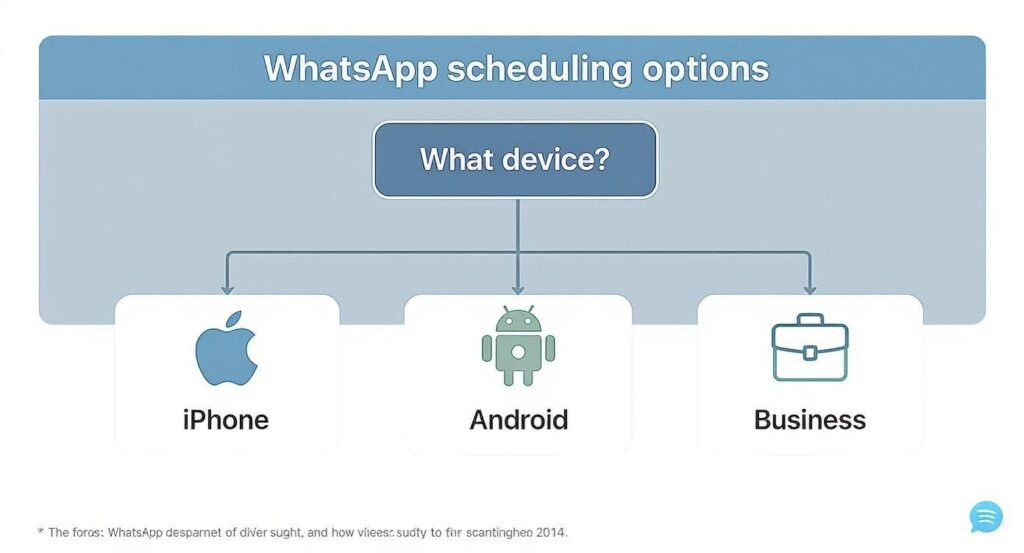
Devices for WhatsApp scheduling
As you can see, your path depends on your device and goals. While this guide focuses on WhatsApp, understanding the core principles of how to send scheduled text messages provides a solid foundation, as many of the strategies are similar.
WhatsApp Scheduling Methods at a Glance
Navigating the options can be tricky. This table breaks down the methods to help you choose the best path for your needs.
| Method | Best For | Requires Third-Party App? | Cost |
|---|---|---|---|
| iPhone (Shortcuts) | Personal users who want a free, secure solution and don’t mind a final confirmation tap. | No | Free |
| Android Apps | Personal users looking for a fully automated “set it and forget it” experience. | Yes | Varies (Free to Premium) |
| WhatsApp Business | Small businesses needing simple, automated away messages, greetings, or quick replies. | No | Free |
| WhatsApp Business API | Businesses needing scalable, fully automated scheduling and complex integrations. | Yes (via platforms like Clepher) | Varies (Subscription-based) |
This table makes it clear: there’s no single “right” way, but there’s definitely a method that fits your specific needs, whether you’re a casual user or a growing business.
How to Schedule WhatsApp Messages on Android
If you’re on Android, you’re in luck. The most straightforward path to scheduling WhatsApp
messages is using a dedicated app from the Google Play Store. These tools offer a true “set it and forget it” experience, making them perfect for full automation. This is a common way to schedule WhatsApp messages across different platforms and accounts.
Two popular choices are SKEDit and Wasavi. They work by using Android’s Accessibility Services to mimic the exact steps you’d take yourself. The app opens WhatsApp or Business WhatsApp, finds the contact, types your message you wish to schedule, and hits send at the scheduled time—all without you lifting a finger. It’s effective, but it requires granting the app significant permissions.
A Quick Word on Accessibility Permissions
When you install a scheduling app, it will request Accessibility permissions. This allows the app to read your screen and perform actions on your behalf. This access is what makes the automation possible, but you should be cautious before granting it.
Before you tap “Allow,” do a quick check:
- Read Reviews and Ratings: Look for a solid history of positive reviews. Do users confirm it works as promised? Are there any privacy red flags?
- Check the Privacy Policy: A legitimate app will have a clear policy explaining what data it collects and why.
- Review Permissions: Does the app’s request make sense for its function? A message scheduler shouldn’t need access to your microphone, for example.
Once you’re comfortable, setup is a breeze. Just write your message you wish to schedule, pick a contact or group, and set the date and time. This functionality is crucial for those who need to schedule WhatsApp messages across personal and professional communication.
Actionable Tip: Look for an ‘Ask me before sending’ option. Enabling this sends you a notification right before the message goes out. It’s a fantastic safety net, giving you one last chance to approve it, catch a typo, or cancel if plans change.
This method transforms how you schedule Whatsapp messages using WhatsApp. A real estate agent can schedule all their follow-ups for the next morning in one evening. A project manager can queue up daily team reminders for the entire week. You get total convenience, but it comes with the responsibility of vetting the apps you use.
Scheduling WhatsApp Messages on an iPhone with Apple Shortcuts
iPhone users have a powerful, built-in tool perfect for this job: the Shortcuts app. This is the best method for iPhone because you don’t need to download third-party apps, keeping your data secure within Apple’s ecosystem. It’s a fantastic way to set up simple, effective automation in just a few minutes, even without directly enabling a feature to schedule WhatsApp messages using WhatsApp itself.

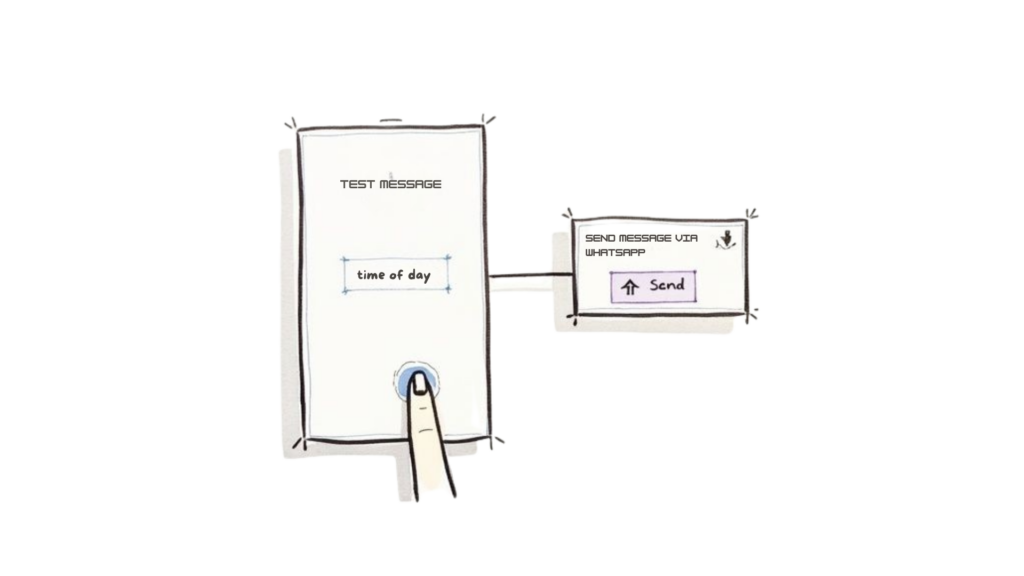
Scheduling with Apple shortcuts
The magic happens by creating a “Personal Automation.” You set a trigger—like a specific time of day—and then tell your phone what to do. It’s a great first step into the world of personal automation, which can handle much more than just sending messages.
Creating Your WhatsApp Automation
To get started, open the Shortcuts app and go to the Automation tab. Here, you’ll create a new personal automation using “Time of Day” as the trigger. This lets you pick the exact day and time you want your message to be ready.
Next, add the main action: “Send Message via WhatsApp.” This is where you’ll type out your message and choose the recipient, whether it’s one person or a group. The process is visual and intuitive, so you don’t need to be a tech expert. If you find this interesting, learning what is no-code automation can unlock a ton of other cool possibilities.
Here’s a step-by-step example:
- Open Shortcuts and tap the Automation tab.
- Tap the + button and select Create Personal Automation.
- Choose Time of Day as the trigger and set your desired schedule (e.g., 8:00 AM every Monday).
- Tap Add Action and search for “WhatsApp.”
- Select Send Message, then type your message (e.g., “Good morning! Just a reminder about our 9 AM team meeting.”) and pick your recipient.
There is one small catch: this method isn’t 100% hands-off. When the scheduled time arrives, a notification will pop up, and you still have to tap “Send.” But this isn’t a downside. Think of it as a final safety check—a chance to give the message one last look before it goes out. It’s the perfect balance between automation and control.
Automating Communication with WhatsApp Business
For any business, scheduling messages on WhatsApp goes beyond convenience. It’s about efficiency, scale, and professionalism. The WhatsApp Business platform offers two ways to automate communication, each built for different needs.
Automating WhatsApp business
Most businesses start with the free WhatsApp Business app. It’s the perfect entry point, offering simple but powerful tools that can transform how you manage your time and customer perception.
- Away Messages: Your 24/7 digital receptionist. They automatically reply to customers after hours, letting them know you’ve received their message and when you’ll respond.
- Greeting Messages: Your digital handshake. It sends a pre-written welcome to new customers or anyone who hasn’t messaged you in 14 days, making them feel valued instantly.
- Quick Replies: A huge time-saver. Create shortcuts for answers to common questions (e.g.,
/hoursor/pricing). No more typing the same response repeatedly.
These features are perfect for a solo entrepreneur or a small local shop. For instance, a local bakery can set an away message confirming their opening hours, or a consultant can greet new leads with a link to their booking calendar. It’s simple, effective, and free.
Unlocking True Automation with the WhatsApp Business API
While the free app is a great start, true hands-off scheduling at scale requires something more powerful: the WhatsApp Business API.
The API isn’t just an app; it’s an engine that connects WhatsApp to other software, enabling sophisticated and fully automated messaging workflows. This is where businesses truly transform their customer interactions.
Imagine a dental clinic using the API to automatically send appointment reminders 24 hours in advance, drastically reducing no-shows. Or an e-commerce brand scheduling a flash sale announcement to thousands of customers at once, driving a predictable spike in traffic.
This level of automation is a massive industry. The global market for WhatsApp message scheduling tools hit an estimated $1.2 billion in 2024. Scheduled messages now make up nearly 35% of all business-to-customer communications in key sectors.
To make this power accessible, businesses often use platforms like Clepher. By connecting to the API, you can build complex triggers and sequences without writing a single line of code. For example, you could create a flow that automatically sends a shipping confirmation the moment an order is fulfilled.
WhatsApp Business App vs. WhatsApp Business API
| Feature | WhatsApp Business App | WhatsApp Business API |
|---|---|---|
| Ideal User | Small businesses, solo entrepreneurs | Medium to large businesses, enterprises |
| Cost | Free | Varies (based on message volume) |
| Message Scheduling | Limited to Away/Greeting messages | Full, advanced scheduling and triggers |
| Broadcasts | Limited to 256 contacts per list | Thousands of users at once |
| Automation | Basic (Quick Replies, Greetings) | Sophisticated workflows, chatbot integration |
| Setup | Simple app download | Requires an API provider (like Clepher) |
| CRM Integration | No native integration | Full integration with CRM/e-commerce systems |
Ultimately, the choice depends on your scale. The Business App is perfect for managing a handful of daily customer chats. The API is for communicating with hundreds or thousands in a systematic, automated way.
If you’re ready to explore the API, our guide on how to integrate Twilio for WhatsApp automation is a great starting point. And to see how scheduled messages can drive a campaign, learning how to create a successful WhatsApp challenge offers killer strategies.
Common Mistakes to Avoid When Scheduling Messages
Automating communication is a massive time-saver, but a few common mistakes can make your scheduled messages feel intrusive or robotic. Getting this right is about shifting from how you schedule to how to do it well.
The most common slip-up is ignoring time zones. Sending a promotional message to a customer in New York at 9 AM your time means it lands at 6 AM for them—a surefire way to annoy someone before their first coffee. Always confirm the recipient’s local time before scheduling.
Personalize and Find the Right Cadence
Another major pitfall is sending overly generic, one-size-fits-all messages. Automation shouldn’t feel automated. Even a simple personalization token like {{first_name}} can dramatically improve how your message is received.
Equally important is finding the right messaging frequency. Bombarding contacts with daily updates is the fastest way to get blocked.
To avoid these issues:
- Segment your audience: Send relevant messages to specific groups. A message about a sale on women’s shoes shouldn’t go to your entire customer list.
- Track your results: Pay attention to response rates. If they drop, you might be messaging too often.
- Provide an easy opt-out: Always include a simple way for people to unsubscribe, such as “Reply STOP to stop receiving messages.”
Scheduling WhatsApp messages is now crucial for businesses. A 2023 survey revealed that over 70% of SMEs in markets like India and Brazil use scheduling tools. Indian businesses even reported a 40% increase in customer response rates just by sending messages during local business hours. You can learn more about these global messaging trends on Google.
By avoiding these simple mistakes, you ensure your scheduled messages build relationships instead of burning them.
Got Questions? We’ve Got Answers
You’ve seen what’s possible, from simple Android apps to full-blown API automation. But a few common questions always come up. Let’s clear those up.
Conclusion
In conclusion, if you want to schedule messages on WhatsApp, many business users explore options like WhatsApp Web, the WhatsApp Business app, or third-party scheduling apps such as Skedit app and other message scheduler app solutions to schedule a message or schedule whatsapp messages using third-party android apps or ios shortcuts; however, the official WhatsApp Business API and business solution remain the most robust for automate WhatsApp and schedule and automate messages based on a specified time or desired date and time, particularly for business messages outside of business hours.
For individual users who want to schedule WhatsApp messages on iOS or Android, options include message templates, message to be sent, enter the message, and set the message in a message scheduler app, or use workarounds to receive a notification to send the message manually.
Whether you trust the app, prefer WhatsApp or WhatsApp Business, need a third-party app, or want to use WhatsApp web, understanding the version of WhatsApp, WhatsApp API, and limitations like WhatsApp Business app offers limited scheduling helps a business owner or WhatsApp contact decide if they will send the message by tapping to launch the app and select one message or use more advanced WhatsApp marketing and WhatsApp communication tools for more complex workflows.
Ready to move beyond simple scheduling and build powerful, automated conversations that drive sales and support customers 24/7? Clepher gives you the no-code tools to create AI-powered chatbots for WhatsApp, Messenger, and Instagram. Start your free trial today and see what you can build.

Related Posts
Social Media Marketing Automation: Your Ultimate Guide
March 27, 2026Unlock Growth with Conversational AI for Customer Support
March 26, 2026Your Ultimate Guide to Instagram Chat Bots
March 25, 2026
Founder Clepher