
Adding a chatbot for WordPress is one of the smartest moves you can make to build a 24/7 sales and support engine right on your website. It transforms your site from a static brochure into an interactive platform that engages visitors, qualifies leads, and drives sales—all on autopilot.
Why Your WordPress Site Needs a Chatbot Now
Let’s skip the hype and focus on results. A chatbot isn’t just a tech toy; it’s a practical tool that automates repetitive tasks, freeing you up to focus on what matters. For any business, this means capturing opportunities you’d otherwise miss, 24/7.
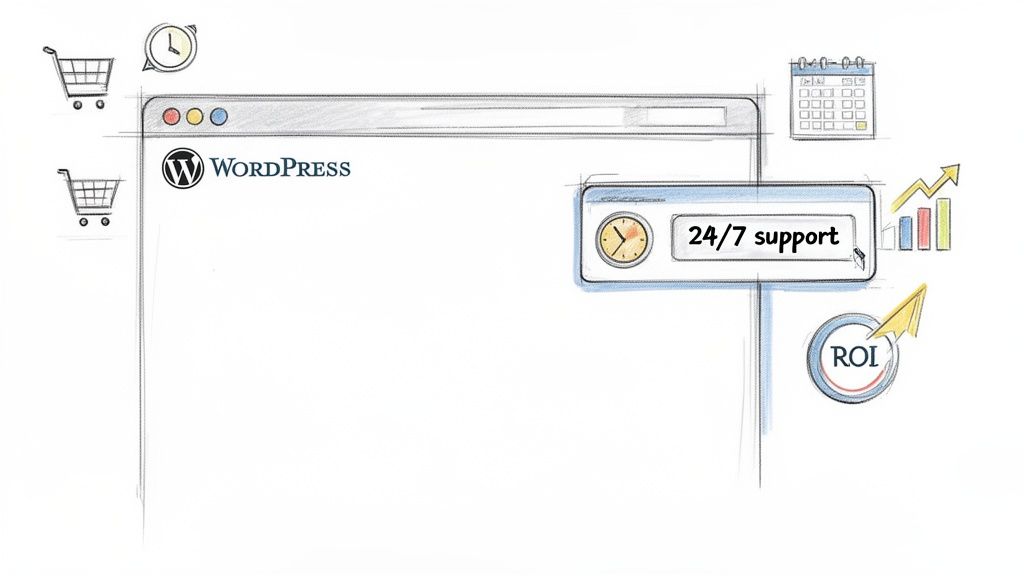
Chatbot for WordPress
Before we dive in, remember why WordPress is so popular. It’s often named the best CMS for small business, including WordPress because its flexibility makes it the perfect foundation for powerful tools like chatbots.
Drive Sales and Support Around the Clock
Imagine an e-commerce store where a chatbot helps a visitor find the perfect product, answers a quick question about shipping, and even nudges them if they abandon their cart. This is what smart businesses are doing right now to slash cart abandonment by giving customers instant answers when they need them most.
The impact is just as big for service-based businesses. A well-designed chatbot can:
- Qualify leads automatically: It asks screening questions to separate serious prospects from casual browsers. For example, it can ask about budget or project timelines before a lead ever speaks to your sales team.
- Book appointments: It syncs with your calendar to schedule meetings, completely hands-free. This eliminates the back-and-forth emails typically required to find a meeting time.
- Answer common questions: It handles repetitive inquiries about hours, services, or pricing, freeing up your team to focus on high-value work.
This automation means your business is always working for you, capturing leads and helping customers even while you sleep. We cover these strategies in our guide on using a chatbot for lead generation.
A Critical Opportunity for Growth
The numbers speak for themselves. In 2025, WordPress powers a massive 43.4% of all websites, making it the dominant content management system.
Now, combine that with a projected chatbot market value of $46.64 billion by 2029, and you can see the opportunity. With tools like Clepher, you can engage users on platforms like Messenger and WhatsApp, where businesses see 98% open rates—a huge jump from email’s typical 20%. You can find more on these WordPress market trends on clevertize.com.
A chatbot is no longer a ‘nice-to-have’ feature. It’s an essential tool for any WordPress site looking to improve customer engagement, automate tasks, and boost its bottom line.
Choosing the Right Chatbot Integration Method
Before you start, you have two main ways to get a chatbot on your WordPress site: use a dedicated plugin or embed a lightweight script from a platform like Clepher.
Each path has trade-offs, and the best choice depends on what you value most: simplicity, performance, or long-term flexibility.
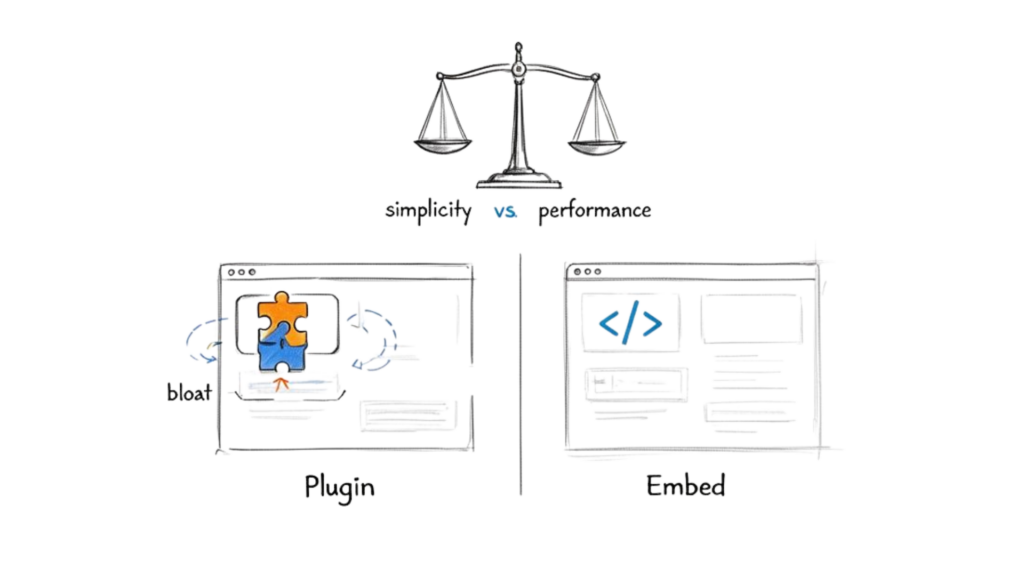
Chatbot for WordPress Plugin vs Embed
Let’s break down what each approach means in practice so you can make the right call.
The WordPress Plugin Approach
WordPress plugins are popular because they offer a simple, one-click installation and often feel familiar within your WordPress dashboard. This can be comforting if you’re not a fan of code.
But this convenience can have downsides. Many plugins add extra weight to your site—more code, more database queries—which can lead to site bloat and slow down your pages. You also risk plugin conflicts; a new chatbot plugin might not work well with your theme or other plugins, causing issues.
The biggest limitation of a plugin-only chatbot is that its logic is tied to one WordPress site. If you ever manage multiple websites or want to use the same bot on a separate landing page, it becomes a major headache.
The Embedded Script Method
The alternative is using a platform like Clepher to generate a single line of JavaScript you embed on your site. For businesses and agencies focused on performance, this is almost always the better choice.
Here’s why this is more practical:
- Zero Impact on Speed: The script loads asynchronously, meaning it doesn’t block your site’s content from loading first. Your website stays fast and responsive.
- Central Command Center: You build, manage, and update all your chatbots from one dashboard. This is a game-changer if you manage multiple client sites or different web properties.
- Built for Growth: Your conversations aren’t locked to a single domain. You can deploy the same bot across different websites or landing pages without rebuilding anything.
Yes, it involves copying and pasting a small code snippet, but the process is straightforward. In the long run, it gives you far more control by separating your chatbot’s “brain” from your website, letting both perform at their best.
Chatbot Plugin vs. Embedded Script: A Quick Comparison
To make the choice clearer, here’s a side-by-side look at how a native plugin stacks up against an embedded script solution.
| Feature | WordPress Plugin | Embedded Script (Clepher) |
|---|---|---|
| Performance | Can slow down your site due to extra code and database load. | Minimal impact; loads asynchronously to keep your site fast. |
| Management | Managed within each individual WordPress dashboard. | Centrally managed from one external dashboard for all sites. |
| Scalability | Limited to a single WordPress installation. | Easily deploy the same chatbot across multiple sites/platforms. |
| Conflicts | Higher risk of conflicts with themes and other plugins. | Independent of WordPress themes and plugins; no conflicts. |
| Installation | Simple one-click install from the WordPress repository. | Requires copying and pasting a single line of code. |
| Data & Intelligence | Chatbot data and logic are stored within your WordPress database. | Data and logic are managed on a dedicated platform, separate from your site. |
While plugins offer a quick entry point, an embedded script provides a professional-grade setup that’s faster, more scalable, and easier to manage as your business grows.
How to Connect a Chatbot to WordPress in 5 Minutes
Let’s get your chatbot connected. This is where the magic happens, and it’s simpler than you think. You don’t need to be a developer to get a powerful bot live on your site.
The entire process boils down to copying one piece of text and pasting it into the right spot in your WordPress dashboard.
Most modern chatbot platforms, including Clepher, use a unique JavaScript snippet. Think of this code as the bridge between your website and the chatbot’s “brain.” It’s a lightweight method that avoids the conflicts and slowdowns often caused by bulky plugins.
Finding and Placing Your Chatbot Script
First, you need to grab your unique script.
Inside your Clepher dashboard, you’ll find this under the settings for your chat widget. We’ve made it simple—just look for a “copy to clipboard” button. That’s all you need to click.
Once copied, you’ll paste this snippet into the header section of your WordPress site. This ensures the chatbot can load on every page. Here’s a practical, step-by-step way to do it without touching your theme’s core files.
One of the easiest methods is to use a free, lightweight plugin designed for adding code snippets.
- Install a Header/Footer Plugin: In your WordPress dashboard, go to “Plugins” > “Add New” and search for “WPCode” or “Header Footer Code Manager.” Install and activate it.
- Paste Your Snippet: In the plugin’s settings, find the “Header” section and paste your chatbot script into the box.
- Save and You’re Done: Hit save, and your chatbot will be live on your site instantly.
Alternatively, many modern WordPress themes have a dedicated area for custom scripts. Check your theme’s customization options for a section labeled “Custom Code” or “Header/Footer Scripts.” Since many chatbots integrate as plugins, finding the right one is key. To delve more about WordPress plugins, you can explore a wide range of options that might fit different needs.
The entire process, from finding your script to pasting it on your site, usually takes less than five minutes. This shows anyone can install a professional chatbot for WordPress and start engaging visitors right away.
The growth here is clear. We expect to see a 34% increase in the use of AI chatbots on WordPress sites by the end of 2025. This is part of a larger trend where 42% of businesses already use chatbots for customer interactions.
For agencies, this means you can quickly deploy powerful chat widgets for websites on client sites to generate leads without a heavy technical lift. For more details, you can discover more insights about WordPress AI statistics.
Building Your First High-Converting Conversation
You’ve connected your chatbot to WordPress. Now for the fun part: designing conversations that guide visitors and convert them into customers. A chatbot is just a tool; its power comes from the conversational “flows” you build.
Think of flows as interactive scripts. They anticipate user needs and steer them toward a goal, like making a sale, booking a demo, or becoming a qualified lead.
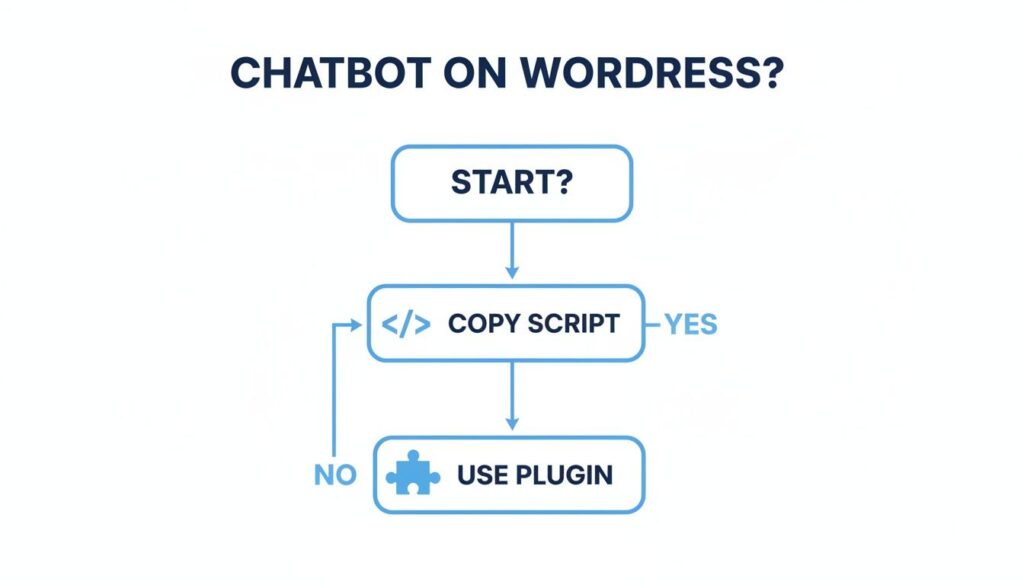
Chatbot for WordPress Integration Methods
As we’ve covered, both roads lead to the same destination, but the script method gives you an edge in performance. Now, let’s jump into a no-code builder and design two practical, real-world conversation flows.
The E-commerce Product Finder Flow
Use Case: A potential customer lands on your WooCommerce store. They’re interested but overwhelmed by options. This is a critical moment. A smart chatbot can step in to prevent them from leaving.
Your goal is to create a guided shopping experience. Forget the generic “How can I help?” and start with a proactive question that gets straight to the point.
- Initial Prompt: “Hi! Looking for the perfect [product type]? I can help you find it in seconds. Are you shopping for yourself or for a gift?”
This one question immediately segments your visitor. From there, use quick-reply buttons to narrow down their preferences. For a clothing store, it might look like this:
- Bot: “Great! What style are you looking for?” [Casual] [Formal] [Athletic]
- User Clicks: [Casual]
- Bot: “Got it. And what’s your preferred fit?” [Slim Fit] [Regular] [Relaxed]
With each click, the chatbot uses conditional logic to guide the user. The final step is to present a curated gallery of products that match their needs, complete with images and direct links to product pages. Our guide on how to design a chatbot dives deeper into structuring these interactive journeys.
The Service Business Lead Qualifier Flow
Use Case: If you run a service-based business like an agency or consultancy, your chatbot’s main job is to filter prospects and book meetings. This single flow can save you hours of back-and-forth emails.
The conversation should start by identifying the visitor’s intent and qualifying them against your ideal client profile.
- Initial Prompt: “Welcome! Thanks for your interest in our [service name] services. To see if we’re a good fit, may I ask a few quick questions?”
Then, ask simple questions to get essential info.
- Question 1 (Budget): “To give you the most accurate information, what’s your approximate monthly budget for this project?” (Offer ranges like <$1,000, $1,000-$3,000, >$3,000)
- Question 2 (Timeline): “How soon are you looking to get started?” (Give options: “Immediately,” “Next month,” “3-6 months”)
- Question 3 (Role): “What is your role in the decision-making process?”
Based on these answers, the chatbot can instantly qualify the lead. If they’re a match, the bot can smoothly transition to booking a call by integrating with a tool like Calendly. No friction, no waiting.
Pro Tip: Use custom fields to save every response. When a lead provides their budget and timeline, store that data. You can then use it to personalize follow-up emails and proposals, making your sales process far more effective.
The data shows this works. Chatbots can successfully handle 79% of user questions, and 80% of consumers are more likely to buy from brands that offer personalized experiences like these.
Advanced Strategies to Maximize Chatbot ROI
Connecting a chatbot to your WordPress site is a great first step. But to turn it into a true revenue-generating asset, you need to think beyond the basic setup and focus on strategic optimization.
This means treating your chatbot not as a passive tool, but as an active member of your marketing and sales team.
A well-tuned chatbot for WordPress doesn’t just wait for questions. It proactively engages users at the right moments with messages that matter, helping to guide them through their journey and boost your conversion rates.
Deploy Behavior-Based Triggers
Forget the one-size-fits-all approach. Triggering your chatbot based on specific user actions transforms a generic greeting into a timely, helpful intervention.
Here are some practical, behavior-based triggers you can set up:
- Exit-Intent Pop-up: When a user’s cursor moves toward the back button, your chatbot can offer a targeted message. For an e-commerce store, a last-minute discount like “Leaving so soon? Here’s 10% off your first order!” can be very effective.
- Time on Page: If someone has been on your pricing page for over 60 seconds, they might have questions. The bot can proactively offer help: “Have questions about our plans? I can help you find the perfect fit.”
- Scroll Depth: When a visitor scrolls 75% of the way down a blog post, they are clearly engaged. This is the perfect time for the chatbot to offer a related resource, like a downloadable guide or a webinar invitation.
These triggers are all about meeting visitors where they are and offering value when they need it most.
By making your chatbot proactive, you shift its role from a simple Q&A tool to a sophisticated conversion assistant. The goal is to initiate conversations that solve problems before the user even has to ask.
Customize Your Chat Widget for Key Pages
Your homepage is not your pricing page, so your chat widget’s opening line shouldn’t be the same on both. Customizing the widget’s greeting for different pages makes your communication far more effective.
A visitor on a WooCommerce product page has a different mindset than someone on your “About Us” page. Your chat prompts should reflect that.
- On Product Pages: Try an opener like, “Need help with sizing or features for this product? Ask me anything!”
- On the Pricing Page: Be more direct: “Confused about which plan is right for you? I can give you a personalized recommendation in under a minute.”
- On a Blog Post: Use a softer approach: “Enjoying this article? Let me know if you’d like more content on this topic.”
This level of customization makes every interaction feel relevant, which dramatically increases the chances a user will engage.
Use Analytics to Continuously Improve Performance
A major advantage of a professional chatbot platform is the data it provides. Get into the habit of checking your analytics to see what’s working and what isn’t.
Pay close attention to drop-off points—the moments in a conversation where users go silent. This is valuable feedback. If many people stop responding after you ask for their email, you’re likely asking too early.
Once you spot a weak link, A/B test a solution. Duplicate the flow and tweak one element, like rephrasing a question or changing the button text. Platforms like Clepher let you split traffic between two versions to see which performs better. This data-driven process is how you turn a good chatbot into a great one.
WordPress Chatbot and Your Website: Key Points
Adding a WordPress chatbot to your WordPress website transforms how you engage website visitors. An AI chatbot or AI-powered chatbot can provide automated live chat support, live customer support, and a native WordPress chatbot experience that feels like live support and help desk combined. Whether you choose a free chatbot or upgrade to WPBot Pro or Chatbot Pro, integrating a chatbot plugin for WordPress or a plugin for WordPress is straightforward—install the plugin and configure the chatbot window and click to chat button or click to chat feature.
Modern chatbot plugins like chatbot for WordPress WPBot offer conversational form capabilities and chat history so you can review past interactions. With AI content and AI insight, an AI chat can generate contextual chatbot responses and even train AI with your website or train AI with your website data to produce personalized replies. You can bring OpenAI or OpenAI models into your stack to boost language understanding, or use AI-powered options that leverage your website data using safe indexing to create more relevant interactions.
- Engage website visitors instantly with a click-to-chat button and chatbot window that supports click-to-chat and live chat, and help desk workflows.
- Build forms for a native WordPress experience using drag and drop builders to create conversational form flows and collect leads.
- Enable multilingual chatbot features to serve global audiences and offer a multilingual chatbot interface.
- Review chat history and train AI with your website content to improve chatbot responses and overall chatbot experience.
- Use free version options like create a free chatbot to test chatbot services and later upgrade to chatbot pro or WPBot Pro for advanced features.
Choosing the best WordPress chatbot or WordPress chatbot plugin depends on your needs: some prefer a simple chatbot that adds a chatbot to your WordPress website for basic live chat support and interaction options, while others need an AI-powered, ai chatbot for WordPress WPbot solutions that can be trained on website data. Many providers offer drag-and-drop builders for conversation design, native WordPress chatbot integration, and the ability to use OpenAI-based AI chat for richer conversational form experiences.
Whether you want chatbot services for lead capture, automated live chat support, or a full live chat support and an interact hub, the right chatbot feature will improve customer satisfaction and reduce response times. Install the plugin, customize the chatbot window, enable chat history, and start engaging visitors—a chatbot today can turn casual browsers into customers with a seamless chatbot experience.
Got Questions About WordPress Chatbots? We’ve Got Answers
It’s smart to ask questions before adding any new tool to your site. Let’s tackle the most common ones we hear about putting a chatbot on WordPress.
Conclusion
Implementing a chatbot for WordPress can transform site engagement, streamline customer support, and boost conversions through automated lead generation. Whether you choose a lightweight WordPress plugin for simple FAQs, an AI-powered conversational assistant using GPT-style models, or a hybrid setup that hands off to live chat agents when needed, the right chatbot integrates with your themes, supports multilingual content, and respects privacy and performance constraints. Prioritize features like easy installation, customizable conversation flows, analytics, and CRM or email integration to maximize ROI. With the right configuration—including proactive messaging, contextual responses, and fallback to human support—a chatbot for WordPress becomes a scalable tool for sales, support, and user retention across devices.
Ready to build a 24/7 sales and support engine on your WordPress site? Get started with Clepher today and turn your website visitors into loyal customers. Design your first high-converting conversation.
Related Posts
Website Facebook Messenger: Setup & AI for Sales in 2026
April 1, 2026How an API Chat Bot Transforms Your Business (And How to Build One)
March 31, 2026
Founder Clepher