
947 million people could be reached through Messenger ads in January 2025, and over 40 million businesses were already using it to send more than 8 billion customer messages monthly, according to ElectroIQ’s Messenger statistics roundup. That changes how you should think about facebook messenger on web.
This is not just a desktop convenience. It is a serious customer communication layer.
For many teams, the opportunity sits in two places at once. One is the browser-based Messenger experience people use to chat without opening the full Facebook app. The other is the website-side Messenger chat experience that turns your site into a lead capture, support, and sales channel. Treat those as separate tools and you miss the full advantage. Use them together and you get a cleaner handoff from visitor to subscriber to customer.
Why Facebook Messenger on the Web Is Significant
Messenger on web sits closer to a buying or support decision than many channels teams spend more time managing.
People open Messenger to get an answer, confirm a detail, solve a problem, or continue a conversation they already started somewhere else. That changes how businesses should treat it. Response speed matters more. Context matters more. The handoff from marketing to support also gets tighter, because the same thread can begin as a pre-sale question and end as post-purchase service.
Two meanings of facebook messenger on web
In practice, facebook messenger on web refers to two different setups, and they serve different jobs.
| Use case | What it is | Best for |
|---|---|---|
| Messenger in the browser | The desktop web experience for direct messaging | Daily communication, follow-ups, faster inbox handling |
| Messenger on your website | The embedded business chat experience tied to your Facebook Page | Lead capture, support, qualification, automation |
That distinction affects implementation.
A consultant may spend most of the day in the browser inbox answering leads from a laptop. A direct-to-consumer brand may get more value from the website chat layer that catches questions on product, shipping, or returns while the visitor is still on the page. Agencies and in-house growth teams usually need both. One handles live conversations. The other creates them.
That is the part many guides skip.
Personal desktop use and website Messenger deployment are usually taught as separate topics, but the business value comes from connecting them. A visitor clicks the website chat plugin, starts a conversation, and the team continues that thread inside Messenger on desktop. Once that flow is in place, automation platforms such as Clepher can qualify leads, trigger follow-ups, and route routine questions before a human steps in.
Why business teams keep using it
The commercial case is simple. Customers are already comfortable using Messenger for product questions, support requests, appointment coordination, and offer responses. Earlier data also showed that Messenger chatbot messages can produce unusually high open rates compared with email, which helps explain why the channel keeps showing up in retention and remarketing workflows.
That does not mean every business should push all communication into Messenger.
It does mean Messenger deserves a defined role when your sales process depends on quick clarification, your support team handles repeat questions, or your site loses leads because visitors leave before filling out a form.
Practical takeaway: If a buyer has one or two questions before purchasing, a Messenger conversation on your website often converts better than sending that person to a generic contact page.
Small business owners still building their Facebook foundation should tighten the basics as well. This guide on Facebook Marketing for Small Business is a useful companion because Messenger performs better when your Page, offers, and traffic strategy are aligned.
Accessing and Using Messenger on Your Desktop
The simplest use of facebook messenger on web is still valuable. Open the browser version, sign in, and you have a focused messaging workspace without the noise of the full Facebook interface.
That focus is more important than it sounds. Average users open Messenger nearly 184 times per month, about 6 times a day, and spend around 19 minutes daily in conversations, based on SQ Magazine’s Messenger statistics roundup. For a business owner, that makes desktop Messenger less of a side tool and more of an operating surface.
What the desktop experience is good at
The web interface works well for:
- Quick reply cycles when you need to answer prospects or customers from a laptop
- File sharing for PDFs, creative previews, invoices, onboarding docs, or screenshots
- Voice and video calls when a text thread needs a faster resolution path
- Searchable history so teams can pull up prior conversations without digging through email
For solo operators, that is enough to make it useful immediately.
For teams, the value is in workflow. You can keep Messenger open next to your CRM, checkout dashboard, or calendar tool and handle conversations in context.
A practical desktop setup
Use this setup if you want Messenger to feel less chaotic:
-
Keep one browser profile for work.
That avoids mixing personal threads with business activity. -
Pin Messenger in a dedicated tab.
Teams respond faster when the inbox is always visible. -
Use saved replies outside Messenger if needed.
A text expander or internal response doc helps for repeated questions. -
Handle files from desktop, not mobile.
Product spec sheets, onboarding guides, and screenshots are easier to send cleanly from a browser session.
What business users often miss
Desktop Messenger is not just for chatting with friends or known contacts. Many small teams use it as a lightweight command center for day-to-day communication around sales and support.
Here is where it works well in practice:
- Local service businesses: quoting leads, confirming appointments, sharing directions
- Creators and coaches: answering pre-sale questions, sending next steps, moving a warm lead toward a booking
- SaaS teams: following up after demos, resolving onboarding blockers, passing users to support or success
Limitations to expect
Messenger on desktop is strong for active communication. It is weaker when you need structure.
It does not natively give you the kind of audience segmentation, branching logic, or workflow control that a business running campaigns usually needs. If your inbox volume is low, manual handling is fine. If traffic starts rising, manual handling turns into missed handoffs, inconsistent replies, and slow follow-up.
Tip: If team members keep copying the same answers into Messenger, you have already reached the point where automation should be part of the stack.
How to Install the Facebook Customer Chat Plugin
The website-side implementation is where facebook messenger on web becomes a business asset instead of just a communication tool.
You are adding a Messenger entry point directly to your site so visitors can start a conversation without hunting for a contact page or filling out a static form. For many businesses, that reduces friction at the exact moment a buyer has a question.
A visual walkthrough helps if you want to see the interface before touching settings:
What you need before setup
Have these ready first:
- A Facebook Page connected to the business that will receive messages
- Admin access to that Page and the related business tools
- Your website URL and any subdomains where the widget should appear
- A default greeting written in plain language
If you want a reference implementation for the site-side setup, this overview of a website Facebook Messenger chat setup is useful because it shows the core capture approach in one place.
Basic installation flow
The native setup usually follows this pattern:
- Open your business messaging tools and choose the Messenger chat option for website embedding.
- Select the Page that should power the chat.
- Add your allowed domain so the widget can appear on the correct site.
- Customize appearance such as greeting text, theme color, and initial prompt.
- Generate the embed code and place it on your site.
- Test on desktop and mobile browsers before pushing traffic to it.
Most installation problems come from skipping step three. If the domain or environment is not properly allowed, the widget often fails.
Settings worth adjusting before launch
The default setup works, but defaults rarely convert well.
Greeting copy
Use a message that reflects page intent. The homepage should greet broadly. A pricing page should invite buying questions. A support page should steer people toward issue resolution.
Good greeting copy is short and direct. Avoid corporate language.
Visual fit
Use a color that matches your brand, but do not make the widget hard to notice. The job is visibility, not subtlety.
Response ownership
Decide who handles incoming conversations. If nobody owns the inbox, the widget becomes a trust problem.
| Setting area | What to decide |
|---|---|
| Greeting | General help, sales help, support help |
| Display rules | Site-wide or only on key pages |
| Inbox owner | Founder, support rep, sales team, agency |
| Fallback | Email form or contact page if nobody is online |
Key takeaway: A chat plugin is only as good as the response process behind it. Install the widget and define inbox ownership on the same day.
What works best by page type
A few reliable patterns:
- Homepage: broad welcome plus a simple prompt
- Product pages: “Questions before ordering?”
- Checkout-adjacent pages: shipping, returns, sizing, or product fit
- Service pages: booking, pricing, turnaround, availability
- Course or coaching pages: eligibility, outcomes, call scheduling
Here, many brands underperform. They place one generic widget across the whole site and expect it to behave like a customized assistant. It will not. It needs page context.
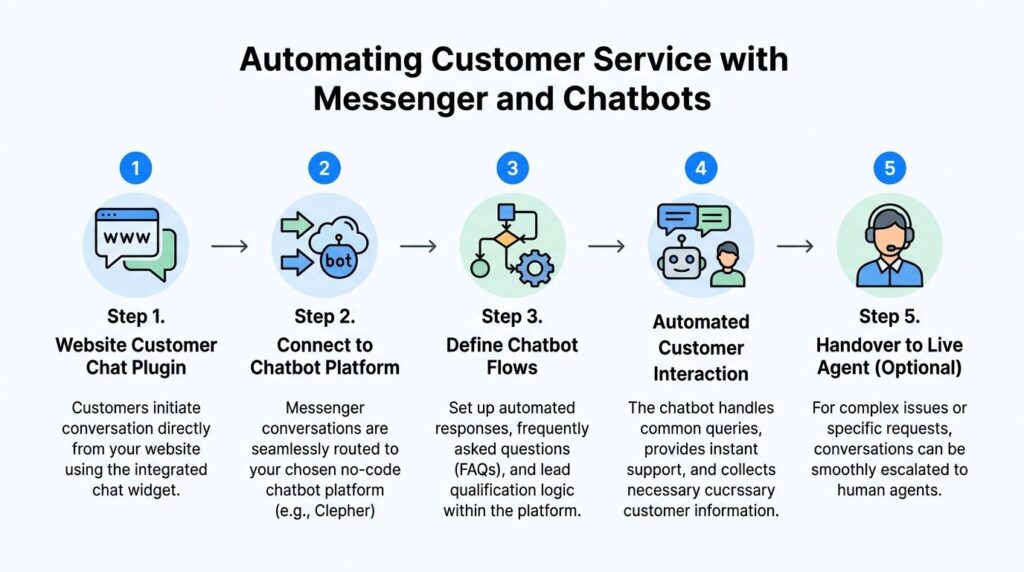
Integrating Web Messenger with a Chatbot Platform
The native website widget is a starting point. On its own, it is reactive.
It waits for a visitor to message you, then depends on a human to respond well and quickly. That works for low volume. It breaks when campaigns scale, when leads arrive outside office hours, or when the same questions appear all day.
Facebook Messenger Webchat Automation
Where the native setup falls short
The biggest issue is workflow depth.
Businesses dealing with Messenger on the web often run into API and browser limitations. One cited gap is the lack of native in-browser support for AI keyword triggers, which creates friction for automation-heavy teams and can contribute to a 25 percent conversation drop-off rate in hybrid setups, as noted in the provided Meta-linked reference material at about.fb.com.
In practical terms, that means:
- A visitor asks a question and gets no structured path
- A support request lands in the same stream as a purchase inquiry
- A lead from a product page gets treated the same as a lead from a help page
- Follow-up depends on whether someone remembers to do it
What changes when you connect automation
A chatbot platform gives the web Messenger experience structure.
Instead of one inbox handling everything, you create flows that route conversations by intent. A product question can branch into sizing, shipping, or stock. A coaching lead can answer qualification questions before a human ever joins. A SaaS prospect can get onboarding steps immediately after signing up.
Here is the difference in practice:
| Native widget only | Widget plus chatbot platform |
|---|---|
| Manual replies | Guided conversation flows |
| One inbox for everything | Segmentation by intent or audience |
| Limited qualification | Lead capture fields and branching logic |
| Reactive support | Automated answers plus live handoff |
| Basic chat presence | Triggered journeys tied to campaigns |
If you need a concrete example, a Facebook chatbot platform can be used to build drag-and-drop Messenger flows, capture leads, segment audiences, and route conversations into broader marketing or support processes.
Use cases that justify the extra layer
Ecommerce
A shopper lands on a product page, hesitates on shipping or fit, and opens chat. A well-built bot can answer common questions immediately, tag the conversation by product interest, and pass the buyer to a human only when needed.
That keeps support manageable and protects sales intent.
SaaS and subscriptions
A user signs up, gets stuck, and reaches out from the site. Instead of dropping into a generic inbox, the user can move through onboarding logic, common troubleshooting, or a handoff to support with context already captured.
That reduces repetitive work for the team.
Coaches and service businesses
Not every lead should book a call. Messenger flows can ask budget, timeline, or service-fit questions before scheduling enters the conversation.
That protects the calendar from unqualified bookings.
Practical rule: Automate the first layer of clarity, not the entire relationship. Buyers still want human help for edge cases, objections, and sensitive support issues.
What works and what does not
What works:
- Short flows with one decision at a time
- Intent-based branching instead of one giant menu
- Human handoff points when the bot hits complexity
- Tags and fields that carry conversation context forward
- Follow-up logic tied to actual user actions
What does not work:
- Long scripted trees that feel like phone support from another decade
- Forcing every user to answer qualification questions before getting help
- Hiding support behind automation with no visible exit
- Building flows around internal team structure instead of customer intent
The strongest implementations do one thing very well. They remove repetitive friction while keeping the experience conversational.
Customizing Behavior and Ensuring GDPR Compliance
Messenger on web converts better when the conversation feels relevant. It keeps trust when privacy is obvious.
Those are not separate jobs. The businesses that handle both well usually outperform the ones that focus only on response speed.
Behavior that feels personalized
The easiest win is page-level messaging.
A visitor on a product page should not see the same opening line as someone reading your returns policy. A visitor arriving from an ad also should not get the same prompt as a returning customer who already knows the brand.
Useful customization ideas include:
- Different greetings by page intent
- New versus returning visitor prompts
- Support-first copy on help pages
- Lead qualification prompts on service pages
- Post-click alignment with campaign language
If your Messenger settings support deeper customization, this guide to settings in Messenger is a practical reference for the kinds of controls teams usually need to review before launch.
GDPR basics that should exist before traffic hits the widget
A compliant setup is usually simple, but it has to be deliberate.
Start with these:
- Link to your privacy policy near the chat experience or within the first automated interaction.
- Collect consent clearly before adding someone to promotional messaging.
- Separate support from marketing consent so customers are not forced into both.
- Store context about what the person agreed to and when.
- Make opt-out language easy to find inside the conversation flow.
This is also where accessibility matters. If your chat entry point, consent text, and interaction flow are hard to use, you create both usability and compliance risk. Teams reviewing the broader experience should use an accessibility framework like this ultimate WCAG compliance checklist.
The encryption confusion problem
One underappreciated issue with facebook messenger on web is that many users do not understand what is encrypted, how to verify it in a browser, or whether the web experience matches app behavior.
The confusion is not trivial. User forum complaints reportedly spiked 40 percent after the 2025 web UI refresh, with official guidance still leaving gaps around browser-based verification, according to the source material tied to this YouTube reference.
For businesses, the practical lesson is simple:
- Do not assume customers understand the privacy model
- Do not promise protections you have not verified
- Do not route sensitive data into chat unless your policy and workflow support it
Trust builder: If a conversation may involve account data, billing details, or personal information, tell users what should and should not be sent through Messenger.
A better way to frame compliance
Compliance should shape the experience, not sit in a footer nobody reads.
The strongest setups use plain-language prompts such as consent for updates, support-only routing, and a visible path to human help. That makes the conversation easier to trust and easier to continue.
Common Issues and Frequently Asked Questions
Many Messenger web problems are operational, not mysterious. The fix is usually in settings, ownership, or connection health.
Common issues and quick fixes
The widget does not appear
Check the allowed domain first. Then test in the same environment where the code is installed.
If the setup is correct but display is inconsistent, review whether site scripts or caching are interfering with the widget load.
Messages arrive, but nobody responds
This is usually an inbox process issue. The widget is working. The team is not.
Assign an owner, define hours, and create an escalation rule for support versus sales.
Automation does not trigger correctly
This often points to event mapping, connection issues between tools, or flow logic that does not match the incoming conversation path.
Audit the first message, trigger conditions, and fallback branches. Keep the first version of any automation simple.
The chat seems offline or unreliable
Real-time messaging systems often suffer from stale connections. The technical reference provided notes 5 to 10 percent churn per hour in stale connections and points to heartbeat pings every 30 seconds as a standard reliability fix in messaging systems, per Webdock’s messaging backend guide.
If your site chat feels inconsistent, the problem may be session stability rather than Messenger itself.
Troubleshooting habit: Test the widget from a fresh browser session, on a live page, after publishing changes. Many false alarms come from testing cached or preview environments.
Frequently asked questions
If your website gets traffic but too few conversations turn into qualified leads, Clepher is one way to connect site chat, Messenger, automation flows, segmentation, and live handoff without building the workflow manually.

Related Posts
Facebook Messenger on Web: A 2026 Business Guide
April 12, 2026What Is an Open Domain Chatbot?
April 11, 2026Conversational AI for Sales: Your 2026 Guide to Boosting Revenue
April 10, 2026
Founder Clepher