
If you’re only using WhatsApp to answer customer questions, you’re missing out on its true power. The platform transforms when you can proactively start conversations. But WhatsApp’s 24-hour customer service window can feel like a major roadblock.
This is exactly why WhatsApp Business message templates are essential. They aren’t just a feature; they are a core tool for any business looking to grow.
Think of them as your pre-approved key to unlock conversations after that initial 24-hour window closes. This single capability changes everything, shifting your strategy from simply reacting to customer service queries to proactively engaging them. It transforms WhatsApp from a support channel into a powerhouse for sales and marketing.
Move Beyond Reactive Support
Instead of waiting for customers to message you, templates let you initiate valuable interactions that drive real business outcomes. This is a complete game-changer.
- Recover Abandoned Carts: A customer was one click away from buying but got distracted. A timely template sends a gentle nudge with a direct link back to their cart, recovering a lost sale.
- Onboard New Users: Don’t just hope new customers figure things out. Guide them with an automated welcome series, ensuring they see your product’s value from day one.
- Announce Promotions: You’ve got a great offer ready. Instead of it getting lost in a crowded email inbox, deliver it directly to a highly engaged audience on WhatsApp.
This proactive approach is the heart of modern conversational commerce. With a platform like Clepher, you can automate these touchpoints to build relationships and drive revenue at scale, without lifting a finger for each message. For a deeper dive, check out our complete guide to WhatsApp marketing strategies.
Meet Customers Where They Already Are
This isn’t just about what businesses want; it’s about meeting customer expectations. People prefer to communicate on conversational channels, and the data proves it.
A staggering 54% of consumers say they’d rather get updates via WhatsApp than email. Even more telling, 72% of users are more likely to engage with a message when it’s personalized on WhatsApp.
A great real-world example is how the education sector is leveraging WhatsApp Business for tutoring to connect with students and parents directly, showing just how versatile this channel has become.
Let’s break down the performance difference.
WhatsApp Templates vs. Traditional Channels
It’s one thing to say WhatsApp is better, but seeing the numbers side-by-side makes it crystal clear. Here’s how WhatsApp Business messages stack up against traditional email marketing.
| Metric | WhatsApp Business | Email Marketing |
|---|---|---|
| Open Rate | 90-98% | 15-25% |
| Click-Through Rate | 45-60% | 2-5% |
| Response Time | Minutes | Hours or Days |
| Conversion Rate | 3x-5x Higher | Baseline |
| Deliverability | Near 100% | Often hits spam filters |
The metrics aren’t even in the same league. The immediacy and personal nature of WhatsApp lead to engagement rates that other channels can only dream of.
The Takeaway: Your customers are already on WhatsApp every day. Using templates allows you to join those conversations in a structured, scalable way that drives tangible results, from higher open rates to increased revenue.
Getting Your WhatsApp Business Templates Approved
Navigating Meta’s approval process for WhatsApp Business message templates can seem daunting, but it doesn’t have to be. By understanding the rules, picking the right category, and writing clear messages, you can get your templates from draft to deployment quickly.
The journey from an idea to an approved template is straightforward when you break it down.
This is the basic workflow you’ll follow. It’s simple, but nailing the first step is critical.
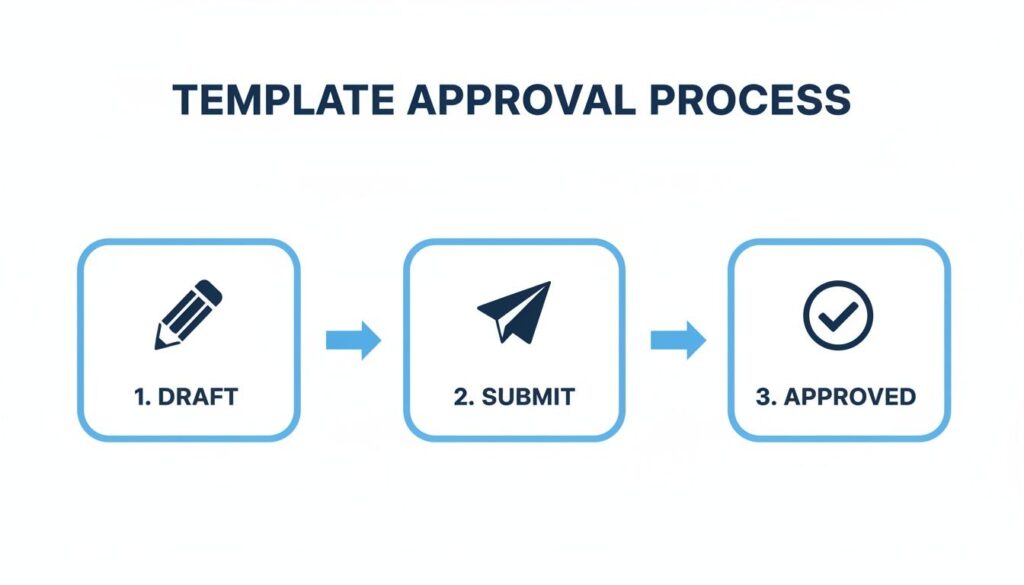
Template Approval Process
The secret? Get the “Draft” stage right. If you do, the “Submit” and “Approved” stages are usually just a formality.
The Three Template Categories
Before you write a single word, you must choose a category. This is your first and most important decision, as miscategorizing a template is the fastest way to get it rejected.
Each category has a specific purpose:
- Marketing Templates: This is for all things promotional. Use it for flash sales, new product announcements, or special offers. If your goal is to drive a sale, this is your category.
- Utility Templates: These are transactional and tied to a specific user action. Think order confirmations, shipping updates, and appointment reminders. They deliver information the customer expects.
- Authentication Templates: This category is strictly for security. Use it to send one-time passcodes (OTPs) for logins, account verification, or password resets. Nothing else.
Don’t try to be clever. Sneaking a discount code into a utility template to save on costs will almost certainly be caught by Meta’s review system, leading to rejection.
Crafting Copy That Clicks and Complies
With your category chosen, it’s time to write. The best templates are concise, clear, and deliver immediate value. Avoid vague language or anything that sounds like spam. Digging into the AI text generation process can help you craft effective copy that sails through approval.
You can combine a header, body text, and interactive buttons to create a message that grabs attention and encourages action.
Actionable Insight: Every template is reviewed, usually by an automated system first. Your copy must be crystal clear and perfectly aligned with its category. Think like the machine reviewing it: is the purpose of this message obvious in a split second?
For example, a marketing template is clearly promotional: “Hi {{1}}! Our summer sale is on with 30% off all swimwear. ☀️ Shop now before your favorites sell out!”
A utility template is direct and transactional: “Your order #{{1}} has shipped, {{2}}! Track its journey here: {{3}}.”
Using Variables to Make It Personal
Variables, like {{1}} or {{customer_name}}, are your key to personalization. These placeholders turn a generic broadcast into what feels like a one-to-one conversation.
You can use variables for any dynamic information:
- Customer names
- Order numbers
- Product details
- Tracking links
- Appointment times
When submitting a template, you must provide an example for each variable to give the reviewer context. For a variable like {{1}}, your example could be “Maria” or “Order #5821.”
Common Rejection Reasons to Avoid
Learn from the mistakes others have made to get your templates approved faster. Use this checklist before you submit:
- Mismatched Category: This is the #1 mistake. Your message content doesn’t match the category you selected (e.g., putting a promotion in a utility template).
- Formatting Errors: Small mistakes, like using
{{ name }}instead of{{1}}or{{name}}, will trigger an automatic rejection. - Forbidden Content: The message violates WhatsApp’s Commerce Policy by promoting prohibited items or services.
- Vague Content: The purpose is unclear. If a reviewer can’t immediately tell what the user will receive, they’ll reject it.
- Requesting Sensitive Information: Never ask for full credit card numbers, bank account details, or other sensitive personal data.
By carefully choosing your category, writing sharp copy, and avoiding these common slip-ups, you can submit templates with confidence.
Proven WhatsApp Message Templates for Any Business Goal
Theory is one thing, but practical examples are what drive results. Here is a library of high-impact WhatsApp Business message templates you can copy, tweak, and use today, organized by common business goals.
For each template, you’ll find ready-to-use text, the strategy behind it, and how to use variables like {{1}} to make it personal.
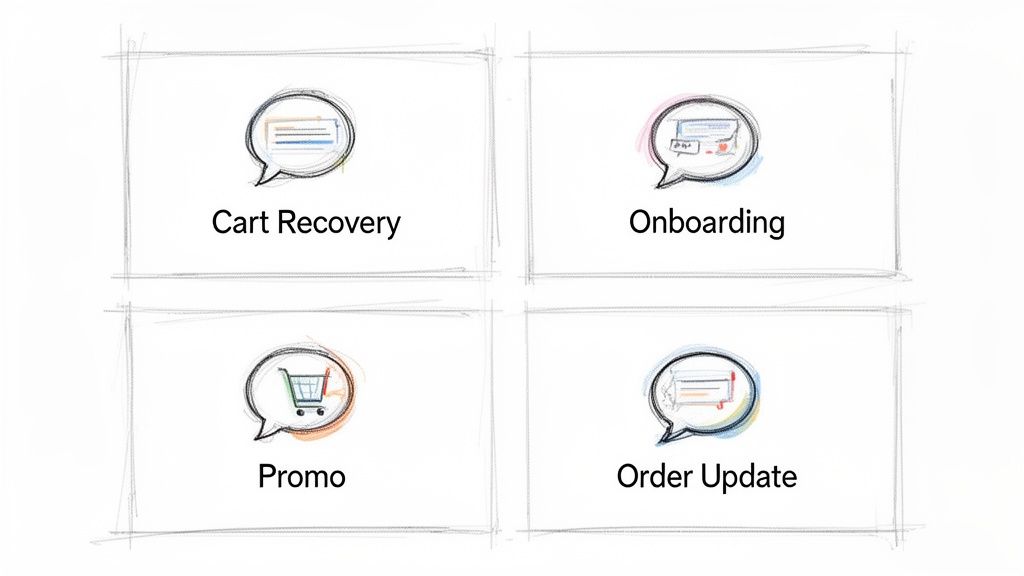
WhatsApp Business Message Templates
The most effective templates are often welcome messages, order confirmations, personalized offers, and feedback requests. Their power comes from WhatsApp’s incredible 98% message open rate, which dwarfs the 20-25% open rates of email.
E-commerce Cart Recovery Templates
Abandoned carts represent billions in lost revenue each year. A perfectly timed WhatsApp message can be the gentle nudge a customer needs to complete their purchase, turning a missed opportunity into a sale.
The Goal: Recover lost sales with a friendly, low-pressure reminder.
Template Example 1: Simple Reminder
Hi {{1}}! It looks like you left something behind in your cart. Your items are saved and waiting for you. Ready to complete your order?
[Button: View My Cart]
Template Example 2: Scarcity Nudge
Hey {{1}}, we noticed you left the {{2}} in your cart. It’s one of our best-sellers and stock is running low! Grab yours now before it’s gone.
[Button: Complete Purchase]
Customer Onboarding and Welcome Templates
The first few interactions with a new customer set the tone for the entire relationship. A warm welcome or a helpful onboarding tip on WhatsApp can make a massive difference in getting users activated and reducing churn.
The Goal: Make new users feel valued and guide them to their “aha!” moment quickly.
Template Example 1: SaaS Welcome
Welcome to the Clepher family, {{1}}! We’re so excited to have you. To get you started, here’s a quick 2-minute video on setting up your first chatbot: {{2}}
Template Example 2: Service-Based Onboarding
Hi {{1}}, thanks for signing up for our weekly meal plan! Your first delivery is scheduled for {{2}}. In the meantime, you can customize your preferences here: {{3}}
[Button: Set My Preferences]
Promotional Offers and Sales Announcements
When you’re running a sale, you need to get the word out—fast. Email inboxes are noisy, but a direct message on WhatsApp cuts through, landing your offer where customers will see it.
Pro Tip: For any promotional template, create a sense of urgency or exclusivity. Phrases like “For 48 hours only” or “Exclusive VIP offer” motivate people to act now and make them feel special.
The Goal: Drive immediate sales with time-sensitive offers.
Template Example 1: Flash Sale
🚨 FLASH SALE ALERT! 🚨 Hi {{1}}, for the next 24 hours, get 30% OFF everything on our site. Don’t miss out on these huge savings!
[Button: Shop the Sale]
Template Example 2: New Product Launch
It’s finally here, {{1}}! Our brand new {{2}} just dropped. As a loyal customer, you get early access to shop before anyone else. Check it out now!
[Button: Get Early Access]
Order Updates and Shipping Notifications
Keeping customers informed about their orders is non-negotiable for a great post-purchase experience. These utility templates deliver the transactional updates that customers not only expect but appreciate.
The Goal: Reduce “Where is my order?” support tickets and build trust with proactive communication.
- Order Confirmation: “Thanks for your order, {{1}}! We’ve received it (Order #{{2}}) and will let you know as soon as it ships.”
- Shipping Notification: “Good news, {{1}}! Your order #{{2}} is on its way. You can track its journey to your doorstep here: {{3}}”
- Delivery Confirmation: “Delivered! 🎉 Your order #{{2}} has arrived. We hope you love it! Let us know what you think.”
Turning Approved Templates into High-Performing Assets
Getting your WhatsApp Business message templates approved is just the start. The real magic happens when you transform those basic messages into assets that drive business results. This is where strategy, personalization, and testing come into play.
Think of an approved template as a blank canvas. Inside a platform like Clepher, you can use custom fields and tags to pull in specific customer data—like their first name, the last product they viewed, or their loyalty status. This makes each message feel like a personal conversation, not an automated blast.
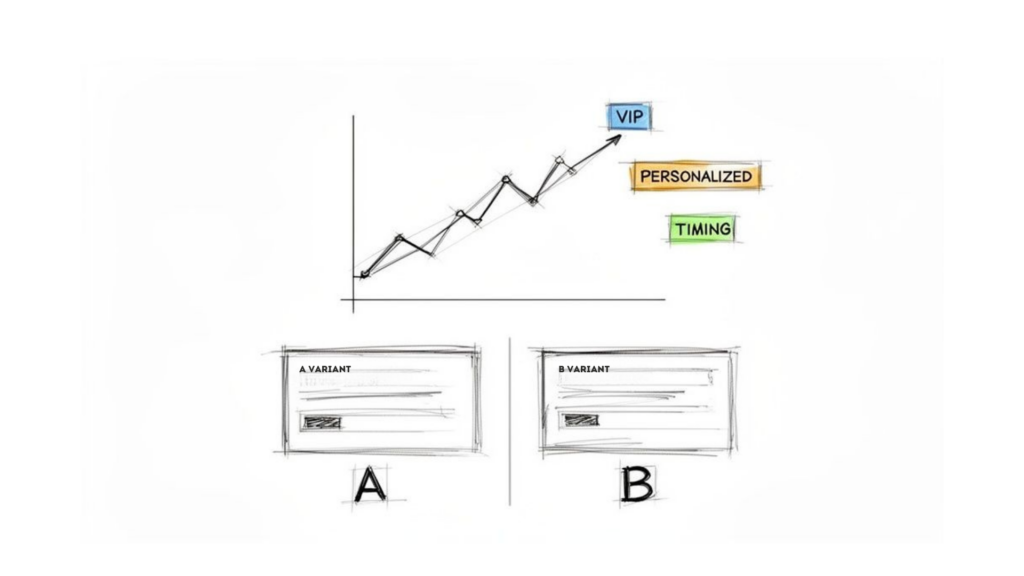
WhatsApp Business Message Growth Strategy
This level of detail is what separates messages that get ignored from messages that get results. It’s personal, relevant, and lands with impact.
Test Everything to Maximize Your Impact
Never assume you know what will work best. The only way to optimize your campaigns is to test different elements and let the data guide you. A/B testing is your best friend here.
Start by testing small but meaningful changes to see what resonates with your audience:
- Calls-to-Action (CTAs): Test different button texts. Does “Claim Your Discount” outperform “See Details”? Does “Shop Now” get more clicks than “Learn More”?
- Message Body: Try a friendly, conversational tone versus a more direct, urgent one. You’d be surprised how often a simple emoji can boost engagement.
- Media Headers: For templates that allow it, test an engaging image against a short, attention-grabbing video.
By splitting your audience and sending different versions, you can quickly see which approach drives the best results and apply those learnings to future campaigns. For more ideas, check out our guide to broadcasting messages on WhatsApp.
Why Timing and Your Quality Rating Are Key
When you send your message can be just as important as what you send. A promotional offer sent at 3 AM is a surefire way to get your number blocked. Experiment with different send times based on when your audience is most active to find the sweet spot for engagement.
Your Quality Rating is a crucial metric Meta uses to judge the health of your WhatsApp Business account. It’s directly influenced by user feedback, like how many people block or report your number as spam.
Consistently sending high-value, personalized, and timely messages is the best way to maintain a high rating. A healthy rating ensures your messages are delivered reliably, while a low one can lead to your account being rate-limited or even disabled.
Prioritizing the customer experience isn’t just good practice—it’s essential for long-term success on the platform.
Navigating Meta’s Rules for Smooth Template Approval
Getting a WhatsApp Business message template rejected by Meta can bring a promising campaign to a screeching halt. The good news? Most rejections are completely avoidable.
Meta’s review process, which is mostly automated, looks for a few simple things: clarity, correct categorization, and compliance with their policies. Your job is to make your template’s purpose crystal clear. If it’s a marketing message, make it sound like one. If it’s a shipping update, keep it strictly transactional. Any ambiguity is a red flag.
The Most Common Rejection Triggers
After seeing thousands of templates, I can tell you that rejected ones almost always fall into the same few traps. Steer clear of these, and you’re well on your way to a quick approval.
The absolute #1 reason for rejection is a category mismatch. This happens when you try to slide a promotional offer into a utility template. For example, adding “P.S. Check out our new fall collection!” to an order confirmation will get it rejected immediately.
Other frequent mistakes include:
- Vague Content: If the reviewer can’t understand the point of your message in five seconds, it’s done. Avoid generic variables like
{{1}}without giving clear examples of what they represent. - Incorrect Formatting: Simple syntax errors will trigger an automatic failure. A common one is using spaces in variable names (like
{{ customer name }}) instead of the required format ({{customer_name}}). - Requesting Sensitive Information: Never ask for full credit card numbers, government IDs, or other private data. This is a hard “no” from Meta.
What to Do If Your Template Is Rejected
Don’t panic—a rejection isn’t the end of the road. The worst thing you can do is resubmit the same template and hope for a different result. Instead, read the feedback Meta provides; it will tell you exactly what went wrong.
Key Takeaway: You can’t edit a rejected template. Your only option is to create a new one, fix the specific issue Meta flagged, and submit it for a fresh review.
Usually, the fix is simple: tweak the wording, correct a formatting error, or change the category. Treat every rejection as a quick lesson, and you’ll master the rules in no time.
Common Questions About WhatsApp Templates
Even with a solid plan, a few questions always come up when creating WhatsApp Business message templates. Let’s clear up the most common ones.
Ready to turn these insights into action? With Clepher, you can design, submit, and automate powerful WhatsApp message templates that get real results. Our intuitive, no-code platform makes it simple to recover abandoned carts, onboard new users, and run promotions that convert. Explore Clepher today and see how easy it is to turn conversations into revenue.
Related Posts
Instagram Comments Bot: A Guide for Marketers in 2026
April 14, 2026Facebook Messenger on Web: A 2026 Business Guide
April 12, 2026
Founder Clepher