
An auto reply on Facebook Messenger is your 24/7 digital receptionist. It’s the friendly, automated greeting that instantly engages every single person who messages your Page through Facebook automated responses. This isn’t just about sending a “we’re busy” message; it’s your first chance to make a great impression and guide a potential customer to their next step.
Think of it as the frontline of your customer service and the welcoming entrance to your sales funnel.
Why a Fast Auto Reply is No Longer Optional
We live in a world of instant gratification. When a customer reaches out, a slow response isn’t just a minor delay—it’s an open invitation for them to go straight to your competitor. Customers expect answers now.
A well-crafted auto reply on Messenger bridges that critical gap between their question and your human response, turning a moment of waiting into a positive interaction. When you set up auto reply correctly, that speed becomes a competitive advantage.
The Real Cost of a Slow Response
The fallout from a delayed reply is bigger than you might think. A potential customer who feels ignored is a lost sale, and it leaves a negative impression of your brand. An auto reply transforms this risk into an opportunity.
Here’s the immediate value it provides:
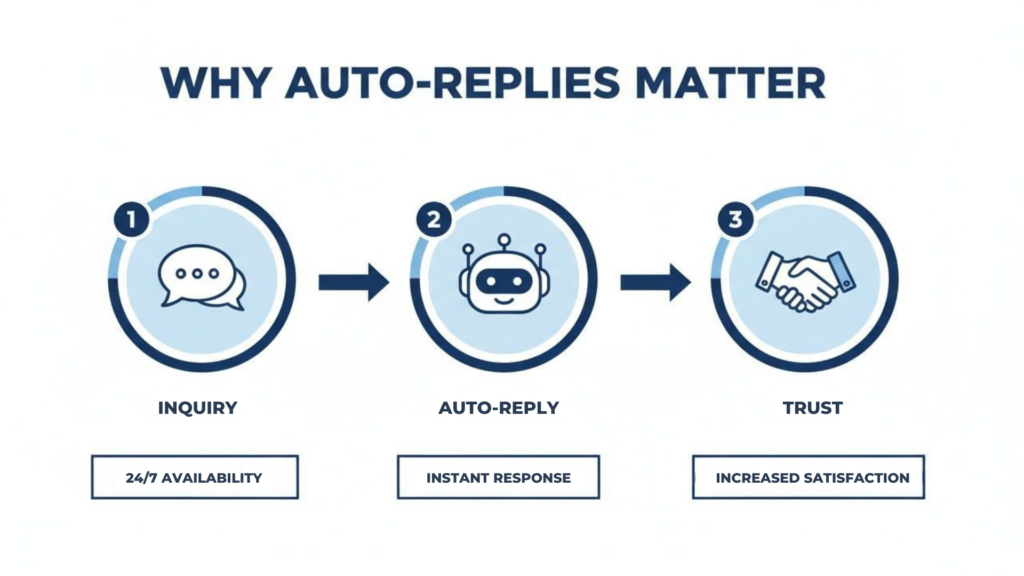
- Manages expectations: It clearly states when they can expect a human response. No more guessing games.
- Builds trust: It signals that your business is active, attentive, and reliable.
- Captures leads: It can direct users to your website, an FAQ page, or a lead magnet, keeping them engaged while they wait.
The real magic of an auto reply is turning a moment of potential frustration into a positive brand experience. It reassures the customer, provides instant value, and gives your team the breathing room to deliver a thoughtful, personalized follow-up.
The Power of Automation at Scale
Manually replying to every message isn’t sustainable as your business grows. Over 40 million businesses use Messenger, leading to more than 8 billion messages exchanged with customers every single month.
Automation is the only way to manage this volume effectively. Smart auto-replies and chatbots can handle up to 80% of routine questions, freeing up your team for more complex issues.
To see just how much messaging has changed business, you can gain further insights into digital communication trends when you set up Facebook Messenger auto features that streamline communication.
Automating these first touchpoints doesn’t just improve customer satisfaction; it shows you firsthand how Messenger bots improve sales conversion rates.
Getting Started with Meta Business Suite
Setting up a basic auto reply on Facebook Messenger is surprisingly simple using the free Meta Business Suite. You don’t need any technical skills to get these foundational automations running.
These initial replies, like the Instant Reply and Away Message, are perfect for managing customer expectations from the very first contact. They build immediate trust by confirming you’ve received the message and letting people know when a team member will jump in.
This simple digital handshake—an inquiry met with an instant acknowledgment—is where a positive customer journey begins.
Auto Reply Facebook Messenger
Action Step 1: Set Up Your Instant Reply
Your Instant Reply is the automated message sent the very first time someone messages your Page. It’s your digital welcome mat. The goal is to be warm, helpful, and set clear expectations.
Avoid a generic “We’ll get back to you.” Add a human touch. Meta allows you to use personalization tags (like the customer’s name) to make the message feel less robotic.
Here are a few practical examples:
- For a Local Boutique: “Hi [Customer’s First Name]! Thanks for reaching out. We’ve received your message and one of our stylists will get back to you within a few hours. In the meantime, feel free to browse our new collection here: [Link to Website]”
- For a Service Business: “Hello [Customer’s First Name], thank you for your message! Our team is on it and will reply within 24 hours. If you need immediate info, our FAQ page might have the answer: [Link to FAQ]”
Action Step 2: Configure Your Away Message
An Away Message is triggered only during specific hours you define as “away,” such as after 5 PM or over the weekend. This is a game-changer for managing inquiries that come in overnight.
This is your chance to proactively answer common after-hours questions. Do people always ask about your store hours? Put that info right in the message.
Pro Tip: Use your away message to direct traffic. Include a link to your online store, a booking calendar, or a helpful blog post. Give people something valuable to do while they wait.
For instance, a restaurant could set up an away message like this:
“Thanks for messaging, [Customer’s First Name]! We’re currently closed, but our team will see this first thing in the morning. Our hours are 11 AM – 9 PM daily. You can view our menu or make a reservation for tomorrow here: [Link to Booking Site].”
Mastering these two replies is a fantastic start. For those ready to go deeper, you can find a complete guide to all the settings in Messenger to fully customize your setup.
Automating Answers to Common Questions
Once your basic replies are running, it’s time to level up. Let’s move beyond just acknowledging messages and start providing real-time answers. Meta Business Suite has two great tools for this: Automated Responses for FAQs and Custom Keywords.
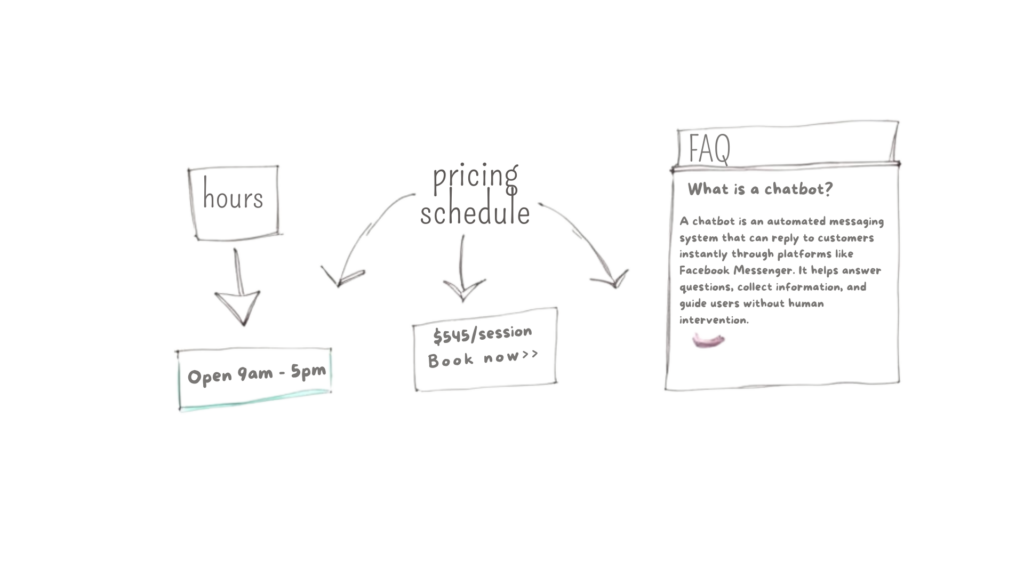
These features let your bot do the heavy lifting. Instead of just sending a generic “we’ll be right with you,” you can give customers the exact information they need, the moment they ask for it. This frees up your team to focus on high-value conversations.
Auto Reply Facebook Messenger Business Diagram
Action Step 3: Create an Automated FAQ Menu
Your customers likely ask the same few questions over and over. “What are your hours?” “Do you offer free shipping?” “Where are you located?” Typing out those same answers is a massive time sink.
The Frequently Asked Questions (FAQ) automation solves this. It creates a menu of common queries that appears when someone opens a chat. They simply tap a question to get an instant, pre-written answer. It’s incredibly efficient for everyone.
To start, identify your top 3-5 most common questions. For example, a local gym’s FAQ menu could be:
- Question: What are your membership prices?
- Automated Answer: “Great question! We have several membership options to fit your goals. You can see all the details here: [Link to Pricing Page].”
- Question: Can I see the class schedule?
- Automated Answer: “Absolutely! Here’s our latest class schedule: [Link to Schedule]. You can book your spot right from that page. Let us know if you need help!”
This simple setup transforms your Messenger inbox from a passive chore into an active, self-service information hub.
Action Step 4: Use Keyword Triggers for Instant Info
While FAQs guide new conversations, Custom Keywords react to specific words within a customer’s message. You can create an automation that sends a specific response whenever someone types a keyword you’ve chosen.
This is a game-changer for qualifying leads and driving sales.
A keyword trigger is like a digital tripwire. When a user mentions a high-intent word like “pricing” or “demo,” you can instantly deliver relevant info, capturing their interest while it’s at its peak.
A real estate agent could set up triggers for common inquiries:
- Keywords:
listing,property,homes for sale- Automated Reply: “Looking for your dream home? You can browse all our current listings here: [Link to Listings]. Let me know if a specific property catches your eye!”
- Keywords:
sell,value,appraisal- Automated Reply: “Thinking of selling? We can help! Our free home valuation tool is a great first step: [Link to Valuation Tool]. We’ll be in touch to discuss the results.”
By anticipating what your audience will ask, you build a system that not only answers questions but actively guides people down your sales funnel—all without you lifting a finger.
Comparing Native vs. Advanced Auto-Reply Features
Meta’s built-in tools are a fantastic starting point, but there’s a world of advanced automation available. Dedicated chatbot platforms like Clepher can take your Messenger marketing to a completely different level. Here’s a quick look at how they compare.
| Feature | Meta Business Suite (Native) | Advanced Chatbot Platform (e.g., Clepher) |
|---|---|---|
| Basic Replies | Instant Reply, Away Message, FAQs | All basic features, plus multi-step conversational flows |
| Keyword Triggers | Triggers a single, static response | Can trigger complex sequences, quizzes, and conditional logic |
| User Data | Basic info (Name) | Captures user data, tags users, and segments audiences based on responses |
| Integrations | Limited to Meta’s ecosystem | Integrates with CRMs, email marketing tools, Google Sheets, and more via API |
| Analytics & Reporting | Basic metrics on messages sent and opened | Detailed analytics on user paths, conversion rates, and drop-off points |
| Lead Nurturing | Not designed for this | Can send automated follow-up sequences over days or weeks |
| Conversation Handover | Can notify admins | Seamlessly transfers conversations to live agents with full chat history |
While Meta gives you the essential building blocks for free, platforms like Clepher provide the tools to build an intelligent, automated marketing and sales machine right inside Messenger.
Unlocking Advanced Messenger Automation
When the built-in auto reply on Facebook Messenger feels too basic, it’s a sign your business is ready for a serious upgrade. Meta’s native tools are great for simple queries, but they have a low ceiling.
To build conversations that generate leads, segment your audience, and feel dynamic, you need a true chatbot platform. Think of it as moving from a simple FAQ document to a fully interactive sales assistant that works for you 24/7.
Auto Reply Facebook Messenger Automation Flow
Beyond Static Replies: The Leap to Conversational Flows
The biggest drawback of native tools? They offer one-way, dead-end replies. A user types “pricing,” and your page sends back a single message. End of conversation. An advanced platform lets you build entire conversation trees that branch out based on user responses.
This transforms your Messenger presence from a simple FAQ bot into an interactive assistant that can:
- Qualify Leads: Instead of just sending a pricing link, the bot can ask, “Are you looking for a solution for yourself or for a team of 10+?” Based on the answer, it serves up tailored information and guides them to the next step.
- Segment Your Audience: The bot can tag users based on their interests. If someone asks about “yoga classes,” they get tagged as a “yoga lead” for future, targeted campaigns.
- Capture Data: Offer a discount code in exchange for an email. The bot can grab the email, validate it, and send it straight to your CRM or email platform automatically.
The goal shifts from just responding to messages to strategically guiding conversations. You’re building an asset that nurtures leads, collects data, and drives sales on autopilot.
The Power of Comment-to-Message Automation
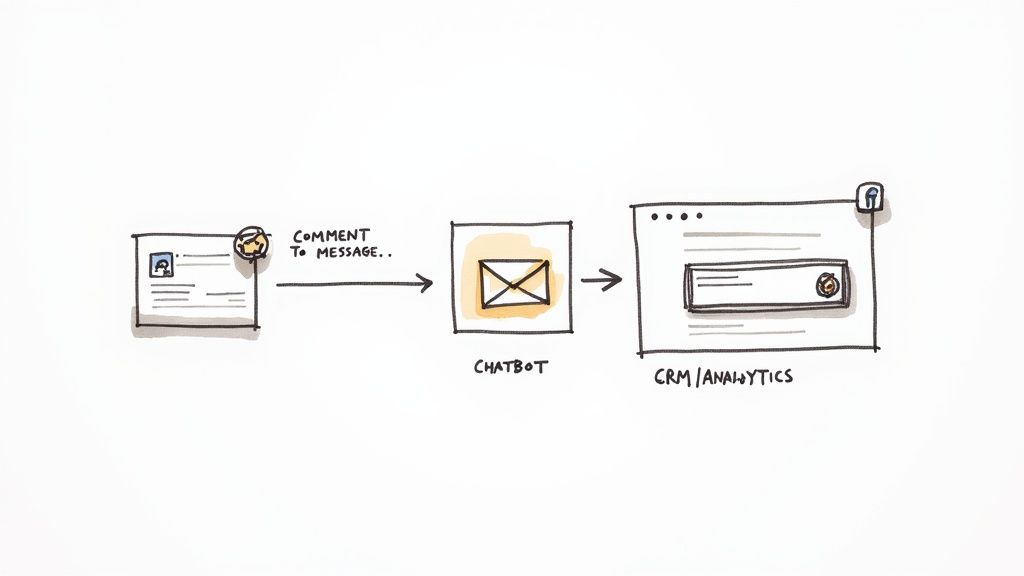
One of the most potent features you won’t find in the basic Meta Suite is comment-to-message automation. This tool lets you automatically send a private message to anyone who comments on your Facebook posts, turning public engagement into private, qualified leads.
Imagine an e-commerce brand runs a Facebook post with the call-to-action: “Comment ‘STYLE’ below and we’ll send you a personalized style quiz!”
When someone comments “STYLE,” the automation instantly sends them a DM with a link to the quiz. This strategy achieves three key goals:
- Boosts Post Engagement: High comment volume signals to Facebook’s algorithm that your content is valuable, increasing its organic reach.
- Captures Leads: You open a private Messenger conversation with every interested person.
- Drives Sales: The quiz results can lead directly to product recommendations and a frictionless path to purchase.
The ROI here is undeniable. Bot-driven Messenger campaigns often see open rates of 60-88% and click-through rates of 15–20% or higher—metrics that leave email marketing in the dust. For a broader perspective on how these systems streamline business operations, it’s worth understanding marketing automation as a whole.
How to Test and Optimize Your Auto Replies
Launching your auto reply on Facebook Messenger is step one. The real transformation comes from what you do next: testing, measuring, and refining to turn a simple automation into a powerful marketing asset.
Before going live, put your bot through its paces. A broken link or a faulty keyword trigger doesn’t just fail to help; it actively hurts your brand’s credibility.
The easiest way to start? Act like a customer. Go to Messenger and send your Page the exact keywords and questions you’ve set up. Does the right flow trigger instantly? This simple self-test is your most important line of defense against embarrassing glitches.
Your Pre-Launch Checklist
Run through this quick checklist before going live. A few minutes here will catch 99% of potential issues and save you from lost leads down the road.
- Keyword Trigger Accuracy: Test every single keyword and common variations. If your trigger is “pricing,” also test “price,” “cost,” and “how much.”
- Personalization Check: Make sure personalization fields like
{{first_name}}are correctly pulling user data. A broken tag screams “bad bot.” - Link Verification: Click every single link in your auto-replies. A dead link is a dead end for a potential customer.
- Button Functionality: If you built an FAQ menu or buttons, test each one to ensure it leads to the correct follow-up message or automation flow.
Your goal is a frictionless experience. Every broken element adds friction, and with every bit of friction, you increase the chance that a user will simply give up.
Simple Optimization Tactics for Better Results
Once you’ve confirmed everything works, the real work begins. Optimization is about watching how people interact with your bot and making smart tweaks to boost performance.
Start with the data. Most chatbot platforms, like Clepher, provide analytics showing which buttons get clicked and which keywords are triggered most often. This feedback is pure gold. If one of your FAQ options is never used, rephrase the question or swap it for something more relevant.
Read through your message logs. Does the conversation flow naturally, or does it feel stiff? Don’t be afraid to rewrite your copy. Injecting more of your brand’s personality can dramatically improve engagement and make people feel like they’re talking to a brand that cares, not just a script.
Got Questions About Messenger Auto Replies?
As you set up your auto reply on Facebook Messenger, you’re bound to hit a few snags. Here are simple, direct answers to the most common issues.
Ready to build automations that do more than just answer questions? Clepher lets you create smart, multi-step conversations that capture leads, drive sales with comment-to-message automation, and connect to the tools you already love. It’s time to stop reacting and start building relationships. See what’s possible with Clepher today.
Related Posts
How to Sell Online Courses and Build a Profitable Business
March 12, 2026AI Customer Service Automation: Your Guide to Scaling Support
March 11, 2026
Founder Clepher