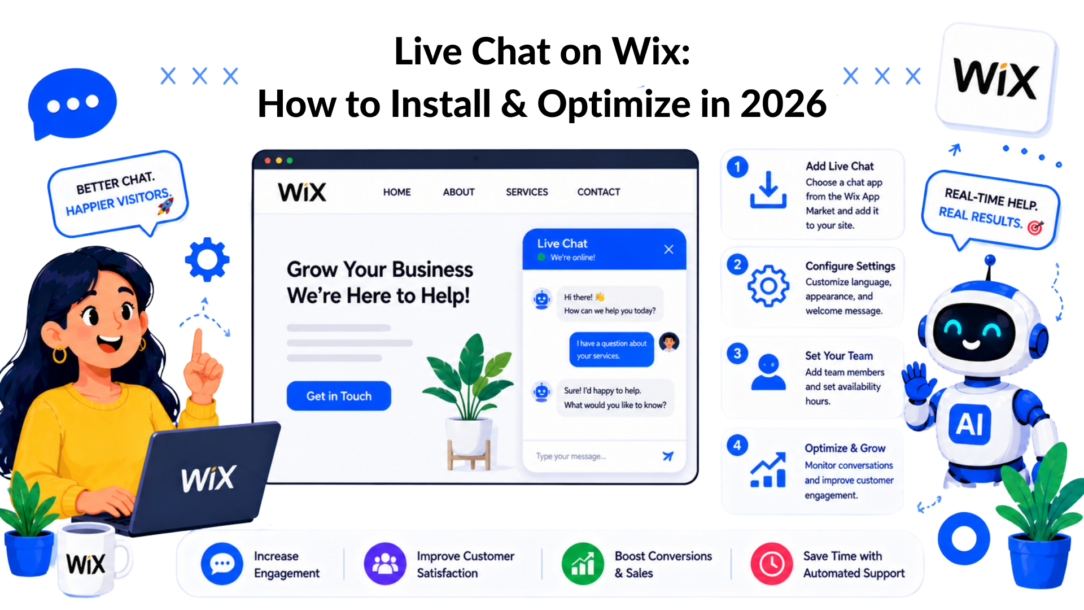
Wix Chat appears on more than 2.7 million live websites, with a historical user base of over 5 million sites. That changes how you should think about live chat on wix. It isn’t a novelty widget anymore. It’s the default starting point for businesses that want real-time conversations on their site.
What matters is what happens after installation.
Most Wix site owners add chat, answer a few questions, and stop there. The better move is to treat chat like a conversion system. A good setup helps you recover hesitant buyers, route support faster, qualify leads before a human ever replies, and keep your team organized when volume increases.
That shift is where the true value shows up. A chat bubble by itself doesn’t grow a business. A properly configured live chat workflow does.
Why Live Chat on Wix is a Business Game-Changer
Businesses that respond to buying questions in the moment keep more intent on the page. On a Wix site, live chat turns that intent into conversations you can guide toward a sale, a booking, or a qualified lead.
The immediate benefit is simple. Visitors do not have to leave the page, hunt through your navigation, or wait on email to get one answer. They ask, you respond, and hesitation drops.
That speed matters because friction is expensive. A shopper who cannot confirm shipping, sizing, or availability often leaves. A service prospect who cannot verify pricing, coverage area, or next steps often postpones the decision and never comes back. Live chat closes that gap while the visitor is still paying attention. If you need a baseline definition, this overview of live chat support covers the core model.
What changes after chat goes live
Once chat is active, the site stops acting like a brochure and starts acting like a staffed sales touchpoint.
A few business effects show up quickly:
- Sales objections appear earlier. Questions about cost, delivery, fit, setup, and policies surface before the visitor exits.
- Lead capture happens in context. You can ask for an email or phone number after interest is clear, which usually gets better submissions than a cold form.
- Support replies get sharper. The page someone is viewing often explains why they reached out, so your team starts with better context.
- Site problems become visible. Repeated questions expose weak copy, confusing offers, and missing details on product or service pages.
Practical rule: If the same question shows up again and again, fix the page and keep the reply as backup.
Business owners often underestimate chat because they treat it as a support tool. On Wix, it can do much more. It can qualify leads, route conversations to the right teammate, collect contact details, and give sales staff a chance to recover visitors who are close to acting.
A product business might see this on a high-intent page. A visitor is choosing between two versions of the same item and wants to know which one fits their use case. A fast chat reply can recommend the right option, reduce uncertainty, and keep the purchase moving.
A service business sees the same pattern in a different form. Prospects ask whether you serve their location, how soon you can start, what the process looks like, or whether their project is a fit. Those are not support questions. They are buying questions, and they should feed directly into your lead pipeline.
Chat gives you data you can use
The long-term value is not just faster replies. Every conversation gives you language straight from customers. That helps you improve pages, offers, automations, and staffing decisions as volume grows.
| Signal from chat | What to do with it |
|---|---|
| Repeated pricing questions | Clarify pricing page copy |
| Product comparison questions | Add a comparison section on key pages |
| Shipping or delivery confusion | Tighten checkout and FAQ messaging |
| Qualification questions | Turn them into pre-chat prompts or bot flows |
This is the point many Wix guides miss. Chat is not only for answering incoming questions. Used well, it becomes part of your lead generation system, your sales process, and your team workflow. That is where the real business return shows up.
Activating and Customizing the Native Wix Chat
Starting with native Wix Chat is the most direct path to enabling real-time conversations on your site. It is already built into the Wix environment, so setup is fast, testing is simple, and you can start learning from real customer questions without adding another tool on day one.
If the site has no chat yet, speed matters. A basic widget that is live, branded, and tied to a response process will usually outperform a more advanced platform that sits half-configured for weeks.
Live Chat on Wix
Turn it on, publish it, test the real experience
Activate Wix Chat in your dashboard, publish the site, and test the widget on the live version. Do this on desktop and mobile. Send a message yourself. Check how fast notifications arrive, what the visitor sees when no one is available, and whether the chat box blocks important mobile buttons or page content.
That last point gets missed often. A chat widget that technically works can still hurt conversions if it covers a sticky add-to-cart button or makes a contact page harder to use.
Once the widget is live, customize the basics right away:
-
Match the site branding
Set the color, agent name, and profile details so chat feels consistent with the rest of the site. -
Set clear availability
If replies happen during business hours, say that plainly. Clear expectations reduce frustration and improve the quality of incoming messages. -
Replace generic greetings
“How can we help?” is serviceable. A prompt tied to buyer intent usually gets better conversations.
Write greetings around buying questions
The welcome message should reflect what visitors are trying to decide. That changes by page and by business model.
For ecommerce, the best prompts usually reduce purchase hesitation. Use language around fit, delivery, product differences, or order support. For service businesses, guide visitors toward qualification, timing, and next steps.
Examples:
- For ecommerce: “Need help choosing the right option or checking delivery?”
- For agencies: “Want a quick answer before you book a call?”
- For local services: “Ask about pricing, availability, or whether your project is a fit.”
A strong opener does more than start a chat. It filters intent. That makes the inbox easier to manage and gives you cleaner lead signals from the start.
Set up Wix Inbox so leads do not get buried
The tool is simple. Your process cannot be.
Use Wix Inbox with a clear routine from the first week. Tag conversations by intent, save replies for repeated questions, and review missed messages every few days. If a founder or small team is handling chat, confirm who responds during business hours and who covers evenings or weekends when needed.
I usually recommend one rule early on. Treat sales questions differently from support questions, even if the same person answers both. A visitor asking about product fit, service area, timeline, or pricing is giving you buying intent. That should be tracked, followed up, and routed into your lead workflow.
If you plan to expand beyond the native setup later, this is also the right time to document what you need from a stronger platform. A shortlist of required features helps when comparing live chat software for websites or reviewing broader roundups of top website chat tools.
Customize for scale, not just appearance
Many Wix site owners stop after changing colors and writing a greeting. That is only the surface layer.
Use chat to collect information that helps sales or support act faster. Ask for an email when follow-up matters. Adjust the greeting on high-intent pages. Review transcripts for repeated objections and turn those into saved replies or pre-chat prompts. If multiple people answer chats, agree on tone, response targets, and handoff rules before volume increases.
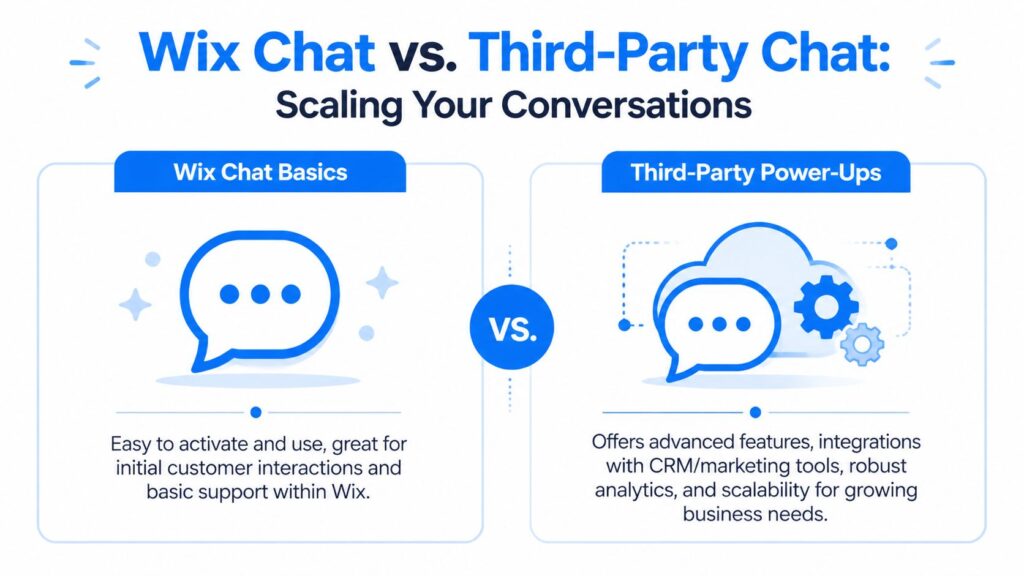
Native Wix Chat handles this early stage well. It gives you a fast way to start conversations, identify common buyer questions, and build the operating habits that matter later. The limitation is not installation. The limitation appears when message volume, handoffs, automation needs, and channel complexity start growing at the same time.
Upgrading to a Powerful Third-Party Chat Platform
Once your team is handling more than 20 to 30 chats a day, native Wix chat often starts to slow down the people behind it. The pressure usually shows up in missed handoffs, inconsistent follow-up, and weak visibility into which conversations are tied to revenue.
That is the point where chat stops being just a support widget. It becomes part of your sales and service operation.
One issue that shows up fast in growing teams: collaboration. A single inbox works for a founder answering every message. It breaks down when sales, support, and operations all need access, ownership rules, and context on the same thread.
Wix Chat Comparison
What pushes teams beyond native chat
The upgrade usually happens for operational reasons, not cosmetic ones.
A service business may need one person to answer pre-sales questions and another to book jobs. An ecommerce store may need support to handle shipping issues while sales focus on high-intent product questions. Agencies often need separate workflows by brand, team, or client account. Native chat can start the conversation, but it usually does not give enough structure once several people are involved.
Third-party platforms make more sense when you need:
- Multi-agent assignment so chats have a clear owner
- Shared inbox visibility across sales and support
- CRM and Slack connections so leads and updates do not stay trapped in chat
- Deeper automation for routing, qualification, tagging, and follow-up
- Better reporting to see which pages, campaigns, or agents create pipeline, not just replies
If you’re comparing tools, review broader lists of top website chat tools with an eye on workflow fit, not just pricing tables.
Two ways to add third-party chat on Wix
Wix gives you two practical implementation paths.
Install through the Wix App Market
This is the faster option when the provider offers a native Wix app. You install it, connect your account, adjust the widget settings, and publish.
That route is usually best for teams that want to launch quickly and keep setup simple. The trade-off is that app-based installs can expose fewer configuration options than a direct code install.
Embed with Custom Code
Some chat platforms rely on a script snippet instead of a native Wix app. You configure the widget in the provider’s dashboard, paste the code into Wix, then publish and test on the live site.
This method gives you more platform choice. It also puts more responsibility on your team to check placement, page coverage, and whether the widget loads correctly outside preview mode. If the chat tool is central to lead capture, test it on mobile and on your highest-intent pages first.
Wix Chat versus a third-party platform
| Feature | Wix Chat | Advanced Third-Party Platform (e.g., Clepher) |
|---|---|---|
| Initial setup | Fast and simple | Can be simple, but may involve app install or code embed |
| Team collaboration | Basic | Better suited for multiple agents and handoffs |
| Automation depth | Limited | Stronger for routing, qualification, and AI workflows |
| Channel coverage | Mainly site-based | Often extends beyond the website |
| Reporting | Basic operational visibility | More useful for optimization and funnel analysis |
| Scaling fit | Good for getting started | Better for growing support and sales operations |
The biggest difference is not the widget. It is what happens after the first reply.
A stronger platform can route a pricing question to sales, push the contact into your CRM, alert the right rep, and preserve the full transcript for follow-up. That turns chat from a reactive inbox into part of your lead generation system. You can compare options more directly with dedicated live chat software for websites, resources, if your decision depends on automation, reporting, or team workflows.
Native chat is often the right first step. A third-party platform becomes the better system when chat needs owners, process, and measurable revenue impact.
Trade-offs that matter
The best platform is the one your team will use well every day.
A few trade-offs matter more than the feature list:
-
Simplicity versus control
Native tools are easier to launch. Third-party tools usually give you better routing, segmentation, and reporting. -
Speed versus flexibility
App installs are cleaner and faster. Code-based installs support more vendors and more custom setups. -
Support coverage versus sales execution
If chat mostly answers occasional questions, a lightweight setup may be enough. If chat needs to qualify leads, recover abandoned buyers, or support multiple teammates, stronger workflow design pays off.
In practice, businesses outgrow basic chat when conversation volume starts affecting response quality, team coordination, and follow-up speed. That is usually the clearest signal to upgrade.
Automating Conversations with Chatbots and AI
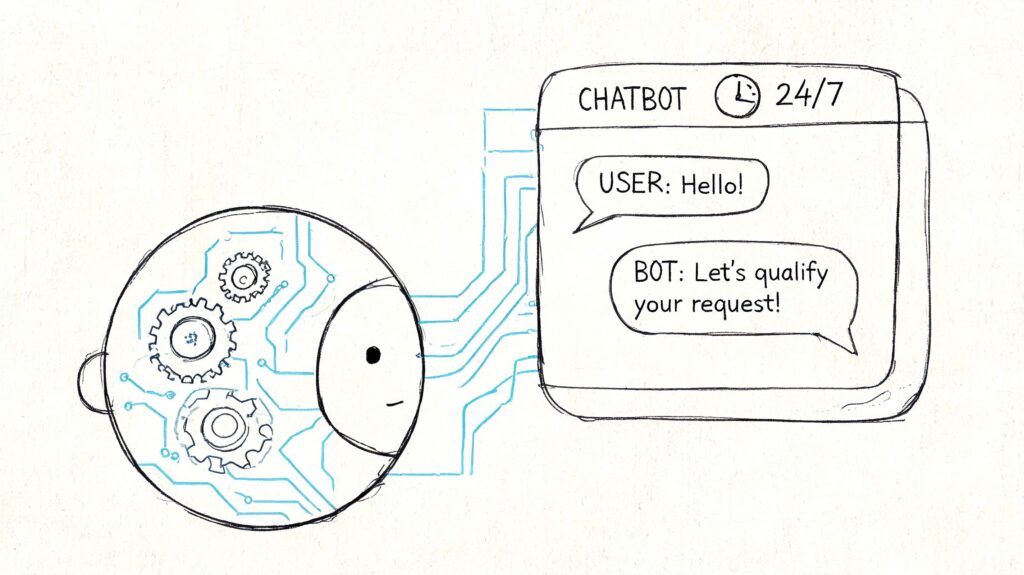
Automation is where live chat on Wix starts doing more than waiting for incoming questions. A bot can greet the right visitor, answer common questions, route the conversation, collect lead details, and hand the thread to a human when the issue gets nuanced.
Used well, that doesn’t make chat feel robotic. It makes it faster and more consistent.
Wix Chatbot
Start with the right kind of automation
Not every business needs a fully AI-driven assistant on day one. Most get better results by separating automation into two layers.
Rule-based chat flows
These are predictable, structured paths. They work well for FAQs, order policy questions, store hours, appointment routing, and basic lead capture.
They’re useful when the question types are repetitive, and the answers don’t vary much.
AI-assisted chat
AI is better when visitors ask questions in messy, natural language. It helps interpret intent, summarize context, and keep common conversations moving without requiring a perfectly scripted flow.
Vendor benchmarks cited by Smartsupp show that AI-powered live chat apps can achieve a 70% resolution rate for common inquiries and reduce overall support ticket volume by up to 35% through automation and a unified inbox, as described in this Smartsupp guide to live chat for Wix.
Best use cases on a Wix site
The strongest automation use cases are tied to moments of intent.
-
Product selection help
If someone is browsing a category or a high-intent product page, the bot can ask what they’re looking for and narrow choices. -
Lead qualification
For agencies, SaaS, and service businesses, a bot can ask company size, budget range, use case, or timeline before routing the inquiry. -
Order support triage
A customer asking about returns, shipping, or order status doesn’t always need a human first. -
Appointment intake
Coaches, clinics, and local services can use chat to capture service type, preferred timing, and contact details before follow-up.
Automation should remove low-value repetition. It shouldn’t trap serious buyers in a dead-end flow.
Human handoff is the feature that matters most
The biggest mistake in chatbot setup is trying to automate everything. When the bot can’t resolve a problem, the handoff has to feel smooth.
That means the live agent should receive the conversation history, tags, and visitor details gathered so far. The customer shouldn’t need to repeat the issue from scratch. That’s where automation earns trust instead of damaging it.
For teams building this out, a dedicated AI chatbot for customer support playbook is useful because the handoff logic matters as much as the bot itself.
If you want a deeper ecommerce-specific perspective on bot strategy, this ultimate guide to AI chatbots for ecommerce is a worthwhile companion read.
Proactive triggers do the heavy lifting
The highest-value automation often starts before the user clicks the widget.
Use triggers based on page intent, not just time on site. A pricing page, checkout step, service page, or high-consideration product page is usually a better trigger point than a generic homepage pop-up.
Examples that work well:
-
Pricing page
Ask if the visitor wants help choosing the right plan or package. -
Cart or checkout hesitation
Offer help with delivery questions, fit, or payment concerns. -
Service page depth
Ask if they’d like help confirming fit before booking.
Keep the bot narrow at first
A practical rollout is usually better than an ambitious one.
Start by automating:
- your top repetitive support questions,
- one lead qualification path,
- one handoff path to a human.
Then review transcripts. If the bot keeps stalling on certain questions, tighten the flow or push that path to a human earlier. The best automated chat systems aren’t broad. They’re disciplined.
Optimizing Live Chat for Sales and Lead Capture
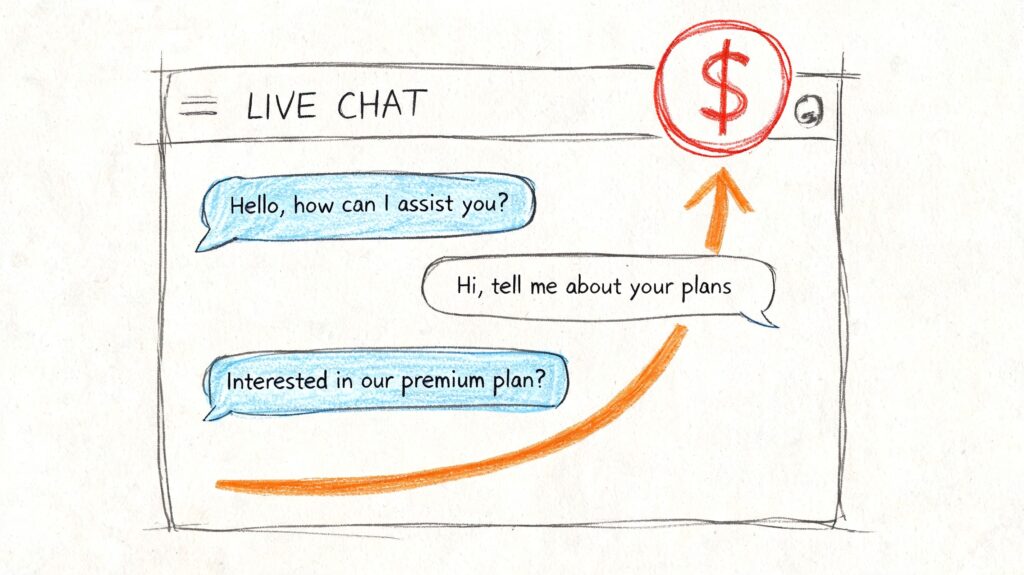
Once chat is live and automation is handling the basics, the next job is turning conversations into a pipeline. At this point, many Wix businesses leave money on the table. They answer questions, but they don’t structure the chat experience to capture demand.
The easiest way to fix that is to think in scenarios instead of features.
Live Chat on Wix Upgrade
Ecommerce example
A shopper lands on a product page, scrolls, hesitates, and opens chat. A weak setup says, “Hi, how can we help?” A stronger setup asks whether they want help choosing the right version, understanding shipping, or comparing options.
That one change improves the quality of the conversation because it gives the visitor a path. From there, your team or bot can recommend products, answer objections, and collect contact details if the buyer isn’t ready yet.
Lead generation example
A service business gets value from a different structure. Instead of waiting for a vague inquiry, the chat should qualify quickly.
Ask for:
- Need type so you know what service they are looking for
- Timeline so urgent leads don’t sit behind casual questions
- Contact details so the conversation doesn’t vanish if they leave the site
Pre-chat prompts are helpful. If someone wants a quote, consultation, or demo, make the chat gather the first layer of information before a rep steps in.
The setup details that affect conversion
Small choices shape outcomes more than is often realized.
Greeting quality
The greeting should match the page’s intent. A homepage greeting can be broad. A pricing or service page greeting should be specific.
Widget placement
Keep the widget easy to reach without blocking critical site elements. The goal is visibility, not interruption.
Visual fit
The chat should look like part of the site. Mismatched colors, awkward spacing, or cluttered launchers lower trust fast.
Privacy cues
If you’re collecting personal details, say what happens next and link to your privacy policy in the chat flow or widget settings.
The best sales chats don’t feel like sales scripts. They feel like timely help with a clear next step.
A practical optimization loop
If you want chat to support revenue, review it the same way you review landing pages.
Use a simple cycle:
- Read transcripts weekly and look for hesitation points
- Rewrite greetings when they attract weak or mismatched inquiries
- Tighten qualification questions if agents keep asking the same basics manually
- Adjust prompts by page type instead of using one sitewide message
- Check the lead destination so captured details reach the right inbox, CRM, or follow-up workflow
If you’re already working on broader site conversion improvements, this guide to conversion growth pairs well with chat optimization because many of the same friction points show up in both places.
Sales-focused live chat on Wix works best when it supports the page, not when it competes with it.
Troubleshooting Common Wix Chat Installation Issues
Most live chat problems on Wix come down to a short list of setup mistakes. The good news is that they’re usually easy to fix once you know where to look.
The widget doesn’t appear
Start with the basics. Confirm the code was placed in the right Wix area, the correct site is selected, and the site was published. Preview mode can be misleading, so always test on the live version.
If you’re using a code snippet from a third-party platform, recheck the installation location and make sure no old or duplicate scripts are still active.
Two chat widgets are showing at once
This is a common setup error. If you install a third-party chat tool and leave the native Wix chat active, the interfaces can overlap. The 3CX Wix live chat documentation specifically warns about this issue and also notes that neglecting mobile optimization can drop response rates by 15-25% on responsive sites.
Fix it by disabling or removing the widget you no longer want to use. Then reload the site on desktop and mobile to confirm only one launcher appears.
Mobile chat feels clunky
Don’t assume desktop settings translate cleanly to mobile. Check launcher placement, greeting length, popup behavior, and whether the chat blocks buttons or menus on smaller screens.
Use this quick checklist:
- Test a real device instead of a browser-only simulation
- Trim opening messages so they don’t dominate the screen
- Check the notification flow if your team replies from phones
- Review handoff behavior so mobile users aren’t stuck in loops
Notifications aren’t reaching the team
This is usually an account, device, or integration setting problem. Make sure the assigned inbox, app permissions, and any notification forwarding settings are enabled for the people who should receive alerts.
A live chat setup only works if someone sees the conversation in time.
If your Wix site has outgrown a basic chat widget, Clepher is worth a look. It gives you AI-powered chat, lead capture, automation, team workflows, and messaging across your website, WhatsApp, Messenger, Instagram, and more from one no-code system. For businesses that want chat to drive sales and support at the same time, that’s a much stronger setup than a standalone website inbox.