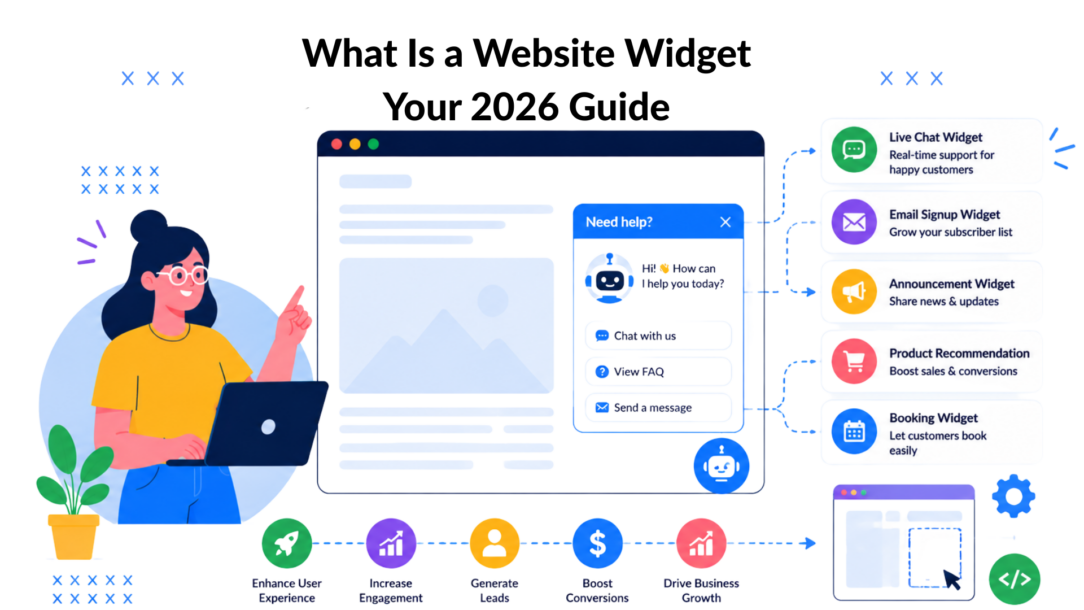
A website widget is a lightweight, self-contained application that’s usually packaged as a JavaScript bundle between 10 to 100KB and added to your site with a single <script> tag. It functions as a pre-built app for your website. It gives you one specific feature, like a chat box, booking form, or social feed, without rebuilding your whole site.
You’re probably here because you want your website to do something new. Maybe you want visitors to message you instantly. Maybe you want people to book calls without emailing back and forth. Maybe you want to show reviews, capture leads, or add a calculator.
The good news is that you usually don’t need a redesign for any of that.
Most small business owners assume new functionality means hiring a developer, changing their theme, or touching code they’d rather avoid. In many cases, a widget solves the problem faster and improves user engagement. You add one focused tool to the page, much like installing an app on your phone instead of replacing the phone itself.
That simple idea has been around for a while. The foundational history of website widgets began in 2003 when Konfabulator released the first applets for OSX and Windows, and early incarnations appeared in 1996 via Netscape, which popularized them for displaying stock quotes and weather data, as noted in this history of widgets and web applets.
Introduction: You Do Not Need a Redesign; You Need a Widget
A familiar scenario looks like this. A business owner realizes their website is missing one useful feature. A salon wants online booking. A coach wants a lead form that feels more interactive. A store wants live chat on product pages.
Then the worry starts.
Will this require a full rebuild? Do I need a developer? Will I break my site? For many businesses, that fear delays simple improvements that could help visitors take action today.
A website widget is often the easier path. It’s a focused add-on that does one job well. Instead of changing your entire website, you drop in a small tool that handles a specific task, such as a booking widget on your website.
Think of widgets like apps on a smartphone
Your phone already works before you install any apps. Then you add a calendar app, a maps app, or a messaging app to extend what it can do. Your website works the same way, utilizing a widget to enhance the customer experience.
A widget doesn’t replace the site. It upgrades one part of the experience.
For a bakery, that might mean adding an order inquiry form to the homepage. For a consultant, it could be a scheduling widget on the contact page. For an online store, it might be a chat widget that answers pre-purchase questions while the visitor is still browsing.
A widget is often the shortest path between “my site can’t do this” and “now visitors can use this feature.”
Why business owners like them
Widgets appeal to non-technical teams for a simple reason. They turn complex functionality into something you can usually install with copy and paste.
That matters because most businesses don’t need more technology for its own sake. They need fewer barriers between a visitor and the next action.
A useful widget can help you:
- Start conversations: Let visitors ask questions without leaving the page
- Capture interest: Collect leads while attention is still high
- Reduce friction: Offer bookings, forms, or reviews where they matter most by utilizing a well-placed widget on your website.
- Move faster: Launch a feature without waiting for a full redesign cycle
If your site already gets traffic but visitors aren’t taking the next step, a widget can be the missing layer.
What a Website Widget Actually Is
At the technical level, a website widget is a self-contained block of code that adds one specific function to a webpage. Most are built so you can embed them into an existing site without rewriting your website’s core structure.
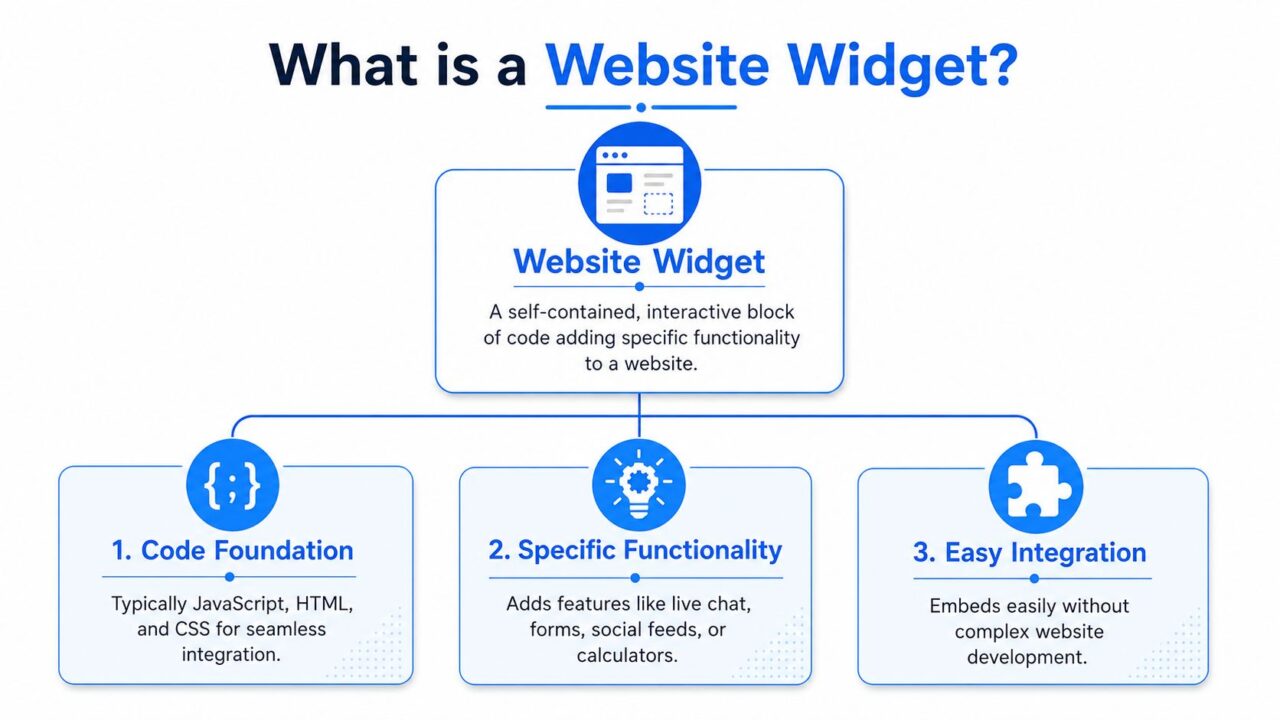
Website Widget Infographic
A practical way to think about it is this. Your website is the building. The widget is a piece of furniture with a clear purpose. You bring it in, place it where it belongs, and it starts doing its job.
A modern website widget typically works as a calendar widget that allows users to schedule appointments. lightweight, self-contained application packaged as a JavaScript bundle ranging between 10 to 100KB in size, and it’s commonly embedded with a single <script> tag, according to this technical explanation of website widgets.
What makes a widget different from a regular page element
Not every button, image block, or section on a page is a widget.
A widget is usually designed to be more independent than the surrounding page. That’s part of what makes it portable. You can often use the same widget across different pages, platforms, or site builders with very little rework.
In plain language, that means:
- It has a specific job: chat, booking, reviews, forms, feeds, maps
- It’s plug-and-play: you add it without rebuilding the page
- It runs mostly on its own: it doesn’t need deep integration with your whole site
- It can be reused: one widget can often appear in multiple places
A more technical definition describes a web widget as something substantially independent of the host page, with limited or no interaction with the host environment, which is part of why it can bypass restrictions such as same-origin policies or CORS, as explained in this web widget definition.
Why this matters for small businesses
You don’t need to understand JavaScript to benefit from this setup. What matters is what it enables.
Because the widget is self-contained, you can add advanced functionality without hiring someone to custom-build every feature from scratch. That’s why widgets are so common for live chat, lead capture, booking tools, and social proof.
Practical rule: If you need one new function on your site, look for a widget before you consider a redesign.
The key idea behind the question “What Is a Website Widget” is simple. It’s not a new website. It’s a focused tool that extends the one you already have.
The Most Common Types of Website Widgets
Widgets come in different forms, but most fall into a few practical categories. The easiest way to choose one is to start with the result you want.
Website Widget Clepher Landing Page
Communication widgets
These help visitors talk to you without friction.
A chat widget is the classic example. It usually appears as a small bubble or tab in the corner of the screen. When clicked, it opens over the current page so the visitor can ask a question without leaving what they were reading. Chat widgets are engineered for real-time communication through an overlay window such as a chat bubble or modal form that sits directly over the visitor’s current content, as described in this overview of live chat web widgets.
Common examples include:
- Live chat: Answer product, pricing, or service questions in real time
- Contact widgets: Give visitors a quick way to submit inquiries
- Messenger-style widgets: Continue the conversation after the visit
One option in this category is Clepher’s chat widgets for websites, which let businesses add chat and lead capture without custom development.
Lead generation widgets
These focus on turning anonymous visitors into contacts.
You’ll often see these as pop-ups, slide-ins, sticky bars, or embedded forms. Their purpose is simple. Get the visitor to raise their hand.
Examples include:
- Email capture forms: Offer a discount, lead magnet, or newsletter signup
- Quiz widgets: Help visitors self-select a product or service
- Appointment request forms: Turn interest into a booked next step
A local service business might place a quote request widget on high-intent pages. A course creator might use a waitlist widget before launch.
Trust and content display widgets
Some widgets help visitors feel more confident before they buy.
These include: calendar widget, social media widget, and other tools that enhance user experience.
- Review widgets: Pull in testimonials or ratings
- Social feed widgets: Show your latest Instagram or social content
- FAQ accordions: Answer common objections directly on the page
These don’t just decorate the site. They help people verify that your business is active, credible, and responsive.
If a visitor is hesitating, the right widget often answers the exact question that’s slowing them down.
Utility and conversion widgets
These help users complete a task more easily and enhance the overall user experience.
Think about:
- Booking calendars: Let users schedule without emailing
- Map widgets: Help customers find your location
- Calculators: Estimate price, savings, or fit
- Cart or product widgets: Support shopping decisions on the spot
For a home services company, a cost estimator widget can turn curiosity into an inquiry. For a clinic, a booking widget can reduce admin back-and-forth. For an online shop, a support widget can remove the last bit of buying hesitation.
How Different Businesses Use Widgets to Grow
The value of a widget becomes clearer when you look at business models instead of features, especially in terms of user engagement. The same tool can play a very different role depending on what you sell and how customers buy.
To make that easier to see, start with this visual:
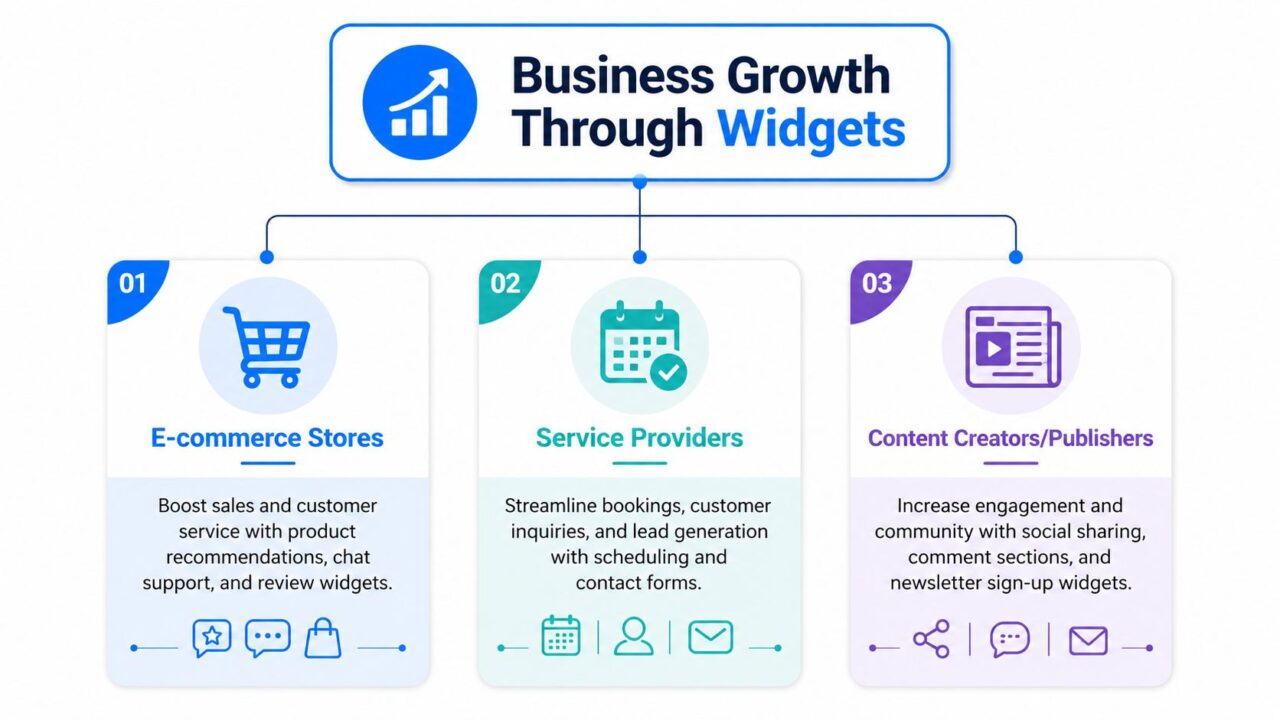
Website Widget Business Growth
E-commerce stores
An online store usually needs widgets that reduce uncertainty.
Visitors want to know things like shipping details, sizing, returns, availability, or whether a product fits their use case. A chat widget can answer those questions while the visitor is still on the product page. A review widget can reinforce trust. A pop-up can capture a shopper who isn’t ready to buy yet.
That combination matters because every extra doubt can interrupt the sale.
A store owner might use:
- Chat on product pages: Widgets can handle pre-purchase questions, improving the overall customer experience.
- Review displays: bring social proof closer to the buy button
- Signup widgets: capture email or SMS interest before the visitor leaves
Service businesses and local brands
Service businesses usually care about two things. Getting inquiries and making it easy to book.
A consultant might embed a scheduling widget on the services page so visitors can book a discovery call immediately, improving user engagement. A dentist might use a form widget to request appointments. A local restaurant might use a map or reservation widget so customers can act without hunting for details.
The point isn’t adding more features. It’s removing steps between interest and contact.
A strong widget shortens the path from “I’m interested” to “I’ve taken action,” allowing users to engage more effectively.
Later in the buying process, these same widgets can reduce manual admin work by collecting cleaner information upfront.
Here’s a short example breakdown:
| Business type | Useful widget | Why it helps |
|---|---|---|
| Coach or consultant | Booking calendar | Turns page visits into scheduled calls |
| Local business | Map or contact widget | Helps customers find or reach you fast |
| Agency | Lead form or chat | Qualifies inquiries before a sales call |
SaaS brands and creators
Software companies and content businesses use widgets differently. They often need to educate, onboard, and segment.
A SaaS company might add a help widget to answer setup questions. A creator might use a newsletter signup widget on article pages. A course seller could place a quiz widget before the sales page to guide visitors to the right offer.
These tools help visitors move forward at their own pace.
Instead of waiting for a sales team or a support inbox, the website itself becomes more useful. That’s where widgets shine. They let your site do more work in the moment when attention is highest.
How to Add a Widget and Avoid Common Pitfalls
Adding a widget is usually straightforward and can significantly enhance the user experience. The basic process doesn’t change much whether you use WordPress, Shopify, Webflow, or another builder.
The simple three-step process
Most widgets follow this pattern:
-
Choose and customize the widget
You pick the style, copy, triggers, colors, or behavior inside the provider’s dashboard. -
Copy the code snippet
The platform generates a small script for your site. -
Paste it into your website
You add it to your header, footer, page builder, or a tool like Google Tag Manager.
That’s the practical reason widgets are so popular. You don’t need to rebuild your pages to add meaningful functionality.
The confusion that trips people up
A lot of business owners get stuck because they hear the word “widget” in different places and assume it means the same thing everywhere.
In WordPress, for example, people may see “widgets,” “plugins,” blocks, embed code, and theme areas all discussed together. That creates real confusion. Search data reveals that 40% of small business owners and solopreneurs confuse widgets with native CMS plugins, which can lead to incorrect installations that break site functionality or create security vulnerabilities, according to this explanation of widget and plugin confusion in CMS platforms.
Widget vs plugin in plain English
A simple way to separate them is this:
- Third-party website widget: usually an embedded script that adds a visible feature to the page
- CMS plugin: software installed inside your platform to extend site functionality more extensively
That distinction helps with decision-making.
Use a widget when you want to launch a feature quickly and keep implementation light. Use a plugin when the feature needs deeper control inside the CMS, site logic, or back end.
For WordPress users who want a more guided setup path for conversational tools, this WordPress chatbot installation guide gives a practical example of how that implementation can work.
If you’re not sure whether you need a widget or a plugin, start by asking one question. “Do I just need a feature on the page, or do I need deeper control inside the website platform?”
Common mistakes to avoid
A widget can be easy to add, but it still deserves a quick check before you publish.
- Adding too many at once: Launch one or two clear use cases first
- Ignoring mobile layout: Make sure the widget doesn’t cover key content
- Using weak copy: “Submit” rarely performs as well as specific language
- Placing it everywhere: Match the widget to the page’s buying intent
The goal isn’t to install more tools. It’s to make the next step easier for the visitor.
Optimizing Widgets for Performance and Results
Widgets can help conversion, but they can also slow a site down if you stack them carelessly.
That’s the trade-off many guides skip when discussing the importance of user engagement. A single widget may feel harmless. A pile of them can create what many teams experience as performance debt.
Modern sites often load seamlessly with various features, including a social media widget. 3–8 third-party widgets, which can increase page load time by 2–4 seconds and reduce conversion rates by up to 20%, according to this analysis of widget performance debt. That’s why unoptimized widget stacks can cancel out the gains those tools were supposed to create.
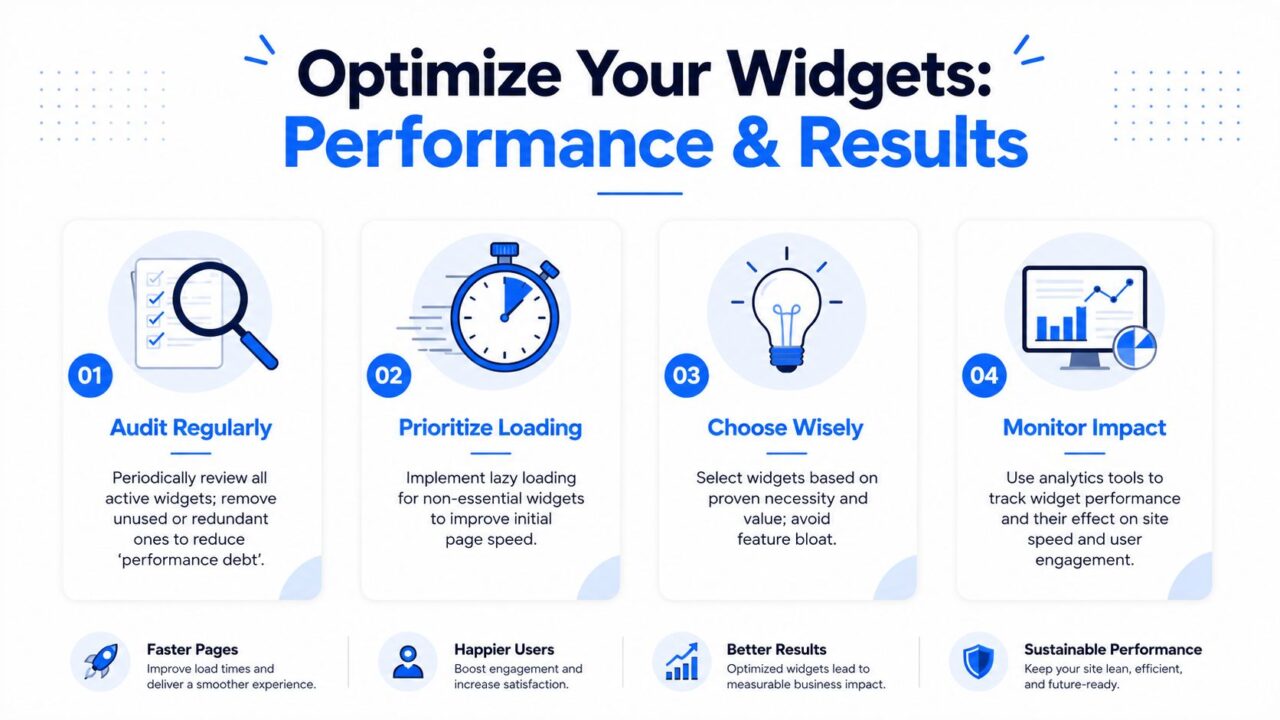
Website Widget Optimization
How to keep useful widgets from becoming a burden
You don’t need to avoid widgets. You need to manage them.
A simple optimization checklist looks like this:
- Audit what’s installed: Remove widgets nobody uses anymore
- Prioritize essentials: Keep the tools tied to revenue, support, or lead capture
- Delay non-critical loading: Use lazy loading where appropriate
- Check mobile experience: A widget that feels fine on desktop can crowd a phone screen
- Measure outcomes: Track whether the widget helps inquiries, bookings, or sales
Focus on business impact, not just clicks
A widget isn’t successful just because people open it.
The question is whether it improves the page’s purpose. Does the chat widget help more visitors ask pre-sales questions? Does the scheduler create more qualified calls? Does the lead capture form increase useful contacts without damaging the browsing experience?
That’s the mindset behind smarter conversion work. If you want a broader framework for improving page performance and user action, these conversion rate optimization techniques are a useful next step.
The best widget is not the one with the most features. It’s the one that solves one important problem without slowing the rest of the site.
Conclusion: Start Small, Win Big With Widgets
A website widget is one of the simplest ways to make your site more useful without starting over. It can help you talk to visitors, book appointments, capture leads, show proof, or remove friction at the exact moment someone is ready to act.
Start small. Pick one problem your website has right now. Then find one widget that solves that problem cleanly.
That approach is usually faster, easier, and more effective than waiting for the perfect redesign.
If you want to add conversation and lead capture to your site without custom coding, Clepher is one option to explore. It gives businesses a no-code way to build chat experiences, capture subscribers, and support visitors across their website and messaging channels.