
More than 22 million unique Zaps have already been created by users, and Zapier’s user base has reached over 3 million global users, including more than 2.2 million businesses, according to Zapier statistics compiled here. That scale changes the conversation.
Zapier automation isn’t just a handy productivity trick anymore. It’s part of the operating layer for modern marketing teams, e-commerce brands, agencies, and support teams that run on a messy stack of forms, CRMs, inboxes, ad platforms, spreadsheets, and chat tools.
The promise sounds simple. Connect your apps so data moves automatically and your team stops doing repetitive admin. However, the situation is more nuanced. Zapier can save hours of manual work, reduce handoff delays, and make follow-up faster. It can also become fragile if you build the wrong workflows in the wrong way.
That’s why the useful conversation isn’t “Can Zapier automate this?” It’s “Should Zapier automate this, and how do you build it so it keeps working when volume, complexity, and edge cases show up?”
What Is Zapier Automation and Why It Matters
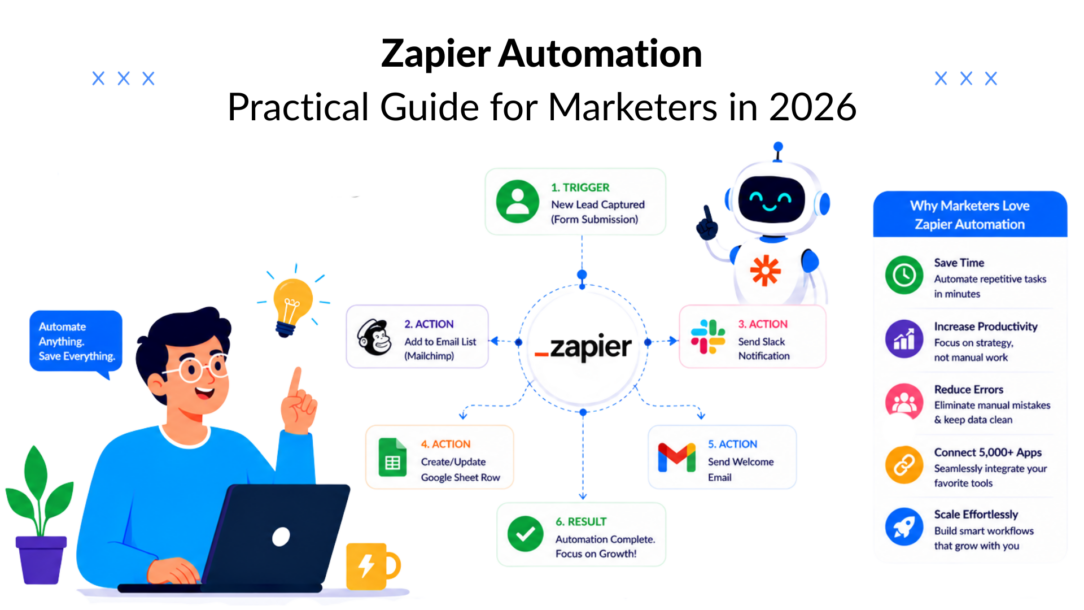
Zapier automation is the process of connecting software tools so one event in one app triggers work in another. A lead submits a form. A CRM record gets created. A Slack alert goes out. A spreadsheet updates. Nobody copies and pastes anything.
That matters because most marketing and e-commerce teams don’t suffer from a lack of tools. They suffer from too many tools that don’t naturally stay in sync.
Founded in 2011, Zapier now connects over 9,000 web applications, enabling more than 3 million users and 2.2 million businesses to automate workflows without writing a single line of code, according to Wikipedia’s Zapier overview. For practical operators, that makes Zapier a universal translator between systems that were never designed to work together cleanly.
Where the real value shows up
The value isn’t in “automation” as an abstract idea. It shows up in very specific moments:
- Lead response speed: A new inquiry reaches the right sales rep fast instead of sitting in an inbox.
- Data consistency: Customer details move from form to CRM to reporting sheet without manual re-entry.
- Team handoffs: Marketing, sales, and support stop losing context between tools.
- Operational focus: Your team spends less time on repetitive transfer work and more time on messaging, optimization, and customer conversations.
Zapier is most useful when it removes repeated decisions your team shouldn’t be making by hand anymore.
That last point is where many teams miss the bigger opportunity. They treat Zapier as a convenience layer. Strong teams use it as process enforcement. If every lead should be tagged, routed, and logged the same way, the best answer usually isn’t “train people better.” It’s “automate the standard.”
Why marketers care more now
Marketing stacks have become fragmented. One campaign can touch Meta lead forms, Shopify, Klaviyo, Google Sheets, HubSpot, Slack, Notion, and a support inbox in the same day. Every gap between those tools creates lag, errors, or dropped follow-up.
Zapier sits in that gap.
It’s not the whole system, and it won’t replace strategy, but it often becomes the layer that keeps your actual workflow moving. For a new team member, that’s the mindset to adopt early. Don’t think of Zapier as a clever add-on. Think of it as the connective tissue that turns separate tools into one working process.
Zapier Automation Fundamentals Explained
At the core, Zapier runs on a simple idea. When something happens in one app, do something in another app.
That simplicity is why teams can get useful automation live quickly. It’s also why beginners sometimes oversimplify what they’re building and create weak workflows that break later.
Zapier Automation Core Concepts
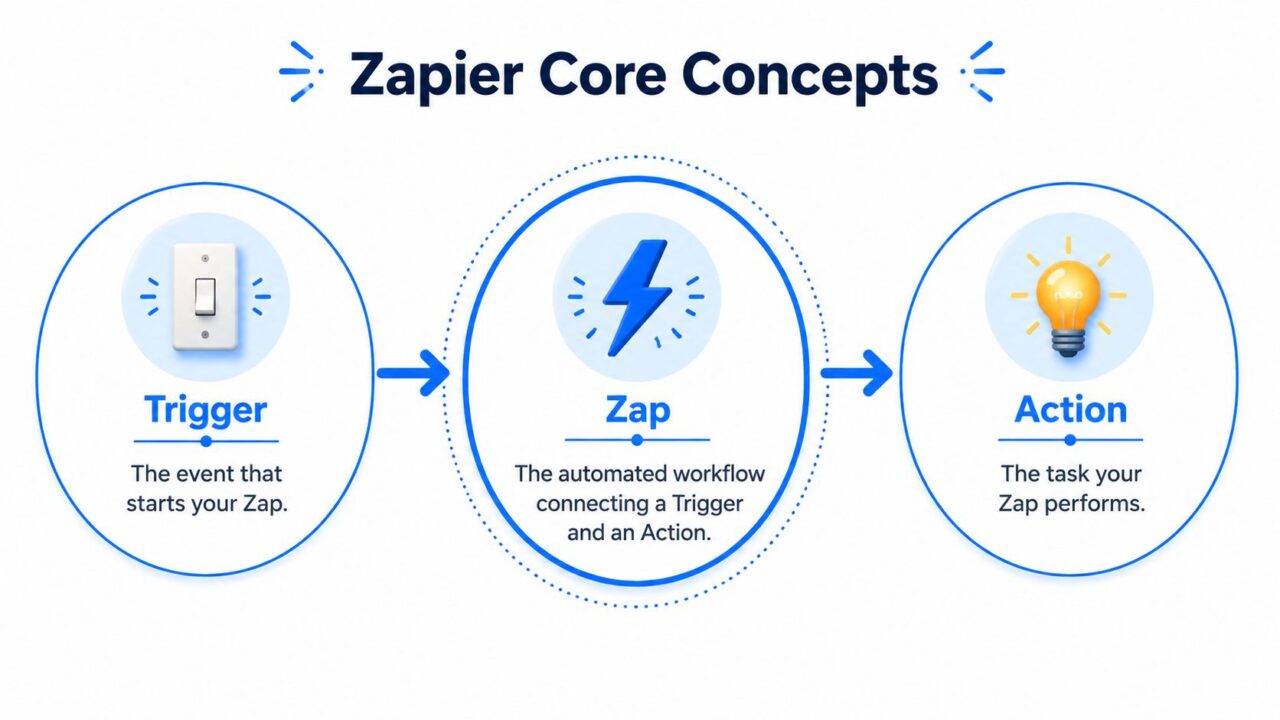
The three building blocks
Think of Zapier like an office assistant following instructions.
Trigger
The event that starts your automation.
Action
The task Zapier performs after the trigger happens.
Zap
The full automated workflow that connects the trigger to one or more actions.
If a prospect fills out a lead form, that form submission is the trigger. Creating a contact in your CRM is the action. The Zap is the whole chain that connects those two steps.
A simple marketing example
A straightforward workflow might look like this:
- Trigger: A new lead comes in through a form tool.
- Action: Zapier creates a contact in HubSpot.
- Action: Zapier sends a message to Slack.
- Action: Zapier adds the lead to a Google Sheet for backup tracking.
That’s still one Zap, even though it contains multiple actions.
What a task means in practice
Zapier also uses the term task. In practical terms, a task is usually one successful action completed by your workflow. That matters because task usage affects cost and design choices. A Zap with one trigger and three actions will usually consume more than a Zap with one trigger and one action.
This is why experienced teams don’t just ask, “Can we automate it?” They ask:
- How often will this trigger fire
- How many actions happen each time
- Do we really need every downstream step
- Can we filter low-value events before they consume tasks
Where Zapier works best
Zapier is strongest when it connects apps that need to exchange clean, predictable data. That’s the sweet spot.
Zapier automation is most effective for workflows where the trigger and action occur in different apps with straightforward data mapping and moderate volume, such as lead capture, CRM updates, and team handoffs, as explained in this guide to Zapier automation examples.
That’s also why no-code automation keeps growing as an operational skill, especially for teams building workflows without engineering support. If you need a broader primer, this guide on what no-code automation means is a useful companion.
Where beginners usually overreach
Zapier is not the right first choice for every workflow.
- Avoid it for highly complex branching logic unless you’ve mapped the process carefully.
- Be careful with high-frequency events if each trigger launches many downstream actions.
- Don’t expect true real-time behavior everywhere because some apps rely on polling or delayed checks.
- Don’t use it as a substitute for broken process design. Automation scales bad process just as fast as good process.
Practical rule: Start with workflows that are repetitive, cross-app, and boring. If the process still needs judgment at multiple points, simplify the workflow before you automate it.
Key Use Cases for Marketers and E-commerce
The best Zapier automation use cases solve a handoff problem. Data comes in, but nobody acts on it quickly enough. A customer takes an action, but the next system doesn’t update. A team needs visibility, but information lives in the wrong tool.
For marketers and e-commerce operators, those problems show up every day.
Zapier Automation Marketing Ecommerce
Lead capture that actually moves
A common failure point in paid acquisition is the gap between lead submission and first follow-up. Teams spend heavily to generate interest, then lose momentum in the handoff.
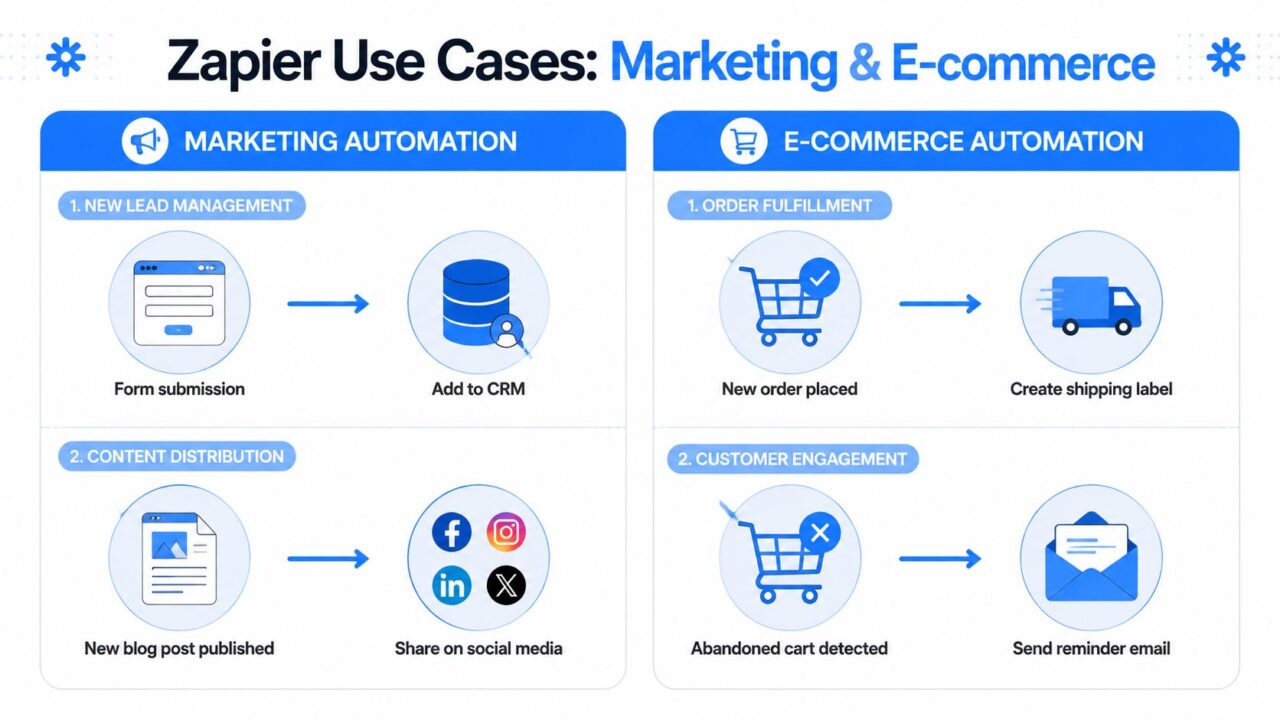
In sales and marketing, Zapier can automatically add new leads from Facebook Lead Ads directly into a CRM like Salesforce and assign them to the correct team member, ensuring follow-up happens within minutes, as described in these Zapier use cases for sales and marketing.
That one workflow changes more than admin time. It changes pipeline quality.
When a paid lead lands in the CRM already assigned, tagged, and visible to sales, three things improve:
- Speed to contact gets faster
- Lead leakage drops
- Attribution tracking stays cleaner
For agencies, this is often the first automation clients notice because it affects revenue flow, not just back-office convenience.
Content distribution without the checklist fatigue
Content teams often publish efficiently and distribute inconsistently. The article goes live, but someone still has to remember the Slack alert, social draft, internal roundup, or spreadsheet update.
Zapier handles that kind of repeatable post-publish motion well. One trigger from your CMS or publishing tool can send the post into the next operational steps automatically.
That doesn’t replace editorial judgment. It removes the repetitive checklist around it.
E-commerce order and retention flows
For e-commerce brands, the practical value is usually operational clarity.
A new order can trigger downstream actions like fulfillment tasks, internal alerts, or customer messaging. An abandoned cart event can trigger a reminder flow. A support request can be routed based on order details or issue type.
The best implementations keep the process narrow and specific. Don’t automate “all order management.” Automate one friction point at a time.
Examples that tend to work well:
- New order notifications to operations or fulfillment channels
- Customer tagging based on product purchased
- Abandoned cart follow-up through connected messaging tools
- Post-purchase review requests after a delay
- VIP customer alerts when high-value buyers submit support requests
Reactivating the list you already own
One overlooked use case is reactivation. Many brands focus on new acquisition while old customer lists sit untouched in spreadsheets, CRMs, or ad audiences.
Zapier can help move dormant segments between systems so marketing can launch win-back sequences, retargeting audiences, or segmented outreach without manual exports every time. If you’re revisiting inactive contacts, this guide on reviving dormant customer lists is worth reading because it frames reactivation as a process problem, not just a copywriting problem.
The fastest growth opportunities are often already in your database. Automation helps your team act on them before they go stale.
Support workflows that marketers underestimate
Support data is marketing data in disguise. Complaint themes, refund reasons, delivery friction, and product questions all point back to conversion and retention opportunities.
When support systems connect to Slack, email, tables, or internal documentation through Zapier, teams can route issues faster and surface patterns earlier. That’s where cross-functional automation becomes more valuable than channel-specific automation. You’re not just saving time. You’re exposing operational truth.
Quickstart Guide: Your First Zapier Automation
Your first Zap should solve a real annoyance. Don’t start with something abstract. Start with a workflow someone on the team repeats every day and wishes would disappear.
A good starter build is simple: when a new lead or subscriber comes in, add their details to a Google Sheet automatically. It’s basic, but it teaches the mechanics that show up in bigger workflows later.
Pick the right first workflow
Use this test before you build:
- It happens often enough that manual work is annoying
- The input fields are predictable, like name, email, source, or date
- The outcome is easy to verify because you can check the destination app
- The process has low risk if a test run goes wrong
A subscriber-to-spreadsheet Zap passes all four.
Build it step by step
-
Create a new Zap
Inside Zapier, start a new Zap and choose the app where your new subscriber data originates. -
Choose the trigger event
Select the event that represents a fresh lead or subscriber. This could be a new form entry, a new contact, or a new captured lead depending on your stack. -
Connect the source app
Authenticate the source app so Zapier can read the trigger data. During setup, pay attention to permissions. If the account can’t access the right forms, pages, or lists, the Zap will look broken even when the setup is technically correct. -
Test the trigger
Pull in a recent sample record. This step matters because it reveals your real field structure. You’ll often catch naming issues, missing values, or oddly formatted phone numbers here.
Use real test data whenever possible. Sample records that look clean in setup often hide the messy inputs your actual campaigns generate.
-
Choose Google Sheets as the action app
Set the action to create a new spreadsheet row. -
Connect the destination sheet
Pick the correct spreadsheet and worksheet tab. Make sure your header row is already set up with the columns you want to populate. -
Map each field carefully
Match source fields to spreadsheet columns. Name goes to Name. Email goes to Email. Campaign source goes to Source. Submission timestamp goes to Date. -
Run a test action
Zapier should push one row into your sheet. Check the actual spreadsheet, not just the green success message in Zapier. -
Turn the Zap on
Only after the test row looks right should you publish the Zap.
What to check before you trust it
Three quick checks prevent most first-time mistakes:
- Column alignment: Spreadsheet headers must match the data you expect to capture.
- Fallback behavior: If a field is sometimes blank, know what the receiving app will do.
- Duplicate risk: If the same lead can submit twice, decide whether duplicates are acceptable.
3 More Starter Zap Templates
| Trigger (When This Happens…) | Action (…Do This) |
|---|---|
| New Facebook Lead Ads submission | Create a contact in your CRM and notify Slack |
| New Shopify order | Add the customer to a post-purchase tracking sheet |
| New support form submission | Create a task in your project management tool |
Why this simple Zap matters
A spreadsheet-based first Zap teaches the habits that scale:
- how to validate a trigger
- how to map fields correctly
- how to test before going live
- how to think in workflow steps instead of isolated tools
Once a new team member understands that, more advanced automations stop feeling mysterious. They become process design with software attached.
Unlocking Advanced Zapier Patterns
Once you’ve built a few basic workflows, the next jump is learning patterns instead of just steps. That’s where Zapier automation starts doing meaningful operational work.

Zapier Automation Secure Lock
Multi-step Zaps for complete workflows
A beginner Zap usually moves one piece of data from App A to App B. A useful production Zap often needs several connected actions.
A lead comes in. The contact gets created. The owner gets assigned. A Slack channel gets notified. A row gets logged for reporting. A tag gets applied for segmentation.
That’s where multi-step Zaps earn their keep. They let one trigger launch a full chain of downstream work.
Use them when the process is linear and the order matters.
- Create first, notify second: So your team receives a link to a record that already exists.
- Tag before routing: So downstream steps can use the tag value.
- Log the event last: So your reporting reflects the workflow that completed.
Filters and Paths for cleaner logic
Not every event deserves the same response.
Use a Filter when you only want the Zap to continue if a condition is true. For example, only notify sales if the lead source is a demo request, not a newsletter signup.
Use Paths when one trigger can lead to different outcomes. A support workflow might route billing questions one way and product questions another.
Operator mindset: Don’t automate every incoming event. Automate only the events that deserve action.
Teams often cut waste by filtering out low-intent, incomplete, or irrelevant records early. The rest of the workflow becomes cheaper and easier to trust.
Formatter and data cleanup
A lot of automation failures aren’t logic failures. They’re formatting failures.
One app sends a date in one format. Another app expects something different. Names arrive in all caps. Phone fields contain spaces, symbols, or country prefixes that break downstream actions.
Zapier’s built-in Formatter helps clean that up before data reaches the next app. It’s one of the most useful tools in the platform because it prevents avoidable errors without requiring custom code.
Typical uses include:
- Standardizing names before CRM entry
- Reformatting dates for spreadsheets or email tools
- Splitting full names into first and last name fields
- Cleaning text before passing it into another system
If your team is evaluating the broader array of tools that support this kind of workflow design, this roundup of no-code automation tools provides useful context.
Webhooks and AI-powered support patterns
When an app doesn’t have the exact native integration you need, webhooks can bridge the gap. You don’t need to be a developer to use them at a practical level, but you do need to understand the logic. A webhook sends data from one system to another in a structured request.
This matters when your workflow needs to connect custom forms, internal tools, or less common platforms.
It also matters in support automation. Zapier supports AI-powered automation by using AI agents to reference past ticket data, automatically generate resolution summaries, and notify employees in Slack, handling messy support workflows without human intervention, as shown in Zapier’s guide to business process automation examples.
That’s a strong example of where advanced patterns pay off. Not because AI is trendy, but because support work contains unstructured data, repeated triage, and lots of internal handoffs. Zapier becomes much more valuable when it can orchestrate that flow cleanly.
Connecting Clepher with Your Business Ecosystem
Chatbot automation becomes useful when it doesn’t stop at the conversation. The lead shouldn’t just chat. The lead should enter the sales process with context attached.
That’s why the strongest Zapier setups around chat tools focus on downstream action. A user signals buying intent. Your systems react immediately.
A practical flow for high-intent chats
Take a simple intent signal like request a demo. When that phrase or AI keyword is detected inside a chatbot conversation, a strong workflow does more than send a generic notification.
It can do three things in sequence:
- Create a new deal or contact in your CRM so sales has a formal record.
- Apply an internal tag for segmentation so future outreach reflects that buying intent.
- Send a Slack notification to the sales team with the lead’s details and conversation context.
That creates a closed loop from conversation to pipeline entry.
Why this flow works
A lot of teams treat chat capture as a top-of-funnel event. That’s too limited. The better use is qualification plus routing.
When someone asks for pricing, a demo, shipping details, or account help, they’re giving you structured intent data in plain language. Zapier can pass that data into the rest of your stack so sales, support, or retention teams don’t have to manually pull context from the chat platform later.
This kind of integration is especially useful when your team operates across website chat, social DMs, and CRM follow-up at the same time. It removes the lag between “someone raised their hand” and “someone on the team can act.”
What to watch during setup
The logic is straightforward, but the quality depends on your field mapping and tagging discipline.
- Keep tags meaningful: “Hot Lead” is useful if the criteria are consistent.
- Map conversation details selectively: Don’t dump every transcript field into the CRM.
- Route to the right Slack channel: Sales alerts should go where someone will respond.
- Test keyword edge cases: Similar phrases can trigger false positives if your intent rules are too broad.
If you’re building this type of workflow, Zapier setup details are easier to manage with a dedicated integration guide. Clepher’s walkthrough on how to integrate Zapier is the right place to start.
Chat-triggered automation works best when intent is clear, routing is immediate, and the receiving team doesn’t need to interpret what happened.
Common Pitfalls and Key Considerations
The biggest mistake teams make with Zapier automation is assuming that if a workflow runs once, it’s production-ready. It isn’t.
A Zap that looks elegant in setup can still fail in real usage because source data changes, app permissions expire, fields get renamed, or one branch of logic never got tested. This is why community feedback often turns blunt. Community discourse reveals that many users find Zapier can function as “duct tape with a God complex,” struggling to achieve high reliability for complex, multi-app workflows without constant maintenance and troubleshooting, as discussed in this Zapier community thread.
Where workflows usually get fragile
The warning signs are predictable:
- Too many dependencies: One Zap relies on several apps, custom fields, and branching conditions.
- No error visibility: A failure happens undetected, and nobody notices until leads or orders are missing.
- Messy source data: Optional fields, inconsistent naming, and duplicate records create edge cases.
- High-volume triggers: Lots of events fire, but only some are valuable.
The practical fix
Don’t try to make one Zap do everything.
Break complex workflows into smaller units when needed. Filter aggressively before expensive actions. Add internal notifications for failures or important exceptions. Review live runs after launch instead of assuming a successful test means the system is stable.
Security matters too. Every automation tool gets access to real business systems. Use the least-permissive account access you can, review connected apps regularly, and be intentional about which customer data needs to move between tools.
The teams that get the most value from Zapier aren’t the ones with the most automations. They’re the ones that build automations they can still trust a month later.
If your business wants chatbot conversations, lead capture, sales handoffs, and customer support to connect cleanly with the rest of your stack, Clepher is worth a close look. It gives marketers and operators a no-code way to turn live conversations across web and social channels into structured actions your team can use.
