

Yes. In 2026, you can post on Instagram from a desktop through three primary methods: the native Instagram web uploader, Meta Business Suite, and third-party tools built for scheduling and team workflows.
If you’re editing product photos on a laptop, writing captions faster on a full keyboard, or trying to stop sending assets from desktop to phone just to publish one post, that old workflow is no longer necessary. Desktop posting is now a normal part of Instagram management for marketers, agencies, and e-commerce teams.
More than just asking, can you post on Instagram from a desktop? It’s a question of which desktop method fits the way you work.
A solo business owner who needs to publish today’s promo image has a different need than an agency juggling approvals across client accounts. A DTC brand planning a week’s launch content needs something different from a creator who only wants to upload a feed post without touching Meta tools.
Yes, You Can Post to Instagram From Desktop
Posting on Instagram from a desktop is no longer a workaround. It is fully supported through three official methods, and that capability was standardized when Instagram launched its native web upload feature in 2026. For marketers, that changed desktop posting from a hack into a real publishing workflow.

Instagram Workflow
The three practical options are straightforward:
- Instagram.com for direct feed publishing from a browser
- Meta Business Suite for business accounts that need scheduling, analytics, and comment management
- Third-party tools for teams that need collaboration, approvals, and multi-account control
That matters because desktop work is where most brand content starts. Product photos are edited there. Campaign assets live there. Copy decks, brand folders, and approval notes all sit there too. Moving everything to a phone at the final step slows the process down and creates unnecessary friction.
What this means for marketers
If you’re a local retailer, desktop posting is a great way to post to Instagram from a PC, letting you upload the polished image you just finished in Canva, Photoshop, or Lightroom without any phone handoff. It’s a reliable way to post to Instagram, including Instagram Stories, straight from your PC.
If you’re managing several client accounts, the desktop shift is even more useful. It gives you a cleaner way to organize media, write captions, review assets with teammates, and publish from the same environment where the rest of your campaign work already happens.
Practical rule: Desktop posting is best treated as a workflow decision, not just a feature check. The right method to post to Instagram from your PC depends on whether you need speed, scheduling, or collaboration.
The real trade-off
The simple answer is yes — you want to post, you can post photos to your Instagram feed from a computer. But the useful answer is more specific. Feed posts are easy from a desktop, whether you’re using Chrome or another browser. More advanced publishing needs, like Instagram from your computer for Stories or Reels, can still depend on the method you choose.
That distinction matters. Plenty of articles stop at “yes, you can.” Busy marketers need more than that. They need to know what works quickly on a mobile device versus a computer, what requires setup, how to schedule posts in advance, and where desktop publishing still falls short for Stories, Reels, approvals, and reporting.
The Direct Method Posting From Instagram.com
For quick publishing, the browser route is the fastest path. If you just need to get a polished photo or video into the feed without opening extra software, Instagram’s native web uploader does the job well.
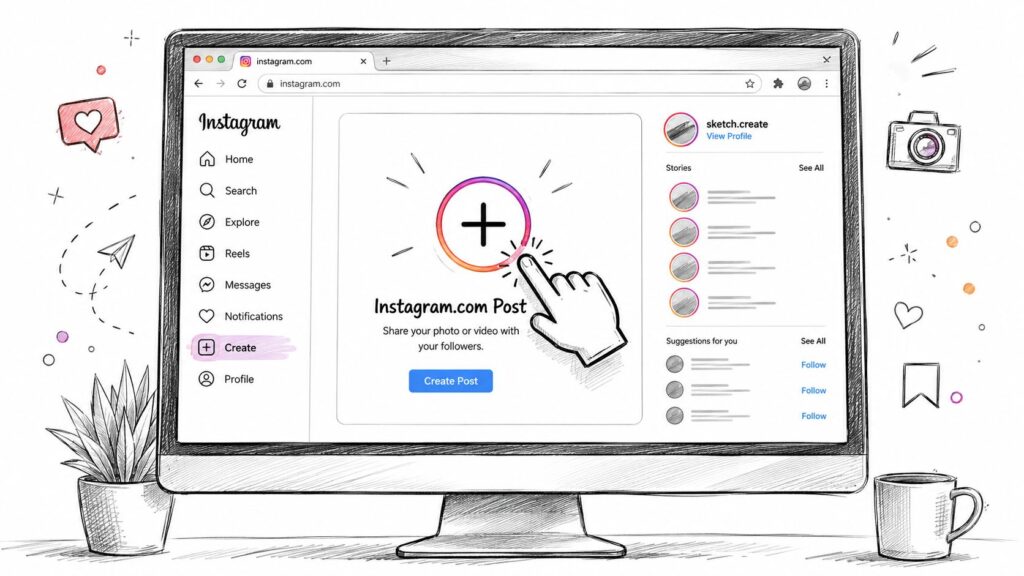
Instagram Desktop
The workflow is now standard for feed posts on the web. According to HubSpot’s desktop Instagram walkthrough, the sequence is simple: log in at Instagram.com, click the + create button, choose Select from computer, adjust the media, add caption, tags, location, and alt text, then hit Share.
How to post directly from Instagram.com
Use this when speed matters more than planning tools.
-
Log in to Instagram.com
Open your browser and sign in to the Instagram account you want to manage. -
Click the plus icon
The + create button is the starting point for a new post. -
Choose Select from the computer
Pick the image or video file directly from your desktop folders. -
Crop and adjust
Set the framing and make any available visual adjustments before publishing. -
Write the caption
For caption writing, the desktop immediately feels better than mobile. Long captions, hashtags, and tagged mentions are easier to handle with a full keyboard. -
Add details
Include location, tagged accounts, and alt text if needed. -
Share the post
Once it’s ready, publish it straight to your feed.
When this method makes the most sense
This is ideal for single-post publishing.
A good example is a coffee shop owner who finishes editing a high-resolution image of the day’s special on a laptop. Instead of exporting it, sending it to a phone, and rewriting the caption in the app, they can upload it from the same machine where the work already happened.
It also works well for:
- Fast campaign updates when you need a product photo live now
- Caption-heavy posts where typing on a desktop is much faster
- Accessibility checks when you want to add alt text before publishing
- Lightweight workflows where you don’t need approvals or scheduling
For teams looking to tighten up content creation around direct browser posting, these Instagram workflow ideas and posting shortcuts can help reduce repetitive steps.
Use Instagram.com when the post is ready, approved, and doesn’t need a calendar, approval chain, or cross-platform coordination.
What do you give up with the browser method
The biggest limitation isn’t whether posting works. It does. The limitation is workflow depth.
Instagram.com is strong for direct publishing, but it isn’t the best setup for marketers who need:
- Scheduling
- Shared review workflows
- Multi-account coordination
- Broader campaign planning
- More detailed reporting
That doesn’t make the native uploader weak. It just means it’s best for straightforward execution, not ongoing team operations.
The Power User Method Using Meta Business Suite
If Instagram.com is the quick-publish option, Meta Business Suite is the operational hub for professional accounts. This is the method that makes the most sense when posting is part of a larger content system instead of a one-off task.
For business accounts, Meta Business Suite has become the primary desktop hub for uploads, scheduling, and performance review. To access those desktop publishing and analytics features, your Instagram Business Profile or Creator Profile must be connected to a Facebook Page. That connection enables access to publishing tools and desktop insights, including analytics for live videos such as comments, shares, and reach.
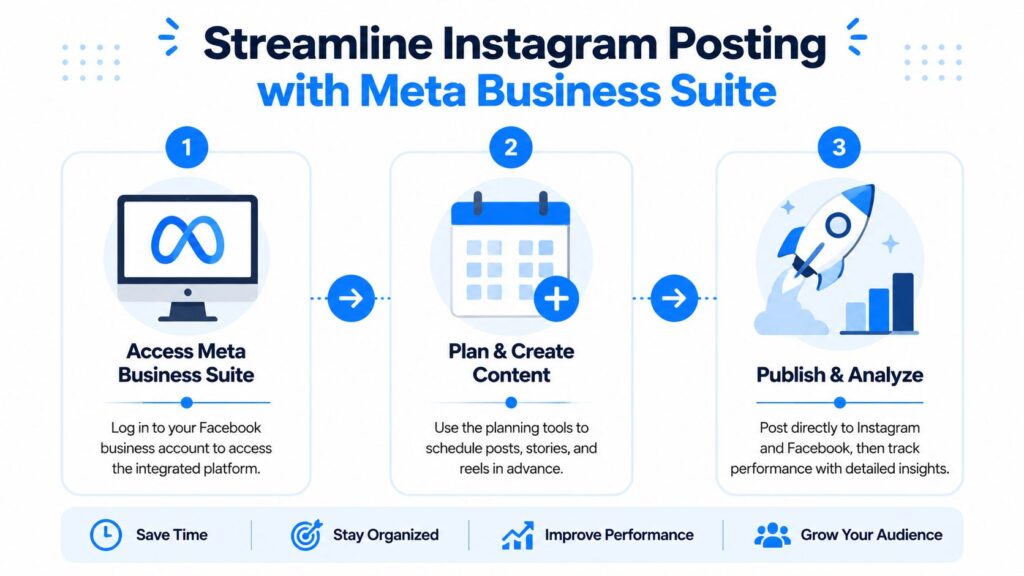
Meta Business Suite
Why marketers use Meta Business Suite
This method is built for people who need more than a publish button.
A DTC brand launching a new collection might need to schedule product imagery, behind-the-scenes clips, and testimonial content across several days while keeping an eye on performance once posts go live. Meta Business Suite gives that team a desktop command center instead of a scattered mobile workflow.
The biggest strengths are practical:
- Scheduling content in advance
- Managing Instagram and Facebook from one place
- Reviewing Insights from the desktop
- Monitoring comments and engagement
- Keeping publishing tied to business reporting
How to set it up and use it
The first step is account connection. If the Instagram profile isn’t linked to a Facebook Page, the publishing and reporting features won’t be fully available.
Once the connection is in place, the workflow looks like this:
- Open Meta Business Suite from your desktop browser.
- Confirm that the correct Facebook Page and Instagram profile are connected.
- Create your content using your prepared image or video assets.
- Write and review the caption while you’re still inside the same desktop workspace.
- Choose whether to publish now or schedule later.
- Check Insights after publishing to review reach, profile visits, content performance, and follower growth.
Where Meta Business Suite earns its keep
The biggest advantage is continuity. You’re not just uploading. You’re publishing in the same place you review outcomes.
That matters for real business use cases:
- Retail brands can schedule campaign posts around launches and then review the response from a desktop.
- Agencies can manage professional profiles without constantly switching devices.
- Service businesses can handle content and engagement from a single interface during working hours.
Meta Business Suite is the better fit when content publishing and performance analysis need to happen inside the same routine.
What it still doesn’t solve perfectly
Meta Business Suite is stronger than native Instagram.com for business use, but it isn’t automatically the best choice for every team.
It can feel heavier than a direct web upload if all you want is one quick post. It also depends on the account setup being correct. If the Instagram account isn’t connected properly to a Facebook Page, the workflow stalls before it starts.
For solo creators who don’t need dashboards or deeper reporting, it may feel like extra steps. For agencies and in-house marketers, those extra steps usually pay off because they reduce chaos later.
The Automation Method Leveraging Third-Party Tools
Third-party tools make sense when Instagram posting becomes a team process, not just a publishing action. Platforms like Buffer, Later, Sprout Social, Agorapulse, and similar tools are often utilized in these situations.
The practical difference between native desktop posting and third-party management tools is significant for teams. As noted in Sprout Social’s guide to posting to Instagram from PC, third-party tools often provide stronger options for collaboration, advanced scheduling, alt text, multi-account workflows, and even Story publishing that might otherwise require a workaround.
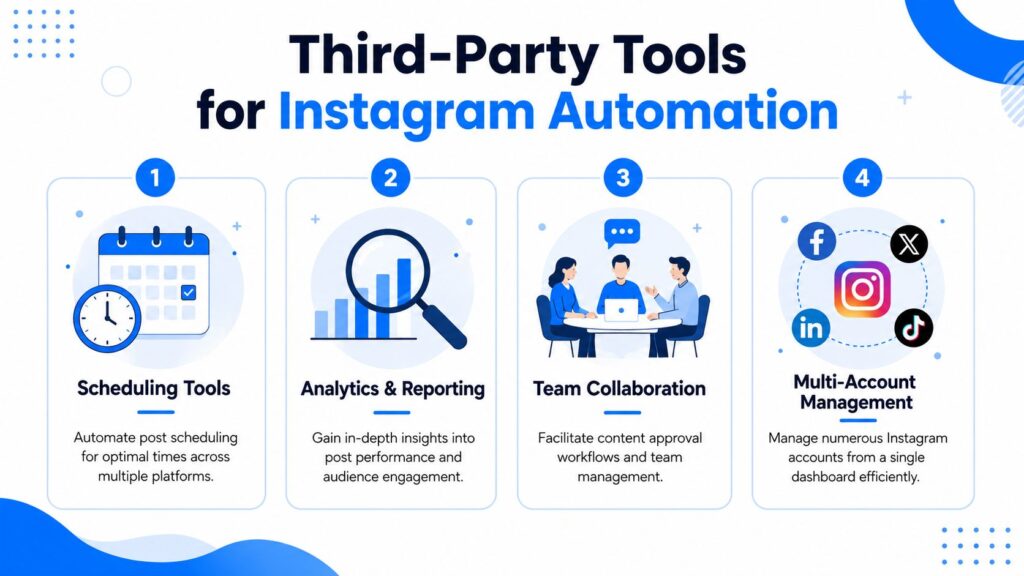
Automation Tools
Why do teams pay for a tool when free options exist
Because publishing is rarely the only job.
A social media manager at an agency might need to do all of this in one week:
- Draft posts for multiple brands
- Get approvals from clients
- Schedule content across several accounts
- Assign replies to team members
- Keep captions, hashtags, and creatives organized
Instagram.com doesn’t handle that kind of operational load well. Meta Business Suite helps, especially for business accounts, but agencies often outgrow it when collaboration gets messy.
Third-party platforms are built for that gap.
What they usually do better
Instead of just asking, “Can you post on Instagram from a desktop?” teams should ask, “Can this desktop workflow support how we work?”
That is where outside tools usually win.
- Collaboration: Team members can draft, review, approve, and publish without sending assets through scattered Slack threads and email chains.
- Scheduling depth: Content calendars are often easier to manage visually.
- Multi-account management: One dashboard can handle several brands or locations.
- Story support and workarounds: Some tools help bridge the gap when native desktop options are limited.
- Alt text and publishing controls: These are often easier to standardize across a team.
One relevant option in this category is Clepher’s social media automation toolkit, alongside tools such as Sprout Social, Buffer, Later, and Agorapulse, for businesses that want desktop control tied to broader automation workflows.
Desktop Instagram Posting Methods Compared
| Feature | Instagram.com | Meta Business Suite | Third-Party Tools |
|---|---|---|---|
| Best for | Quick feed posts | Business publishing and insights | Teams, agencies, and scaled workflows |
| Posting from desktop | Yes | Yes | Yes |
| Scheduling | Limited for direct native workflow | Yes | Usually stronger and more flexible |
| Analytics access | Basic publishing focus | Built into the business workflow | Often broader reporting and account views |
| Multi-account management | Manual and basic | Better for connected business assets | Usually the strongest option |
| Team collaboration | Minimal | Moderate | Usually strongest |
| Story publishing options | Can be limited | Better for business workflows | Often includes workarounds or supported paths |
| Best use case | Publish one post fast | Run a brand account from desktop | Manage approvals, scale, and coordination |
When third-party tools are worth it
They make the most sense when any of these are true:
- You manage several accounts
- More than one person touches content before it goes live
- You need an approval workflow
- Your posting calendar is planned in batches
- You want Instagram to be part of a broader social publishing system
The value of a third-party platform isn’t just automation. It’s reducing the friction between planning, approval, publishing, and reporting.
If you’re a solo business owner posting a few feed images each week, this may be more software than you need. If you’re running client accounts or an in-house content machine, it often becomes the cleanest option.
Understanding Desktop Posting Limitations and Workarounds
Desktop posting is solid for standard feed content. The main limitation is still format coverage.
According to a video walkthrough on desktop Instagram publishing limitations and workarounds, desktop guides consistently support standard feed uploads, but Stories and Reels often require workarounds such as browser mobile emulation, Meta business tools, or third-party schedulers to access fuller functionality.
What usually causes frustration
The problem isn’t publishing a polished image or video to the feed. The problem starts when marketers expect the full mobile creation experience on a desktop.
That gap shows up in a few places:
- Stories may require a different workflow than standard feed posts
- Reels can involve extra steps depending on the tool
- Interactive features are often harder to handle from a desktop
- Some native creation options still work better in the mobile app
Many desktop guides oversimplify the answer. They say yes, and they aren’t wrong. But if your campaign relies on platform-native features that are built around phone behavior, desktop can still feel partial.
Workarounds that actually help
The best workaround depends on the content type.
For teams, these approaches are practical:
-
Build the asset on desktop, finish on mobile
Edit the video, write the caption, and organize the files on the desktop. Then use the phone only for the final feature-specific publish step. -
Use Meta Business Suite for business workflows
If your account setup supports it, this can reduce how often you need a mobile handoff. -
Use a scheduler with reminder-based publishing when needed
This is often the cleanest middle ground for Stories or formats that need a final tap in the app. -
Keep browser emulation as a backup, not a primary system
It can help in a pinch, but it isn’t the workflow for consistent, organized content efforts.
Desktop is great for preparation and publishing. Mobile is still important for the parts of Instagram that depend on native, in-app creative features.
The most efficient marketers don’t fight that reality. They split the workflow on purpose.
Best Practices for a Professional Desktop Workflow
The best desktop workflow isn’t about finding one perfect tool. It’s about assigning the right tool to the right job.
A clean setup usually looks like this: create and organize assets on the desktop, write captions in batches, publish simple feed posts natively when speed matters, and use Meta Business Suite or a third-party platform when scheduling, reporting, or collaboration matters more.
Habits that save time every week
- Batch content creation: Edit images, finalize video exports, and write several captions in one sitting instead of rebuilding the process every day.
- Standardize file names: Keep folders clear so your team can find the final approved asset without guessing which version is current.
- Separate publishing from engagement: Use a desktop for planning and posting, then spend dedicated time replying to comments and DMs instead of mixing everything together.
- Match the tool to the content: Native web for quick feed posts. Meta Business Suite for business operations. Third-party tools for approvals and scale.
- Prepare mobile-only elements in advance: If a Story or Reel may need a phone handoff, have the asset, caption, and publishing note ready before you switch devices.
Think beyond posting
For most brands, posting isn’t the finish line. It’s the trigger for the next step.
A strong desktop workflow gives you more time to watch what happens after the post goes live. That means checking comments, handling product questions, and moving conversations into DMs when people show buying intent. If you’re juggling several profiles, these multi-account Instagram management practices can help keep that process organized.
For brands that sell visually driven products, it also helps to study broader channel strategy. This practical guide to bedding marketing on social platforms is a useful example of how social content supports real product discovery and customer engagement, not just posting frequency.
A professional desktop workflow should remove admin work so you can spend more time on creative decisions, customer conversations, and performance review.
When desktop posting is organized well, your team stops wasting time on file transfers and starts acting more like a real publishing operation.
If your Instagram posts are already driving comments and DMs, Clepher can help you handle what happens next. It gives businesses a way to manage Instagram conversations, automate replies, and support lead capture from the desktop workflows you’re already using.

Related Posts
Customer Journey Automation: The Practical Guide
October 10, 2026Lead Qualification Marketing: A Practical 2026 Guide
October 9, 2026Customer Experience Optimization Playbook
October 8, 2026
Founder Clepher