
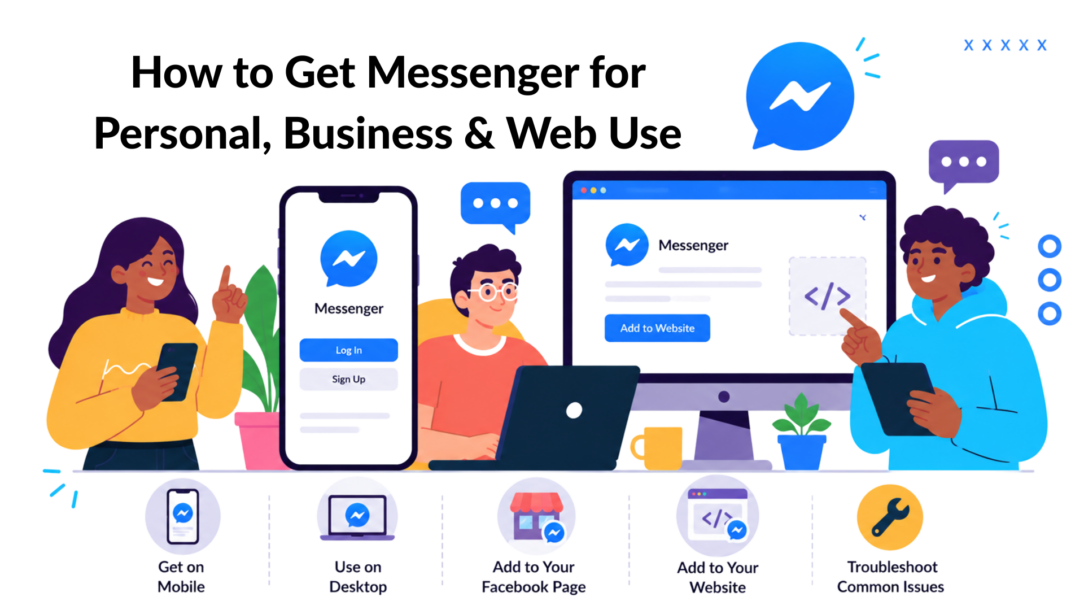
A lot of people search for how to get Messenger when they’re trying to solve something immediately. They want to message family from a laptop, recover chats after reinstalling an app, or give customers a faster way to ask questions before buying.
That last one matters more than most businesses think. When a shopper lands on your site or Facebook Page and can’t get a quick answer, they often leave instead of waiting. Messenger fixes that, but only if you set it up as a channel, not just an app on a phone.
I’ve seen the same pattern with brands, agencies, and local businesses. They install Messenger, maybe reply manually for a week, then wonder why it isn’t driving more leads or reducing support load. The missing piece is the full setup: access across devices, Page configuration, website connection, and a plan for automation.
Why Messenger Is More Than Just a Chat App
The simplest reason to use Messenger is access. People already know how to send a message. They don’t need to learn a ticketing system, download a new support app, or wait for an email reply that may land hours later.
For personal use, that means convenience. For business use, it means lower friction at the exact moment someone is deciding whether to trust you.
It sits in the gap between browsing and buying
A customer visits your product page, likes what they see, but has one hesitation. Shipping. Sizing. Availability. Returns. If there’s no fast conversation option, that hesitation turns into a lost sale.
Messenger works well because it meets people in a familiar format. They can ask a short question, get a short answer, and keep moving. That’s often better than forcing a form fill or making them hunt through a FAQ page.
Practical rule: If a buyer has to work to contact you, fewer buyers will contact you.
That same logic applies to support. Existing customers often don’t want to open an email for a simple status check. A message thread feels easier, and easier channels usually get used more.
It’s personal on one side and operational on the other
Messenger now lives in two worlds. On one side, it’s still a personal messaging tool across mobile, desktop, and web. On the other hand, it’s a front-door communication channel for brands, creators, stores, and service businesses.
That distinction matters when you think about privacy and trust. Meta says Messenger’s rollout of default end-to-end encryption for eligible one-to-one personal chats was completed in 2023, after saying in 2021 that it would move toward default E2EE across Messenger and Instagram Direct. Meta also says encrypted one-on-one chats, calls, and secure storage support features such as message recovery and key verification, while business, Marketplace, and community chats still use standard encryption rather than E2EE, according to Meta’s engineering note on Messenger encryption.
That means you shouldn’t treat every Messenger conversation the same way. Personal chats and business interactions don’t share the same privacy model. If you run a business, set expectations clearly and avoid using Messenger as the place for information that belongs in a more controlled workflow.
The real opportunity is strategic
Most basic guides stop at “download the app.” That’s useful, but incomplete.
A better question is this: where do you want conversations to start, and what should happen after they start?
For a solo user, the answer may be simple. Install it on a phone and sign in on the web. For a business, Messenger can become:
- A sales assist channel for pre-purchase questions
- A support layer for common requests
- A lead capture point on your Facebook Page or website
- A follow-up channel that keeps the conversation in one thread
If you think of Messenger as just another app icon, you’ll underuse it. If you treat it like a lightweight sales and support system, it becomes much more valuable.
Getting Messenger on All Your Devices
The best setup is the one you’ll use. Frequently, this means putting Messenger on more than one device so conversations don’t get trapped on a single phone.
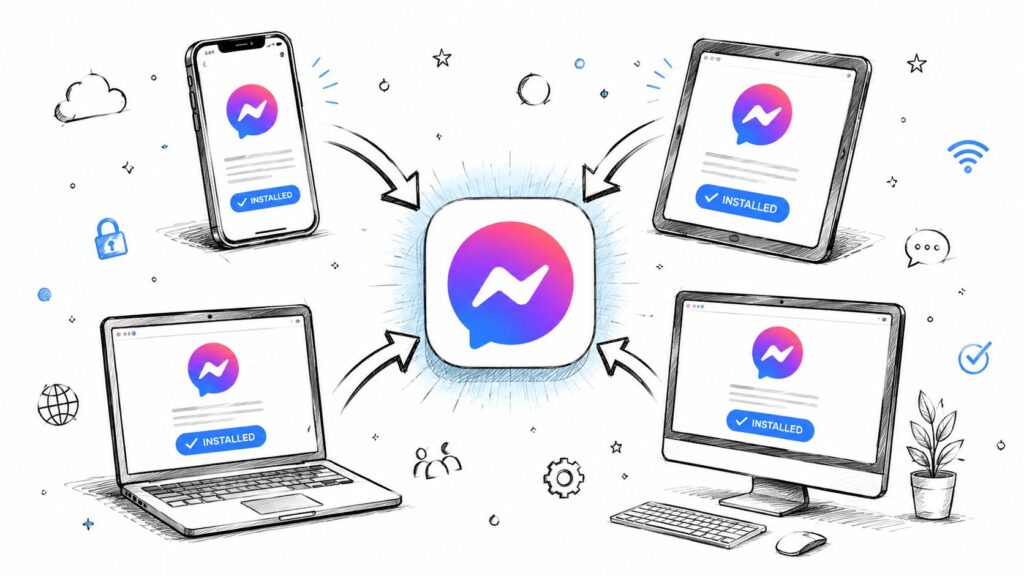
Messenger App Installation
Meta’s own product pages emphasize that Messenger can be used with no phone number needed, via Facebook login, QR code, or a shareable link, and Messenger is also positioned as a standalone app with desktop versions and web access, as described on the Messenger listing on Google Play. That’s useful if you don’t want to tie access to a personal number, or if your business team needs flexible login options.
Get Messenger on iPhone and Android
For most users, mobile is still the default.
Use this route if you want instant notifications, quick replies, camera access, and an always-on inbox in your pocket. It’s also the simplest setup for creators, freelancers, and small business owners who manage conversations themselves.
On iPhone
- Open the App Store: Search for Messenger and install the official app.
- Sign in your way: Use your Facebook account if that’s how you manage contacts and business access.
- Check permissions early: Allow notifications if you want Messenger to be useful for sales or support. If notifications are off, response times slip fast.
On Android
- Use Google Play: Search for Messenger and install it from the official store listing.
- Complete setup in one pass: Add login details, enable notifications, and test a message right away.
- Review battery settings: Some Android devices are aggressive about background apps. If messages arrive late, battery optimization is often part of the problem.
For some users, the issue isn’t installing Messenger. It’s signing up or accessing services without using a primary number. In cases where privacy or temporary testing matters, teams sometimes research anonymous account verification strategies before deciding how to separate personal and business identities.
Use Messenger on desktop and web
Desktop access is underrated. It’s often the better option if you handle customer conversations while working in Shopify, a CRM, help desk, or browser tabs all day.
There are two practical choices:
| Access method | Best for | Why it works |
|---|---|---|
| Messenger desktop app | Daily business use | Keeps chat separate from your main browser workflow |
| Messenger.com | Fast access anywhere | No local install needed on shared or temporary machines |
If you prefer a desktop-first workflow, this guide to the Facebook Messenger desktop app is a useful next step.
After you install or open the web version, send a few test messages between devices. Don’t assume sync is working just because login succeeded. If you’re using Messenger for customers, you need to know where replies will appear and who on your team can see them.
Choose the setup that matches your actual use
A lot of friction comes from using the wrong device mix.
- Personal messaging: Phone plus web is usually enough.
- Solo business owner: Phone plus desktop app works better because you can reply faster during work hours.
- Small team: Web or desktop access is easier to standardize than relying on one person’s phone.
- Privacy-conscious users: Facebook login, QR code, or shareable links can reduce the need to center everything around a phone number.
Use the web version when you need access now. Use mobile when speed matters. Use desktop when conversations are part of your workday.
That’s the practical answer to how to get Messenger. Don’t just install it. Put it on the devices that match the way you communicate.
Activating Messenger for Your Facebook Page
Installing Messenger for yourself is one thing. Turning it on properly for your business is a different job.
A Facebook Page with messaging enabled becomes a real contact point. Without setup, it feels unfinished. People can reach you, but the experience is clumsy. They don’t know if anyone will reply, how quickly you respond, or whether they’ve contacted the right business.
Start inside your Page and Business settings
Open your Facebook Page and review your messaging options in Meta Business Suite. You’re looking for the controls tied to inbox access, greetings, and automated replies.
If you want a more business-focused setup path, this overview of Messenger for business gives a useful reference point.
The core goal is simple. Make sure someone who opens your Page has an obvious way to start a conversation, and make sure that first interaction feels intentional.
Configure the pieces that shape first impressions
These settings look small, but they affect whether a new lead keeps going.
- Your Page identity: Set a clean username or handle if available. It makes your brand look easier to find and easier to trust.
- Greeting message: Use the pre-chat greeting to tell people what kind of help they can get. Good greetings reduce vague messages and move people toward action.
- Instant reply: An instant reply acknowledges the message immediately. Even a short confirmation can calm the “did this send?” doubt.
- Away expectations: If you don’t reply live all day, say so. Clear expectations protect the relationship better than silence.
A weak greeting says, “Hi, how can we help?” A useful one says, “Ask about pricing, delivery times, or product fit, and we’ll point you in the right direction.” The second version does more work.
What actually works in practice
Most businesses don’t need a complicated script at this stage. They need clarity.
A local clinic might use Messenger to funnel people toward appointment questions. An ecommerce brand might focus on stock, shipping, and returns. A coach might direct prospects toward packages, availability, or a discovery call.
A greeting should answer one silent question before the customer asks it: “Am I in the right place?”
That’s why I recommend writing your opening message around the top three reasons people contact you. If your team keeps answering the same questions, put those topics right into the first touchpoint.
Try this structure:
- Welcome the visitor: Confirm they’ve reached the right brand.
- Name the common requests: Pricing, orders, availability, support.
- Set response expectations: Fast during business hours, slower outside them.
- Offer the next step: Ask them to send a message with their question.
This setup doesn’t replace human support. It improves the first minute of the conversation, and that minute shapes whether someone stays engaged.
Adding a Messenger Chat Widget to Your Website
Your website gets some of your highest-intent traffic. These are people already looking at your offer, not casually scrolling a social feed. If they have a question and can’t ask it easily, they leave with that question unanswered.
A Messenger chat widget fixes that by moving the conversation to the page where buying intent is already strongest.
Why the website widget matters
Standard live chat tools often trap the conversation on the site itself. Messenger has a different advantage. The thread can continue in a channel people already use across devices.
That’s useful for stores, service businesses, and agencies. A prospect can ask a question on your website, step away, and continue the conversation later inside Messenger instead of starting over.
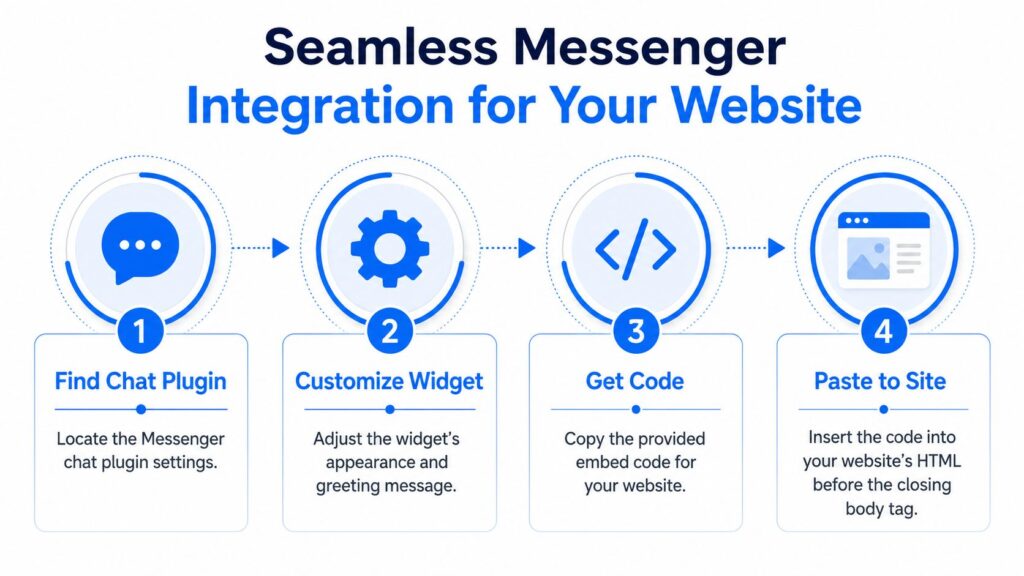
Messenger Chat Integration
If you want a platform-specific walkthrough, this resource on adding Facebook Messenger to your website is a practical companion.
How to add the widget
The process is usually straightforward inside your Meta business tools. You customize the widget, generate the embed code, and place it on your site.
Use this sequence:
- Find the chat plugin settings: Look for the Messenger website chat option connected to your Facebook Page.
- Customize the appearance: Match the welcome text to the page context. Product pages and contact pages shouldn’t use the exact same opener.
- Generate the code: Copy the embed snippet provided for your site.
- Install it on your website: Add the code where your platform allows custom scripts or HTML before the closing body tag.
If you use WordPress, Shopify, or another common platform, this usually means placing the code in theme settings, a custom code block, or a site-wide script area.
Match the message to the page
Many businesses miss easy wins when they install the widget everywhere yet use the same generic prompt across the whole site.
That wastes context.
A better approach looks like this:
| Page type | Better opening message | Why does it convert better |
|---|---|---|
| Product page | “Questions about fit, shipping, or availability? Send us a message.” | It speaks to buying hesitations |
| Pricing page | “Need help choosing the right option? Message us, and we’ll point you in the right direction.” | It helps decision-making |
| Contact page | “Tell us what you need, and we’ll route your message quickly.” | It reduces vague inquiries |
A store selling skincare, for example, can use Messenger to answer ingredient or routine questions before checkout. A service business can use it to pre-qualify people who aren’t ready to fill out a full form yet.
The widget shouldn’t be treated like decoration. It should answer the exact objection that’s most likely to stop action on that page.
Once it’s live, test it as a customer would. Click the widget on desktop and mobile. Check load behavior. Send a real message. Confirm where the reply lands. A chat tool that only “mostly works” creates more friction than it removes.
Troubleshooting Common Messenger Issues
Messenger problems usually fall into a few buckets. Access, sync, storage, or setup. The fastest way to fix them is to stop guessing and match the symptom to the likely cause.
The official help page notes that app availability depends on the device, requiring newer OS versions for desktop, specifically Mac OS v10.14+ or Windows 10 version 1903+, and recommends reinstalling, checking storage, and turning on secure storage if messages are missing after reinstalling, according to Meta’s Messenger help page.
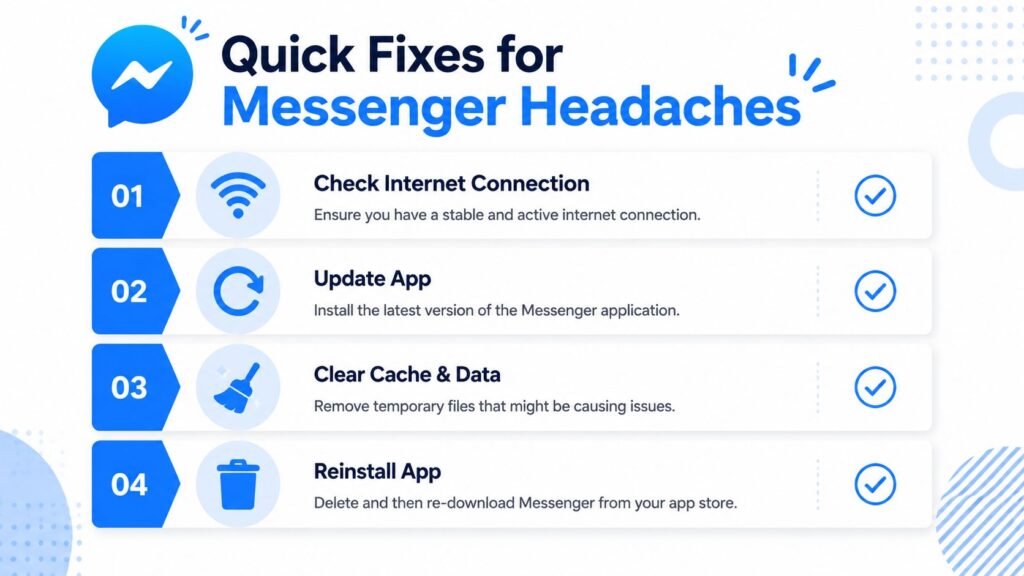
Messenger Troubleshooting
Messenger won’t install or run properly
If installation fails on the desktop, the operating system may be the issue, not the app itself. Older machines often get left out of generic setup guides, which makes people think they did something wrong.
Try this checklist:
- Check your operating system: Desktop Messenger support depends on newer Mac and Windows versions.
- Use the web version instead: If the desktop app isn’t supported, Messenger.com is often the most practical fallback.
- Free up local storage: Low storage can block installs or cause unstable behavior after installation.
If the app opens but feels unreliable, reinstalling is often worth the few minutes it takes. Not because reinstalling is magic, but because it clears out the broken local state that can build up over time.
Messages are missing after reinstalling
This is one of the most frustrating support issues because people assume chats are gone for good.
Meta’s help guidance points users toward secure storage when messages are missing after a reinstall. If secure storage wasn’t enabled or completed properly before the reset, recovery becomes harder. That’s why I tell clients to treat secure storage as part of the setup, not a nice extra.
What to do:
- Check whether secure storage is enabled: Don’t wait until after a problem to look at this setting.
- Review available recovery prompts: Follow the options offered inside Messenger.
- Verify storage conditions on your device: A full device can create all sorts of sync and restore problems.
Missing messages after reinstalling usually point to setup gaps, not random app behavior.
Notifications or sending behavior seem broken
If messages get stuck on sending or notifications don’t show up, start with the boring causes first. They’re usually the right ones.
- Connection issues: Weak or unstable internet still causes a lot of “sending” problems.
- Permission settings: Notification permissions may be blocked at the app or device level.
- Battery restrictions: Some phones suppress background activity and delay alerts.
Businesses feel this more sharply than personal users. One missed notification can mean one missed lead.
You need a copy of your encrypted chats
For record keeping or device changes, Meta says you can download a copy of your end-to-end encrypted Messenger messages only on a computer, through Messenger.com by going to Privacy & safety → End-to-end encrypted chats → Secure storage → Download secure storage data. Meta notes that preparing the download can take several minutes, and the export can include messages from a selected date range, from the last week up to all time, as explained in Meta’s secure storage download instructions.
That matters if you’re trying to preserve conversation history before switching machines, documenting customer interactions, or keeping your own records organized.
If you manage Messenger for a business, build a habit around periodic checks. Test notifications. Confirm widget behavior. Review access on desktop and web. Messenger usually works well when it’s maintained, but small issues stack up when nobody owns the channel.
The Next Step: Turning Conversations into Conversions
Getting Messenger installed and connected is the easy part. The harder part is handling conversations consistently once they start coming in.
That’s where most businesses stall. They reply fast for a few days, then volume grows, team members get busy, and the inbox turns into a mix of missed leads, half-answered questions, and support requests that should have been routed automatically.
Manual replies don’t scale well
If you only get occasional messages, manual handling is fine. But once Messenger becomes part of your sales or support flow, you need structure.
That usually means thinking in terms of intent:
- New lead questions: pricing, fit, delivery, eligibility
- Support requests: order status, account issues, common troubleshooting
- Promotional conversations: campaigns, launches, reminders
- Qualification paths: collecting enough detail to send the person to the right next step
The robust implementation path for a Facebook Messenger chatbot is to create a Facebook Developer app, choose either a no-code builder or the Messenger Platform API, map customer intents into a conversation flow, connect CRM or order systems for personalization, then run full-path testing before launch, as outlined in Infobip’s Messenger chatbot implementation guide.
That’s the professional approach because it forces you to think about the whole path, not just the first message.
Automation works when the flow is realistic
A lot of automation fails because businesses try to sound clever instead of being useful. The flow should get people where they need to go faster than a human inbox would.
That means:
| Automation job | What good looks like |
|---|---|
| Lead capture | Asks for the minimum details needed to follow up |
| Support triage | Routes common questions before they reach a person |
| Sales guidance | Helps people choose without forcing a long form |
| Follow-up | Continues the thread after the visitor leaves the site |
Messenger Chatbot Marketing
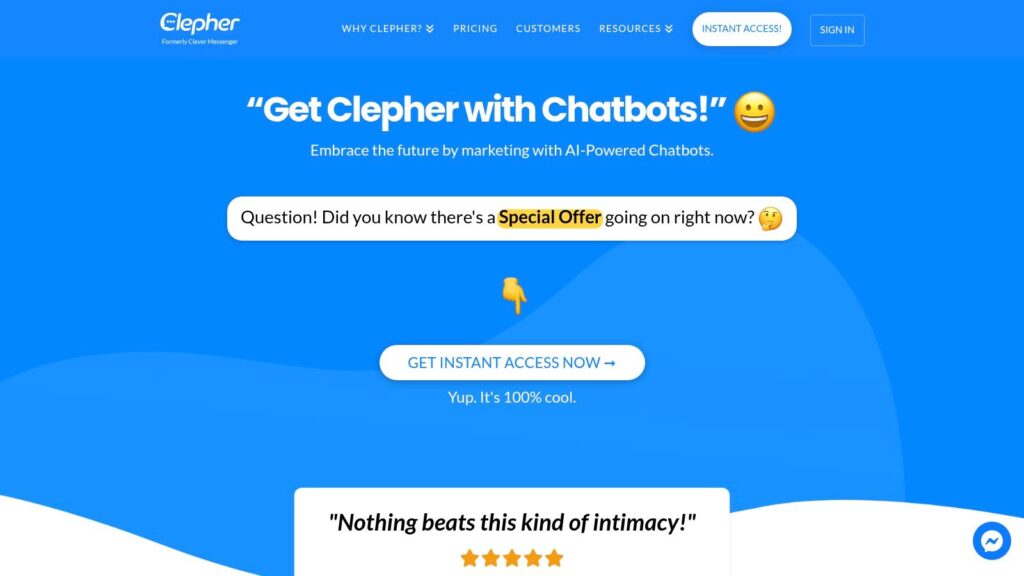
For teams that don’t want to build everything directly through the API, Clepher is one no-code option that abstracts much of that setup into a visual chatbot builder for Messenger and related channels. That’s useful when marketing teams need to launch flows without depending on a developer for every change.
Automation should remove waiting, not create a maze.
The practical win isn’t “having a bot.” It’s answering common questions faster, qualifying serious buyers sooner, and keeping the conversation alive after the first click. When Messenger does that, it stops being just another inbox and starts contributing to revenue and support efficiency.
If you want Messenger to do more than collect messages, take a look at Clepher. It gives marketers and business owners a no-code way to build Messenger flows, connect conversations to the rest of their stack, and turn routine questions into guided sales and support journeys.

Related Posts
Customer Journey Automation: The Practical Guide
October 10, 2026Lead Qualification Marketing: A Practical 2026 Guide
October 9, 2026Customer Experience Optimization Playbook
October 8, 2026
Founder Clepher