
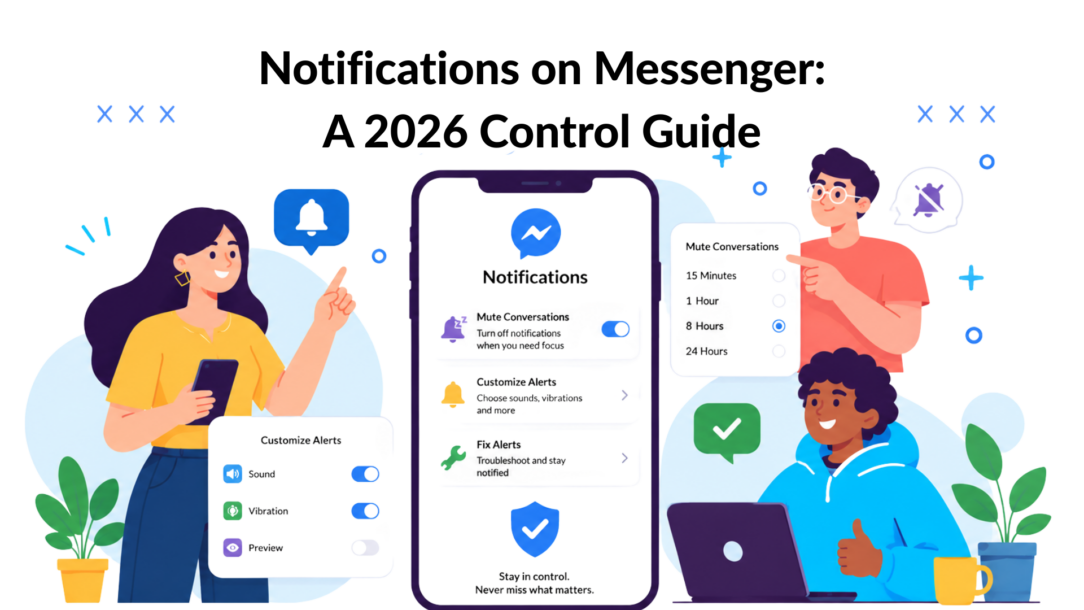
Your phone buzzes. Then again. A family group is arguing about dinner. A customer asks for an order update. Someone sends a meme at midnight. You mute Messenger for peace, then miss the one message you needed.
A significant difficulty concerning notifications on messenger is that they are frequently treated like a simple on or off switch. They aren’t. They’re a stack of settings spread across the app, your phone, your browser, and your habits.
That same chaos hits marketers, too. If you can’t control what reaches you, you’ll struggle to send messages that people welcome. The personal side and the business side are connected. Learn one, and the other gets easier.
Take Control of Your Messenger Notifications
Messenger is still operating at a massive scale. In January 2025, Messenger ads reached 947 million users worldwide, making it the 6th-largest social media platform by reported ad reach outside China at the start of 2025, according to DataReportal’s Messenger stats roundup. That matters because a platform this large creates a lot of daily notification traffic, both useful and useless.

Notifications on Messenger Productivity Focus
If your current setup feels noisy, start with global controls first. Don’t jump straight into muting random chats. Get the foundation right, then fine-tune.
Start with platform-level control
On iPhone, check two layers:
- Messenger app settings inside the app itself.
- iOS notification permissions in Settings, where banners, sounds, badges, lock screen behavior, and previews live.
On Android, the same idea applies, but Android usually gives more granular controls for categories, sound behavior, and battery limits. Some phone makers also hide Messenger behind aggressive background restrictions, which can affect delivery later.
On desktop or web, you have another split:
- Messenger settings
- Browser notification permissions
- Operating system notification settings
If one layer is off, Messenger can look enabled while still staying silent.
For a quick walkthrough of the in-app controls, this guide to settings in Messenger is a useful reference.
Use silence deliberately
There are two good reasons to shut notifications down completely for a while:
- You’re overloaded and need to stop reactive checking
- You’re debugging because you don’t know which alerts matter anymore
Try one of these approaches:
- Temporary mute: Good when you need focus for work, sleep, or travel.
- Full app silence: Better if Messenger has become your default interruption machine.
- Disable sounds but keep badges: Useful if you want awareness without constant pings.
Practical rule: If every message feels urgent, none of them is. Start broad, then earn alerts back conversation by conversation.
Build a calm default
A workable baseline for users looks like this:
| Setting area | Better default |
|---|---|
| Sound | Off unless you use Messenger for active client work |
| Banners | On, but only if lock screen clutter doesn’t stress you out |
| Badges | On if you want a passive reminder |
| Preview content | Limited, especially on shared devices |
| Desktop pop-ups | Off unless your business relies on web-based support |
Here, standard advice often falls short. It tells you where the switch is, not how to create a system. The right baseline is the one that lets you respond on purpose instead of reacting all day.
Customize Alerts for Key Conversations
Global settings create peace. Per-chat controls create a signal.
Messenger regains its utility. You don’t need every chat to behave the same way. A loud family group, a key client, a business partner, and your closest friends deserve different rules.
Mute the noisy chats, not the important ones
Users often make one of two mistakes. They either leave everything on and suffer through constant interruptions, or they mute the entire app and miss business-critical messages.
A better move is to open individual conversations and decide what role each one plays.
- Family or community groups: Mute them if they produce chatter all day.
- Client threads: Keep alerts active if fast replies affect revenue or trust.
- Old project groups: Silence them instead of leaving them unread forever.
- Event planning chats: Use temporary mute so they don’t hijack your whole week.
If a group chat is active but rarely urgent, mute it without leaving. That preserves the relationship without letting the group control your attention.
Use mentions as a filter
Group chats are where Messenger turns chaotic fast. If the app supports notification options like mentions only, use them. That changes the rule from “notify me for every joke and side conversation” to “notify me when someone needs me.”
That one change is especially useful for:
- agency teams
- creator collaborations
- volunteer groups
- extended family chats
Most group chats don’t need your constant attention. They need your availability when your name comes up.
Create tiers of attention
Think in levels instead of individual exceptions.
Tier one conversations
These are the people or threads that can interrupt you:
- active customers
- spouse or partner
- urgent internal team chat
- time-sensitive logistics
Tier two conversations
These matter, but not instantly:
- friends
- non-urgent business leads
- group planning threads
- communities you check when convenient
Tier three conversations
These should almost never interrupt you:
- promo-heavy groups
- meme threads
- old sales conversations
- low-priority community channels
That mental model works better than random muting because it reflects reality. Not every notification deserves equal treatment.
A simple setup example
Here’s a practical setup for someone running a small online business:
| Conversation type | Suggested setting |
|---|---|
| Customer support chat | Notifications on |
| VIP client thread | Notifications on, check frequently |
| Team group chat | Mentions only if available |
| Friends group | Muted |
| Neighborhood/community chat | Muted temporarily or permanently |
When people complain that Messenger is overwhelming, the app usually isn’t the whole problem. The problem is unmanaged priority. Once you define who gets instant access to you, Messenger becomes far more predictable.
Why You Miss Messenger Notifications and How to Fix It
You turned notifications on. Messenger says alerts are enabled. Yet messages still appear only when you open the app. That’s one of the most common and most annoying failures.
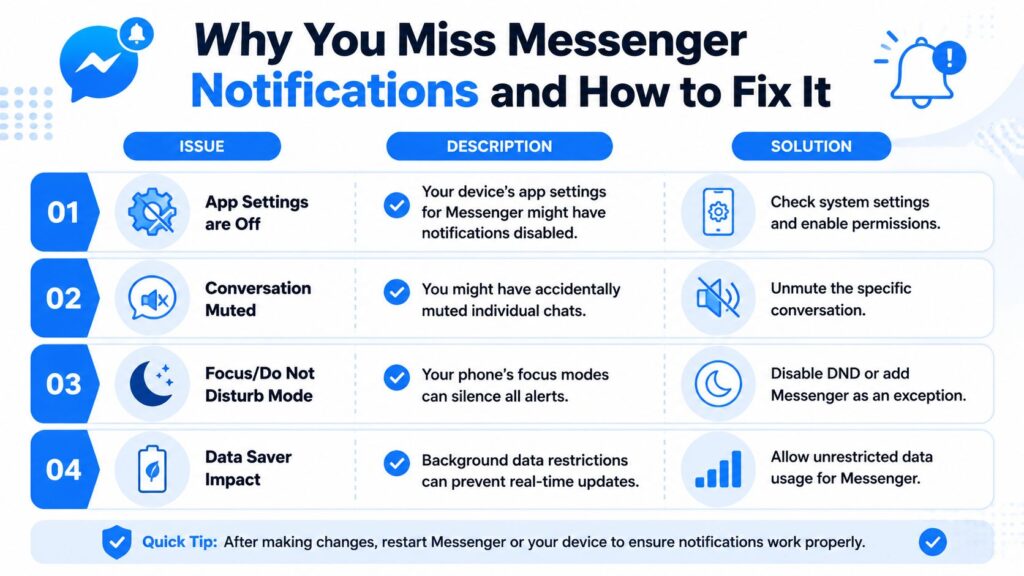
A big reason is that the issue usually isn’t inside Messenger alone. As noted in this YouTube explanation of missed Messenger alerts, there’s a real gap between “how do I turn notifications on or off?” and “why do I miss some notifications even when they’re enabled?” The hidden causes often include Focus or Do Not Disturb modes, per-thread mute settings, and device-level battery optimization.
Notifications on Messenger Troubleshooting Guide
Check the four layers
When notifications fail, work through the stack in this order.
-
Messenger app settings
Make sure the app itself isn’t muted globally. -
Conversation-level settings
A single thread may be muted even if the app is active. -
Operating system controls
iPhone Focus modes, Android Do Not Disturb, Bedtime settings, and notification summaries can all suppress alerts. -
Background restrictions
Battery optimization, data saver, or restricted background activity can delay Messenger until you reopen it.
That layered view explains why basic tutorials disappoint people. They show one menu and assume the problem is solved.
The fastest diagnostic path
If you want a practical troubleshooting sequence, use this checklist:
- Send yourself a test message from another account or ask someone to message you.
- Open the specific thread and confirm it isn’t muted.
- Check Focus or DND and add Messenger as an allowed app if needed.
- Review battery settings and remove Messenger from aggressive optimization.
- If you use browser Messenger, confirm browser notification permissions and OS-level alerts are enabled.
- Restart the app, then the device, if settings look correct but behavior is still inconsistent.
For people who use Messenger at a desk all day, this overview of Facebook Messenger on web helps when the issue is happening in a browser rather than on mobile.
Where business users get burned
If you run support, sales, or lead response through Messenger, missed alerts have a cost even when you can’t measure it neatly. A customer thinks you ignored them. A lead cools off. A team member assumes someone else replied.
Diagnostic insight: “Notifications on” isn’t a single state. It’s an agreement between the app, the device, the browser, and your attention settings.
That’s why I treat missed Messenger notifications as an operations problem, not just a phone problem. If a business depends on fast response, someone should actively test alert delivery on the actual devices and browsers the team uses.
Manage Notification Previews for Better Privacy
A visible notification isn’t always a good notification.
For a lot of people, the main risk isn’t missing the alert. It’s exposing message content on a lock screen, in a banner, or on a desktop pop-up where someone else can read it. That’s especially sensitive when Messenger is handling customer support, lead details, order updates, or private personal messages.
Current how-to content often covers the basic show or hide toggle, but it rarely addresses the bigger question raised in this lock screen preview guide from iDownloadBlog: how to receive Messenger notifications without exposing message content. That matters even more on shared devices and in workplaces.
Pick the privacy level you actually need
There isn’t one perfect setting. There’s a trade-off.
| Situation | Better preview choice |
|---|---|
| Personal phone, low privacy concern | Show previews |
| Phone used around coworkers or family | Show previews only when unlocked |
| Shared desk or front-of-house business device | Hide previews |
| Customer-facing support account | Hide message content in banners and lock screens |
If you respond fast but handle sensitive information, hidden previews are usually the safer default.
Platform differences matter
On iPhone
iOS gives you the clearest control over when previews appear, including options tied to whether the device is locked or active. That makes it the easiest setup if you want fast alerts without showing message text on the lock screen.
On Android
Android behavior varies more by device maker. On some phones, the controls are straightforward. On others, notification privacy, lock screen content, and category-level settings are spread across several menus.
On desktop
Desktop alerts are easy to overlook. Browser pop-ups can expose message snippets in open offices, coworking spaces, or client-facing environments. If your team uses Messenger in Chrome or another browser, test exactly what appears on screen when a new message arrives.
A smart compromise for business use
For teams handling leads or support, this is usually the safest mix:
- Keep alerts on
- Hide message previews
- Require an explicit action to view details on mobile
- Reduce browser pop-up exposure on shared screens
- Train staff not to assume hidden previews mean a missed message
Fast response and privacy aren’t enemies. You just can’t leave the defaults untouched and expect both.
This matters for more than comfort. If customer data appears in a visible banner on a shared device, that can damage trust immediately. Notification previews feel small until the wrong person sees the wrong message at the wrong time.
The Marketer’s Playbook for Messenger Notifications
Messenger works best when you treat it like a conversation channel, not a dumping ground for campaigns.
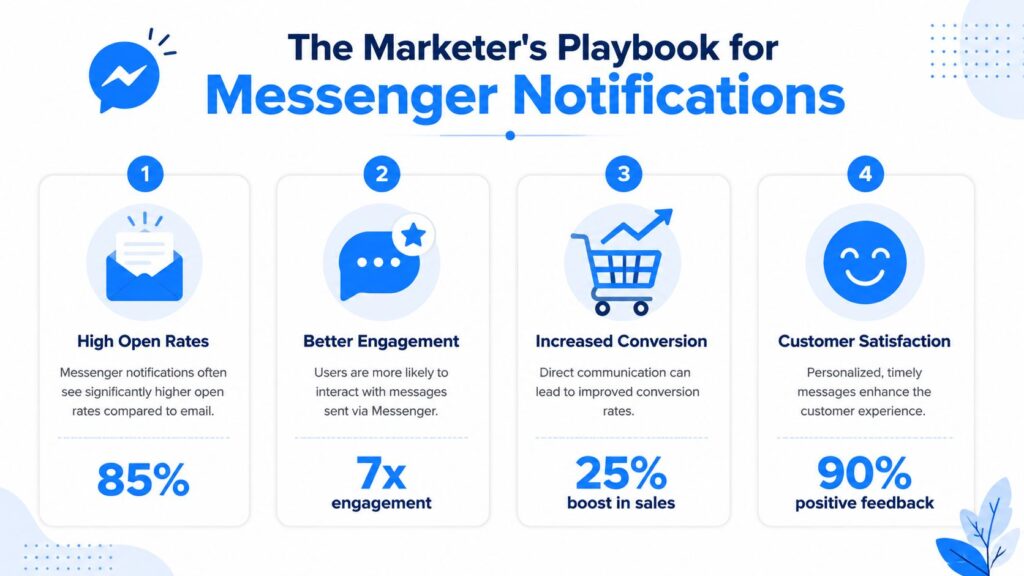
That distinction matters because the upside is real. According to Sinch’s guide to messaging app notifications, messaging app notifications can reach around 95% of recipients, with open rates above 90% and click-through rates around 35%, compared with email CTR around 3% and social CTR around 5%. Those numbers explain why marketers keep coming back to messaging.
Notifications on Messenger Marketing Infographic
The catch is simple. Messenger can outperform other channels when the message is timely, wanted, and easy to act on. It falls apart when marketers copy email habits into a chat environment.
What works
The best Messenger notifications are usually:
- short
- specific
- tied to clear consent
- built around one action
- sent when the user still cares
A strong message sounds like a helpful prompt, not a newsletter squeezed into chat.
Examples:
- order update
- restock alert someone requested
- webinar reminder for a registered attendee
- support follow-up after an open conversation
- lead magnet delivery right after opt-in
What doesn’t
The worst habits are common:
| Bad habit | Why it underperforms |
|---|---|
| Long, multi-link messages | Too much friction in a chat window |
| Email-style broadcast copy | Feels unnatural and easy to ignore |
| Unclear opt-in promise | Users forget why they subscribed |
| Over-messaging | Trust drops, and unsubscribes rise |
| Mixed intent in one message | Users don’t know what to do next |
If you need to send five ideas, you probably need five separate campaigns or a different channel.
Compliance changes the strategy
Messenger marketing only works long-term if people expect the messages and Meta’s rules to be respected. That means being careful about when promotional messages are sent, how consent is collected, and how often people hear from you.
For marketers who also work with disappearing conversations, privacy-sensitive chats, or temporary message behavior, Sup Growth’s Vanish Mode guide is worth reading because it sharpens your understanding of when Messenger is built for permanence versus privacy.
A practical workflow looks like this:
-
Define one use case
Don’t launch with ten message types. -
State the opt-in clearly
Tell people exactly what they’ll receive. -
Keep cadence conservative
You can always increase frequency later. -
Measure the right things
Delivery, opens or reads, clicks, downstream conversion, and unsubscribe behavior all matter.
For teams building campaigns and support flows in one place, Facebook Messenger hacks can help spark practical ideas, especially around segmentation and response design.
Marketing rule: Messenger rewards relevance and punishes laziness faster than email does.
Send Compliant, High-Impact Messages with Chatbots
Manual messaging has worked for a while. Then the volume grows. Leads come in after hours. Customers ask the same questions repeatedly. Promotions need to go out without turning into spam. That’s where chatbots become operationally useful.
Facebook said in 2019 that 20 billion messages were being exchanged between people and businesses every month on Messenger, as noted in this Messenger statistics roundup. The scale explains why automation became necessary. It also explains why sloppy automation annoys people so quickly.
Notifications on Messenger Chatbot Funnel
Where chatbots help
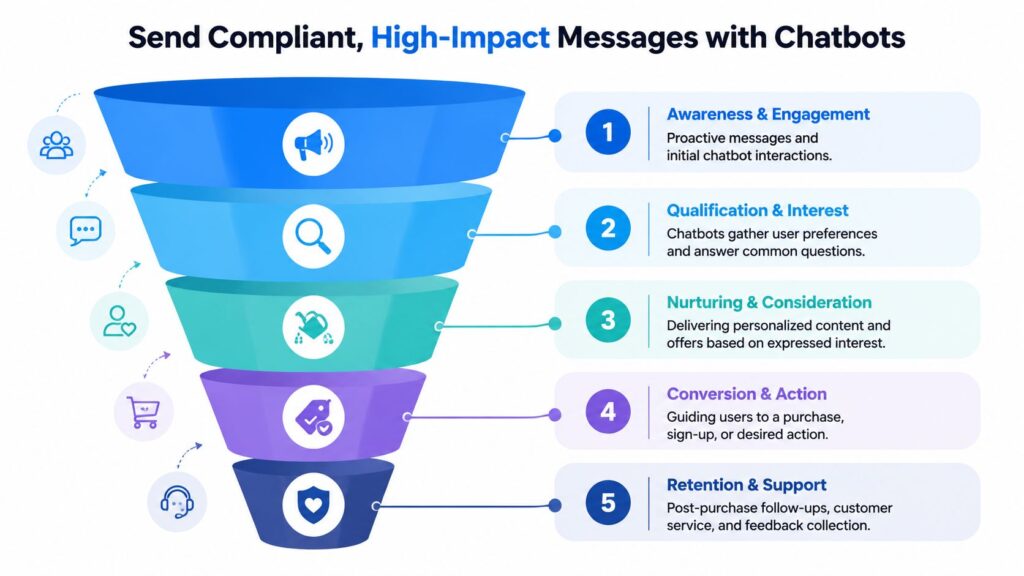
A chatbot platform helps when you need structure, not just speed.
It can handle:
- opt-in capture so people explicitly request updates
- segmentation so buyers, leads, and support contacts don’t get the same messages
- trigger-based sends tied to behavior or status changes
- handoff to a human when the conversation needs judgment
That’s the difference between useful Messenger automation and noisy message blasts.
Use automation for narrow, high-intent moments
The strongest chatbot flows usually focus on one job at a time.
Good automation use cases
- abandoned cart reminders, where policy and timing allow
- post-purchase support paths
- lead magnet delivery
- flash sale alerts for people who asked for them
- FAQ triage before live chat takes over
Weak automation use cases
- broad promotional blasts to loosely defined audiences
- generic check-ins with no clear next step
- repeating the same sales message to everyone
- flows that never offer a human escape hatch
Neil Patel cites Facebook Messenger bot campaigns with 88% open rate and 56% CTR, while Sinch’s Messenger notification example reports 88% CTR and 97% read-through rate for recurring notifications in his review of Messenger performance. Those numbers are impressive, but they depend on disciplined implementation, not just turning on a bot.
Keep automation readable
Even good logic fails if the copy sounds robotic. If your team drafts message sequences with AI, it helps to clean them up before they go live. A tool like humanize chatgpt text can be useful for smoothing stiff copy so automated messages still feel conversational.
One option businesses use for this workflow is Clepher, which provides a no-code builder for chatbot flows across Messenger and other channels, along with segmentation, broadcasts, live chat, and AI-assisted response handling. In practice, tools like that are most useful when they enforce message discipline rather than increase message volume.
Automation should remove delay, not remove judgment.
The best chatbot strategy is simple. Ask clearly. Tag accurately. Send sparingly. Escalate when needed. If your notifications on Messenger follow those rules, they feel helpful instead of invasive.
If Messenger is part of how you capture leads, answer questions, and follow up with customers, Clepher can help you build structured chatbot flows, segment subscribers, and manage messaging across channels without turning every campaign into manual work.

Related Posts
Revenue Optimization: A Practical Playbook for Growth
October 19, 202610 Lead Capture Software Tools Compared for 2026
October 18, 2026WhatsApp Chatbot for Ecommerce: A Practical 2026 Guide
October 17, 2026
Founder Clepher