You’re in the middle of a launch week, your captions are in one phone Notes app, approvals are in Slack, and someone just asked whether the Stories are ready while the feed post still hasn’t been scheduled. That’s the exact kind of mess Instagram Creator Studio was built to tame, and it’s also why so many teams still keep asking about it even though Meta has pushed much of the workflow into native tools and Meta Business Suite. If you manage content for a brand, a client, or your own account, the question isn’t whether Creator Studio is glamorous. It’s whether the desktop workflow still saves time, and where it stops short.
Why IG Creator Studio Still Matters in 2026
A lot of teams still work like this. Drafts live on phones, approvals happen in fragmented chats, and posting windows get chosen after the audience has already moved on. IG Creator Studio made that workflow less chaotic because it pulled publishing, scheduling, and insights into one desktop hub for eligible accounts, which is still the reason people search for it today.
The part that still holds up
Creator Studio was valuable because it let people work from a larger screen, not a mobile scroll. For Creator or Business accounts, it gave marketers a way to view all account content on desktop, schedule content later, and monitor performance metrics such as follower data and engagement type, which HubSpot summarizes clearly in its overview of the tool. That desktop-first approach still makes sense for agencies and in-house teams that need to review assets, compare captions, and line up approvals before anything goes live.
The bigger story, though, is migration. Many searches for “ig creator studio” are really searches for what replaced it, because Meta has shifted publishing and analytics into Instagram native tools and Meta Business Suite. The clearest way to think about it is as a transition map, not a living product roadmap.
If your team is trying to standardize that shift, a practical guide on automating X with XBurst can help you compare workflow automation models without confusing them with publishing tools.
Practical rule: Use Creator Studio thinking for planning and reporting, but verify whether the task now belongs in native Instagram tools or Meta Business Suite before you train the team on it.
The rest of this guide applies if you’re still running a desktop publishing workflow, or if you’re helping a team migrate off one. If your account isn’t a Creator or Business type, the setup path won’t line up with what follows.
Setting Up IG Creator Studio the Right Way
IG Creator Studio Chatbot Marketing
Start with the account. IG Creator Studio works for Creator or Business-type accounts, and that matters because personal accounts won’t get the same publishing and insights workflow. If you’re setting this up for a client, confirm that the Instagram profile is already linked to the right Facebook Page and that the person doing the setup has admin access on the connected Page, not just casual visibility.
The first login should feel boring
Sign in through Facebook, connect the Instagram account, and let the dashboard load fully before you click around. The first screen usually centers on a content calendar, a library of existing posts, an insights panel, and an inbox tile, which is enough to tell you whether the connection is healthy. If anything looks missing, check permissions first, not the content itself.
The reason that order matters showed up constantly in agency work. Two people can open the same account and see different controls depending on Page role, so one person can schedule while another can only review. That’s why a “broken” Creator Studio often turns out to be a role issue, not a technical failure.
After the dashboard is live, test the basics in this order:
- Account type: confirm the Instagram account is Creator or Business.
- Page access: verify the connected Facebook Page role is what your team needs.
- Desktop access: open everything in a browser, not the mobile app.
- Content visibility: make sure the calendar and library populate.
- Insight access: check that the account insights panel opens without errors.
The dashboard should also feel familiar if you’ve used Instagram business tooling before. HubSpot notes that marketers can view account content on desktop, schedule content, and monitor performance metrics from there, which is the core of the setup experience. If you want a broader business-account context while you configure it, the Instagram business overview is a useful companion reference.
A quick tutorial pass can help teams that learn best by watching. If your editors prefer visual walkthroughs, you can also browse tutorial topics and compare workflow styles before you lock in a publishing routine.
Publishing and Scheduling Posts from Desktop
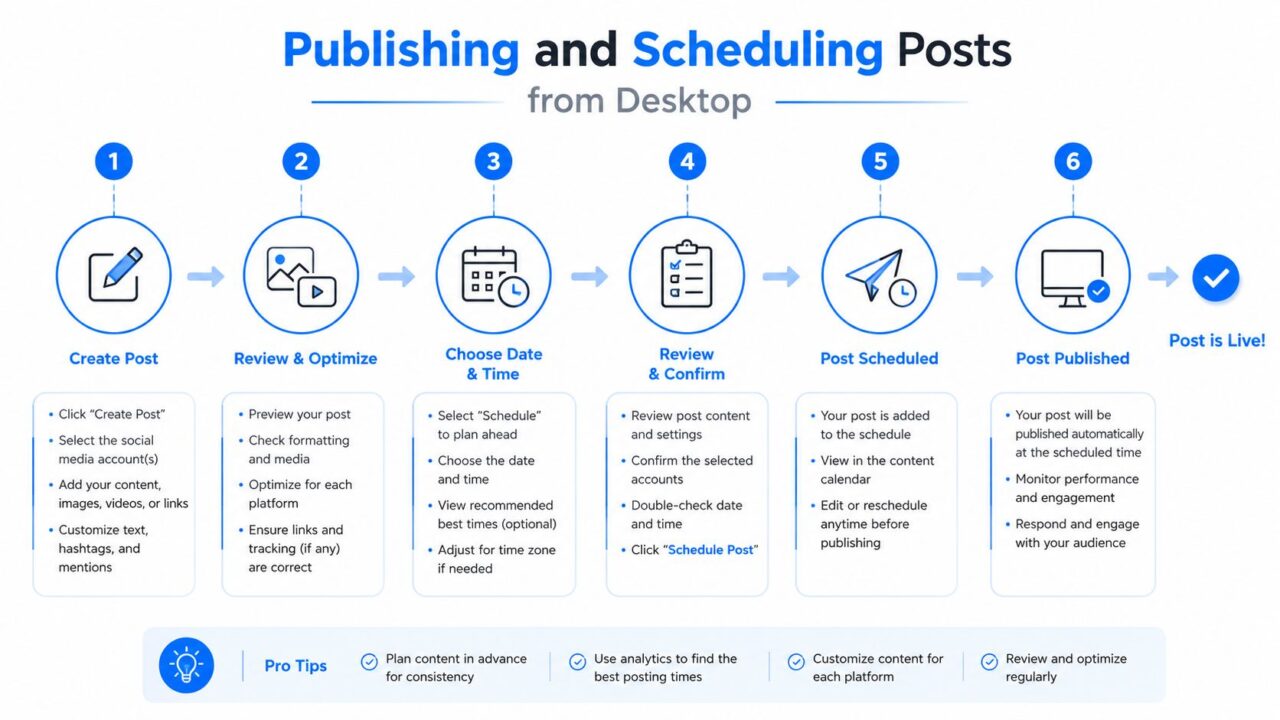
The publishing flow is straightforward once the account is connected. Choose the feed post option, upload the image or video, write the caption, add any tags or location details, and decide whether to publish now or queue it. The payoff is less about novelty and more about control, because desktop scheduling lets a manager review creative, copy, and timing in one place before the post leaves the building.
IG Creator Studio Social Media Scheduling
What actually works and what doesn’t
The useful scheduling detail is simple. Instagram posts in Creator Studio can be scheduled up to 75 days in advance, and eligible users can schedule feed posts and Reels from a desktop computer, according to Shopify. Stories are not supported for scheduling, so a content calendar built around Creator Studio has to split static planning from real-time Story execution.
That format split changes how teams operate. A DTC brand can queue a launch carousel weeks ahead, then handle Stories the morning of launch when pricing, inventory, or urgency messaging is final. That saves rewrites, but it also means nobody should pretend Creator Studio is a one-stop tool for every Instagram format.
A practical scheduling cadence looks like this:
- Build the feed asset on desktop.
- Write the caption with room for review.
- Choose publish now or schedule later.
- Reserve Stories for another workflow.
- Keep Reels in the appropriate tool path.
- Check the queue before campaign day.
The mistake I see most often is trying to force every format into one scheduler. Feed posts are planning assets, Stories are timing assets, and Reels usually belong in a separate production flow.
If you’re evaluating where desktop scheduling stops and newer tooling begins, the desktop posting guide gives a clean comparison point for teams that need to update their playbook. The practical rule is still the same: use the desktop queue for feed content and IGTV, then route short-form vertical and ephemeral content through the tool that supports it.
Reading Insights Without Misreading the Numbers
Creator Studio’s value was never just publishing. Its Insights dashboard split into two views, Activity and Audience, and each one answered a different operational question. Activity showed reach, impressions, website clicks, and profile visits, while Audience showed follower demographics such as gender, age range, location, and the times followers were most active, as outlined by Linktree’s guide.
Translate each metric into a decision
The temptation is to treat every metric as a report card. That’s the wrong instinct. Reach and impressions tell you whether distribution is working, profile visits and website clicks tell you whether the post is moving people deeper, and audience demographics plus active times tell you when and for whom to publish next.
| View | Metric | Decision It Supports |
|---|---|---|
| Activity | Reach | Whether the post got broad distribution |
| Activity | Impressions | Whether the content earned repeat exposure |
| Activity | Website clicks | Whether the post created outbound intent |
| Activity | Profile visits | Whether the content pushed people closer to the account |
| Audience | Gender, age range, location | Whether the current message matches the audience profile |
| Audience | Peak activity times | When to schedule the next post |
Creator Studio’s limit matters here. One guide notes that it only collected statistics for the last 7 days, only at the account level, and only for posts published after the account was connected. That makes it a near-term optimization tool, not a long archive, so the right question isn’t “What happened last quarter?” It’s “What should I change next week?”
A coaching-style example makes that clearer. If a creator sees a follower spike, one reaction is to celebrate and move on. Another is to blame a random trend. The useful reaction is to check whether the spike matches a specific post time, audience location, or content format, then repeat the signal with intent.
If you want a cleaner translation layer between metrics and decisions, the Instagram insights meanings guide is a useful companion when you’re training newer teammates to read the dashboard without overreacting to one good day.
Managing Content, Inbox, and Rights in One Place
The part of Creator Studio that agencies leaned on was the operational backbone. Predis.ai describes it as a place that centralized post planning, message-thread organization, and account insights, which is why it worked well for teams juggling multiple accounts from one desktop. The value wasn’t just visibility; it was fewer context switches.
Where the desktop hub helped most
A content library in one place meant a manager could review what had already gone out, pull a winning asset, and keep the creative history close to the scheduling workflow. The inbox mattered for the same reason. When customer service replies, partner questions, and sales leads all land in one stream, the team needs a clean way to sort what deserves a fast human response and what can wait.
That’s where the practical split comes in. A brand team can triage routine messages, move high-intent conversations into a response queue, and let a chatbot layer handle repetitive lead capture or routing outside business hours. In this stack, Clepher fits as one option for Instagram DM automation, while Creator Studio remains the desktop planning surface rather than the end-to-end conversation engine.
Use the desktop hub to identify intent, then hand off repetitive replies to automation. That keeps the human team focused on sales, support, and exceptions.
Rights management is the other operational piece that gets overlooked. When music or branded content needs approval, teams need a place to keep the reuse clean and documented. Agencies running several accounts often use this kind of workflow to prevent a post from being ready visually but blocked legally.
A realistic afternoon looks like this: a manager trims the inbox, flags a promising DM, checks the content library for a reusable asset, and then routes the conversation to a system that can keep qualifying the lead after hours. That’s the difference between a publishing tool and a workflow stack.
Common IG Creator Studio Problems and How to Fix Them
IG Creator Studio Toolkit
Most Creator Studio problems look mysterious until you check the account plumbing. The first failure mode is the wrong account type, which blocks the dashboard from behaving like a business workflow. The second is permissions, where the Page role is too limited for the person trying to schedule or manage content.
The fixes that usually solve it
If drafts won’t publish, open the connected Facebook Page settings and confirm the person has the access level needed for the task. If scheduled posts miss their time, check timezone settings and confirm the post wasn’t left in draft limbo by a partial permission change. If Stories or Reels are missing from the workflow, don’t keep clicking for a hidden menu, because that’s a product limitation, not an error.
The seven-day reporting window creates another kind of confusion. Since Creator Studio only shows recent account-level statistics and only for posts published after the connection, a manager can think data is missing when it’s outside the tool’s range. That’s why old campaigns should be reviewed elsewhere, while Creator Studio stays focused on near-term optimization.
A short troubleshooting checklist works best under pressure:
- Confirm account type: Creator or Business, not personal.
- Check Page role: the connected user needs the right permissions.
- Review schedule settings: make sure time and draft status are correct.
- Separate unsupported formats: move Stories and unsupported Reels tasks elsewhere.
- Verify reporting expectations: only recent account-level data will appear.
If a launch gets stuck because a client offboarded and the Page role changed, don’t start from scratch. Reassign the correct access, refresh the account connection, and re-open the draft. In practice, that’s the difference between missing a campaign window and recovering in minutes.
The Modern Workflow Beyond Creator Studio
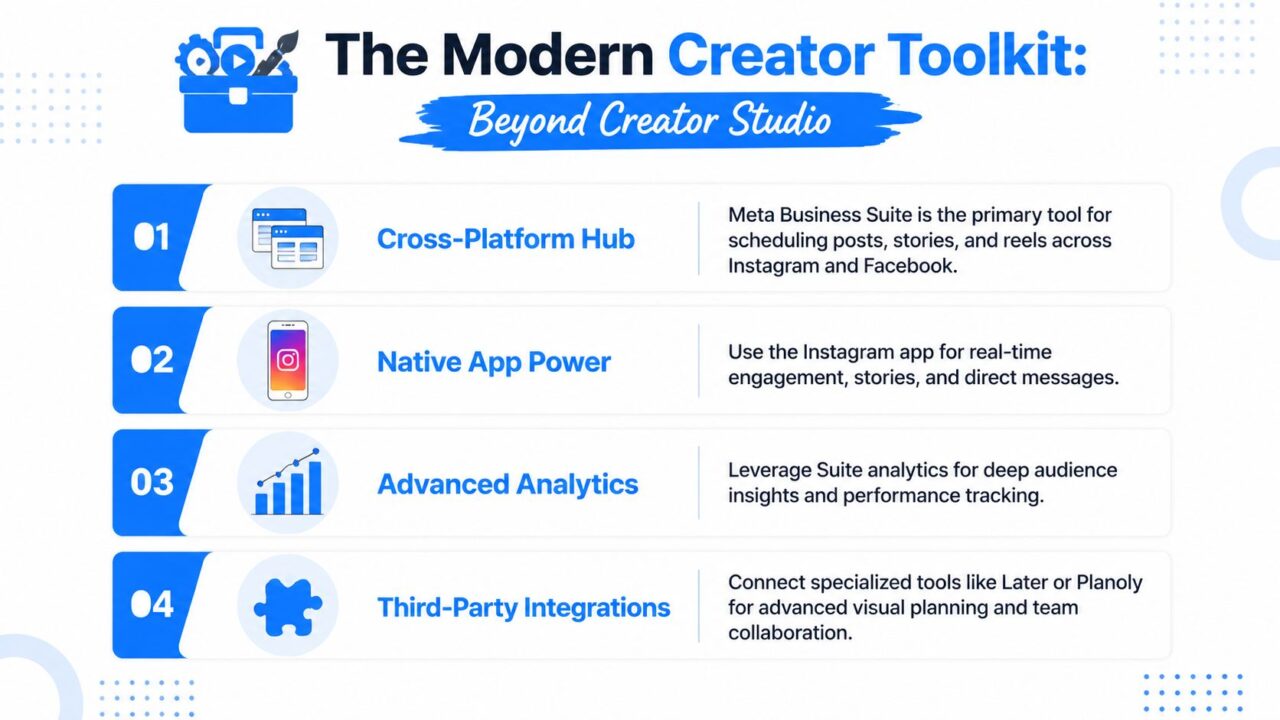
The strongest way to use IG Creator Studio now is to treat it as one part of a broader operating stack, not the center of everything. Meta Business Suite handles the cross-format scheduling gap, Instagram native analytics gives deeper post-level context, and DM automation tools can take over the repetitive conversation layer that a desktop publishing tool was never designed to solve.

IG Creator Studio Workflow Infographic
A stack that matches how teams actually work
For a DTC brand, the cleanest workflow is usually this. Scheduled posts bring people in, the inbox captures the response, a chatbot qualifies and tags the sender, and only the high-intent conversations get handed to the human team. That structure keeps the account moving even when the team is offline, which is why so many marketers now combine native tools with external automation instead of trying to force everything into one interface.
If your team handles visual-heavy campaigns, an ai fashion studio can sit upstream of the publishing workflow, especially when product visuals need fast iteration before they ever hit Instagram. That kind of tool belongs in creation, not scheduling, which is exactly why the stack needs clear boundaries.
The operating checklist for this week is simple:
- Confirm the account type on every profile you manage.
- Schedule the next two weeks of feed content where the tool still fits.
- Route Instagram DMs into a repeatable automation flow.
- Review insights every Monday before content planning.
- Move unsupported formats into the correct native or suite-based workflow.
The teams that win here aren’t the ones clinging to a deprecated dashboard. They’re the ones who keep the desktop discipline, update the toolchain, and stop wasting time on tasks that Creator Studio was never meant to solve.
If you want a cleaner Instagram operating system, Clepher can handle the DM side with flows, segmentation, and automated replies while your team keeps publishing and reporting in the right place. Visit Clepher to map your Instagram conversations, reduce manual follow-up, and build a workflow that fits the way your team works.