You’ve picked the questions your WhatsApp bot should answer, but the setup screens are asking for business IDs, tokens, templates, and a webhook URL. Meanwhile, your support team still needs access to the business number, and nobody wants to lose its chat history.
A reliable WhatsApp chatbot integration starts with those operational decisions, not the conversation builder. Settle number ownership, message permissions, consent records, and failure handling before you automate a customer interaction.
Setup Paths and Prerequisites at a Glance
| Your situation | Recommended path | What to prepare first |
|---|---|---|
| New business, no WhatsApp number yet | Register a new number on the Cloud API | A number not used on WhatsApp or the WhatsApp Business app |
| Number already on the WhatsApp Business app | Migrate it to the API after exporting chats | Exported chat history and acceptance that the app account is removed |
| Agency managing client accounts | Client-owned Business Manager with partner access | Client admin login and verified business documents |
| Small team with no developer | No-code platform connected through the API | Business Manager admin role and a platform account |
| Custom bot built by in-house developers | Direct Cloud API with your own webhook server | HTTPS domain, valid TLS certificate, and hosting for the endpoint |
| Bot that hands off to human agents | Cloud API plus a shared inbox or CRM | Agent seats, escalation rules, and a named owner for unanswered chats |
Choose who will maintain the connection, not just who can launch it. A direct integration gives developers control over routing and business logic, but your team also owns monitoring, credential rotation, and failed jobs. A no-code platform reduces that infrastructure work without removing your responsibility for message policy.
For the broader account choices, the WhatsApp for Business guide provides useful context. Shopify merchants comparing support and product-discovery workflows can also use the chatbot recommendations from RecurX to identify requirements before choosing a builder.
Gather the prerequisites
- Business access: A Meta Business Portfolio with admin rights.
- Consistent identity: A legal business name that matches your website.
- Webhook ownership: A domain you control, or a platform that manages the endpoint.
- Verifiable number: A phone number that can receive an SMS or voice code.
- Initial scope: The three to five conversations the bot must handle first, such as order tracking, returns, and product questions.
For agencies, keep the business assets under the client’s ownership. Partner access is easier to unwind than an account built inside an employee’s or agency’s portfolio.
For a migration that removes the WhatsApp Business app account, export the chats you need before starting. Don’t assume its chat history will appear in your new API inbox.
For context, Meta reported more than 200 million monthly active WhatsApp Business app users in June 2023, up from approximately 50 million in 2020, according to Kiraco’s WhatsApp business statistics; those are app users, not API customers.
How to Create Your Meta Business Account and Number
Establish ownership before credentials
Use a business-controlled login and document who can recover access. An employee’s personal access should never be the only route to the account that handles customer conversations.
-
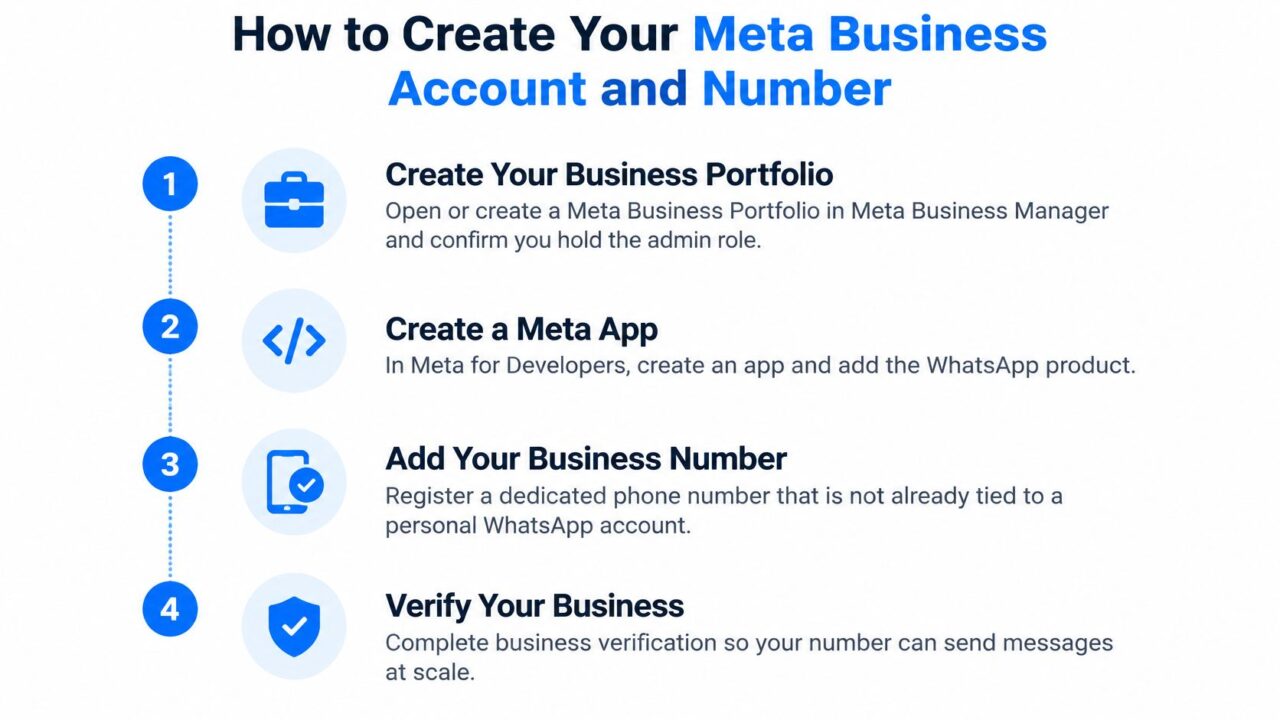
Create or open your Meta Business Portfolio. In Meta Business Manager, confirm that you hold the admin role in the correct portfolio. Being able to view an asset doesn’t necessarily mean you can assign system users, change settings, or complete the connection.
-
Create the app in Meta for Developers. Select the Business app type where offered, then add the WhatsApp product. Check the portfolio association carefully, especially if your login has access to several clients or test businesses.
-
Add and verify your business number. Open API Setup: add the phone number, and complete verification through SMS or voice. For the migration route, release a number that’s still active in consumer WhatsApp or the Business app before registration, rather than repeatedly requesting verification codes against an unresolved registration.
The account and number setup follows this sequence:
Whatsapp Chatbot Integration Meta Business
Configure access and prove sending works
-
Save the IDs and create production credentials. Copy the Phone Number ID and WhatsApp Business Account ID into clearly named configuration fields, then create a system user token with the required permissions and asset access. Temporary dashboard tokens expire, so don’t build a production bot around one; save the production token in a secrets manager, not a spreadsheet or source repository.
-
Complete business verification and submit the display name. Keep the business details consistent with your documents and website, and choose a display name customers can connect to your brand. A generic name or an unexplained mismatch creates avoidable review problems, so resolve identity issues before promoting the number.
-
Send a test template to your own phone. Use the registered sending number and an available approved test template, then confirm that the message actually arrives. An API response alone isn’t enough to establish that you’ve selected the right sender, recipient, and template configuration.
Credential rule: Treat a permanent token as a production credential, not an immortal one. Revoked permissions, asset changes, and credential rotation can still interrupt access.
Keep an access record containing the portfolio owner, app owner, account IDs, sending number, token location, and recovery contact. Record identifiers separately from secrets so support staff can diagnose account mismatches without receiving unrestricted access.
A healthy setup has a received test message, a securely saved production token, and a documented list of IDs. Nothing else should be live yet, particularly campaigns or workflows that write to your order system.
How to Connect the Webhook and Confirm Delivery
An event-driven webhook beats repeated API polling here: your application reacts to incoming messages and status changes instead of constantly asking whether anything happened.
Connect the endpoint
-
Publish an HTTPS endpoint with a valid TLS certificate. It must be reachable from the public internet, not just from a developer’s laptop. Self-signed certificates, expired certificates, and authentication screens in front of the callback URL can prevent validation.
-
Answer the verification challenge. During setup, compare the supplied verification value with your configured verify token and return the challenge when it matches. Keep this token distinct from the access token used to send API requests.
-
Subscribe to the relevant fields. Enable message events and template-status updates in the app’s webhook settings, and confirm the app is subscribed to the intended WhatsApp Business Account. A valid callback URL without the correct account subscription can leave you with a silent endpoint.
-
Acknowledge incoming POST requests quickly. Validate the request signature, persist the event to a durable queue, and return a successful HTTP response. Don’t wait for an AI answer, CRM lookup, or order update before acknowledging receipt.
-
Process events asynchronously and idempotently. Deduplicate inbound messages by message ID; distinguish status events using their message ID and event type. Protect downstream actions too, so a retried event can’t create another order or send another reply.
-
Run an end-to-end delivery check. Send a message from your own phone, let the bot respond, and inspect the inbound, sent, delivered, and available read events. Capture failure payloads rather than logging only successful requests.
Handle more than incoming text
Your event processor needs explicit handling for:
- Inbound messages: Route supported content types and provide a fallback for unsupported input.
- Message statuses: Record sent, delivered, read, and failed states without triggering the conversation again.
- Template changes: Disable affected outbound jobs when a template becomes unavailable.
- Account alerts: Notify the person responsible for restrictions or configuration problems.
At the documented maximum of 1,000 outgoing messages per second, every send produces sent, delivered, read, or failed events on top of any inbound reply, and Meta’s webhook documentation delivers all of them to the same endpoint. Status receipts for each outgoing message add substantial event volume, so size the pipeline for that combined traffic rather than for inbound messages alone.
Test acknowledgment latency, queue depth, duplicate handling, and downstream CRM failures under realistic peak traffic. A small launch never approaches that ceiling, but a queue that falls behind on status events will still delay the customer messages queued behind those events.
For ideas about useful downstream actions, what SMEs can automate with Truespeak can help separate worthwhile CRM or task automation from unnecessary complexity. Keep those actions behind the queue rather than inside the webhook request.
A delivered receipt confirms a transport outcome. A read receipt still doesn’t prove the customer booked, purchased, or resolved their problem.
Message Windows, Templates and Per-Message Costs
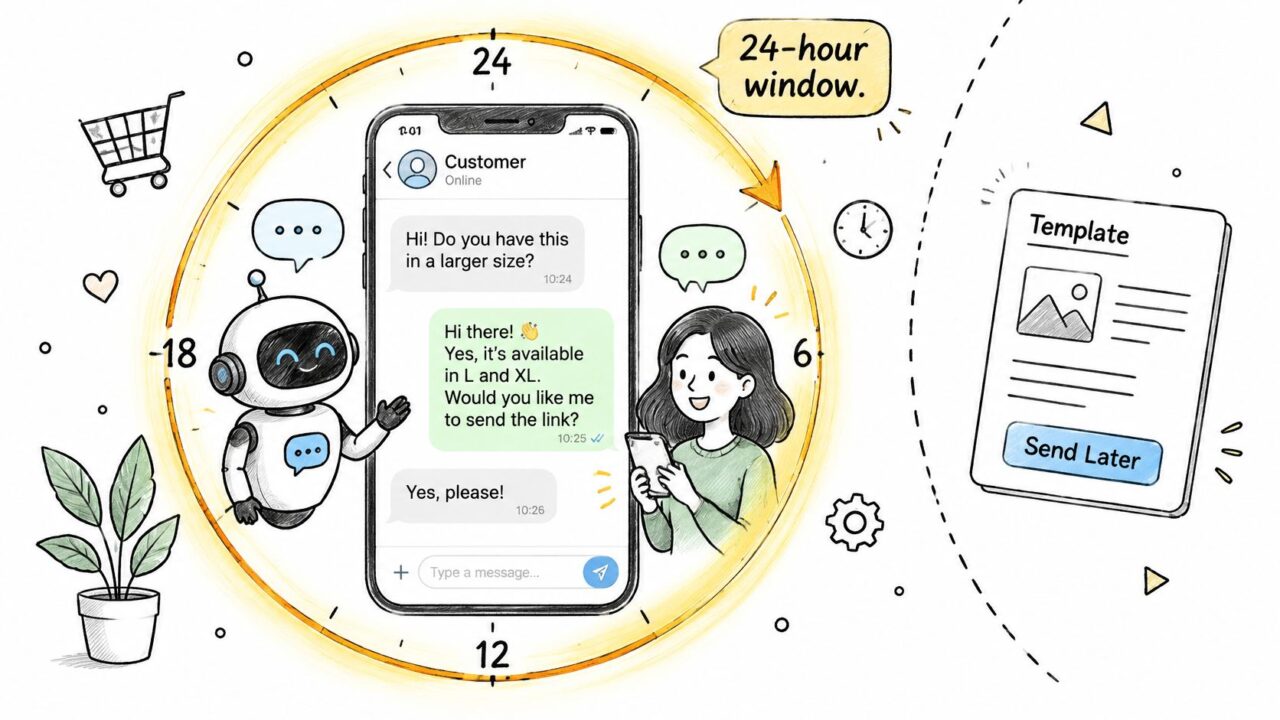
A customer message opens a 24-hour customer-service window, which resets whenever that customer messages again; during it, non-template service replies are allowed, while business-initiated messages outside it require an approved template under the WhatsApp messaging policy.
Say a shopper asks about sizing on Monday. If your bot wants to follow up on Wednesday without another customer message, it can’t send the free-form reply it drafted earlier. It needs an appropriate approved template or must wait for the customer to write again.
The practical distinction is between an active support exchange and a later outbound contact:
Whatsapp Chatbot Integration Customer Support
Classify the message before scheduling it
Meta introduced per-message pricing on July 1, 2025, and its pricing documentation distinguishes billable marketing and authentication templates from utility templates, which are free inside an open service window and billable outside it.
| Message type | When it can be sent | Billing | Typical example |
|---|---|---|---|
| Service reply | Inside the active customer-service window | Free | Answering a sizing or delivery question |
| Utility template | Outside the window for an order or account update; also usable inside it | Billable outside the window; free inside it | Shipping or payment confirmation |
| Authentication template | Any time, with customer opt-in and an approved template | Billable | One-time login code |
| Marketing template | Only after approval and a valid opt-in | Billable | Seasonal discount broadcast |
| Free-form business message | Not allowed outside the window | Not applicable outside the window | Must switch to an approved template |
For budgeting, separate Meta’s message charges from platform subscriptions, inbox seats, and engineering maintenance. The WhatsApp cost guide is a useful companion when mapping those expenses to your planned workflows.
The billing difference is tangible: a marketing template plus two utility updates outside an active window produces three charges; send those utility updates inside the active window and only the marketing message is charged, under the pricing rules linked above. Don’t delay an important transactional update merely to chase a cheaper send, though.
Give templates distinct business purposes
Create separate templates for a promotional sale, an order confirmation, and a login code. Under Meta’s template overview, templates require approval and must be used for their designated purpose; Meta can also pause or reject them.
Adding a discount pitch to a shipping confirmation isn’t harmless copy editing. It changes the message’s purpose and creates classification risk.
Keep a template register containing:
- Purpose and category: The customer action or business event that justifies sending.
- Variables: Where each value comes from and what happens if it’s missing.
- Operational owner: Who fixes copy, approvals, and paused templates.
- Fallback: What the workflow does when the template can’t be sent.
For a visual walkthrough alongside your implementation work:
Check window eligibility when the job executes, not only when it’s scheduled. A queued support reply may no longer be eligible by the time a delayed worker attempts to send it.
Classify every automation before launch. Category, timing, and template availability belong in the workflow’s conditions because they determine both permission to send and cost.
Fixing Rate Limits and Common Setup Failures
The surprising bottleneck is often the individual customer, not your broadcast audience. Meta’s Cloud API overview documents one message every six seconds to the same user, approximately 10 per minute or 600 per hour, alongside a default capacity of 80 messages per second per registered number, with automatic upgrades up to 1,000 for eligible numbers; bursts of up to 45 messages in six seconds borrow against that recipient’s future allowance rather than creating sustainable extra capacity.
That’s why a bot can pass an aggregate throughput test and still fail during a busy support exchange. Sending a greeting, explanation, tracking result, and follow-up as separate messages creates unnecessary pressure on the same recipient.
Diagnose the failing layer
| Symptom | Likely cause | Fix |
|---|---|---|
| Some users stop getting replies | Bursts exceed the per-recipient allowance | Use a per-user queue with exponential backoff |
| Rate-limit errors during a broadcast | Fan-out exceeds the number’s per-second capacity | Throttle sends to the current tier and spread the load |
| Template stays pending or is rejected | Copy doesn’t match its category or lacks a clear use case | Review the status, rewrite for the correct category, and resubmit where needed |
| Dashboard shows delivered, but no sales | Delivery status is treated as customer action | Track replies and conversions, not receipts |
| Webhook never fires | Callback validation or account subscription is incomplete | Inspect endpoint access and confirm the account subscription |
| Duplicate orders appear | Retried events repeat downstream writes | Add an idempotency key to order creation |
Don’t resubmit a pending template repeatedly without checking its review state. For a rejection, inspect the reason and change the actual mismatch rather than swapping a few words while keeping the same ambiguous purpose.
If every outbound request suddenly fails, inspect authentication and permissions before rewriting the conversation flow. Record the API error code, request context, sending number, and template identifier so you can distinguish an expired credential from a policy or recipient problem.
Control sends at the recipient level
Use a delayed-job queue or token bucket keyed by normalized phone number. Otherwise, differently formatted versions of the same number can bypass your throttle and create conflicting contact records.
- Combine related answers: Return the order status and tracking details together instead of sending a sequence of fragments.
- Reserve transactional capacity: Don’t let a promotional batch delay support replies or payment confirmations.
- Retry selectively: Apply exponential backoff to retryable failures, not endless retries to invalid requests.
- Escalate persistent failures: Create a human-support task with the error context instead of repeatedly messaging the same recipient.
Testing advice: Broadcast fan-out and intensive support chats need different load tests. Passing one doesn’t establish that the other works.
Test a broad campaign against many recipients separately from a support scenario with concentrated conversation activity. Include unavailable templates, revoked access, delayed workers, and downstream outages in the rehearsal.
Also monitor account and template constraints rather than assuming phone-number throughput is your only limit. A faster sending queue won’t repair a restricted account or make an unavailable template usable.
Confirm Consent and Launch Your First Flow
Consent is a launch condition, not a field to populate later. The WhatsApp opt-in guidance requires people to provide their phone number and agree to be contacted by your business on WhatsApp before outreach begins.
A checkout checkbox, lead form, or QR-code journey should identify the business, channel, message purpose, and expected frequency. A scan that merely opens a page isn’t a substitute for recording what the person agreed to.
Keep permission usable and auditable
Store the timestamp, source, exact consent wording, locale, and withdrawal status. Check suppression at send time so a previously queued promotion doesn’t reach someone who has since opted out.
Keep transactional preferences separate from promotional permissions. The practical workflows in consent management and GDPR help frame the recordkeeping work, although your wider privacy obligations still need their own review.
For cross-channel nurturing, Class A Media’s drip email guide offers useful sequencing ideas. Borrow the discipline of relevant triggers, not the assumption that email permission authorizes WhatsApp outreach.
Define the AI boundary
Meta’s updated terms took effect for existing AI providers on January 15, 2026, restricting assistants where AI is the primary functionality while permitting customer-service automation where AI is ancillary to the business’s core service, as TechCrunch reported.
Before launch, document:
- Business purpose: Define the bot around your orders, products, bookings, or support.
- Human escalation: Give customers a clear route to an accountable person.
- Data boundaries: Restrict model training on WhatsApp conversation data and review external AI processing.
- Non-AI fallback: Keep menus, approved answers, and human routing available if generation is unavailable.
A narrowly useful bot is easier to govern than an unrestricted assistant. Track complaints, opt-outs, unresolved conversations, and completed customer tasks alongside conversions.
For teams coordinating channels, we offer 2-way integrations for Messenger and Instagram chatbots, with Email and SMS available inside Chatbot Flows. New users can create their first chatbot with the Step-by-Step Wizard.
Start this week with a narrow order-status or store-locator flow and a small opted-in audience. Choose a two-week pilot, review replies and complaints, and expand only when the workflow resolves the intended task without creating permission or support problems.
Clepher offers no-code chatbot Flows for lead qualification, customer support, and sales automation on Messenger and Instagram, helping you turn a defined customer task into a manageable conversation. Visit Clepher to build a focused flow with the Step-by-Step Wizard, and apply the same narrow-scope approach to your WhatsApp rollout.